
Infrastructure
Browser Terminal Access: Command-Line WordPress Development Without SSH Complexity
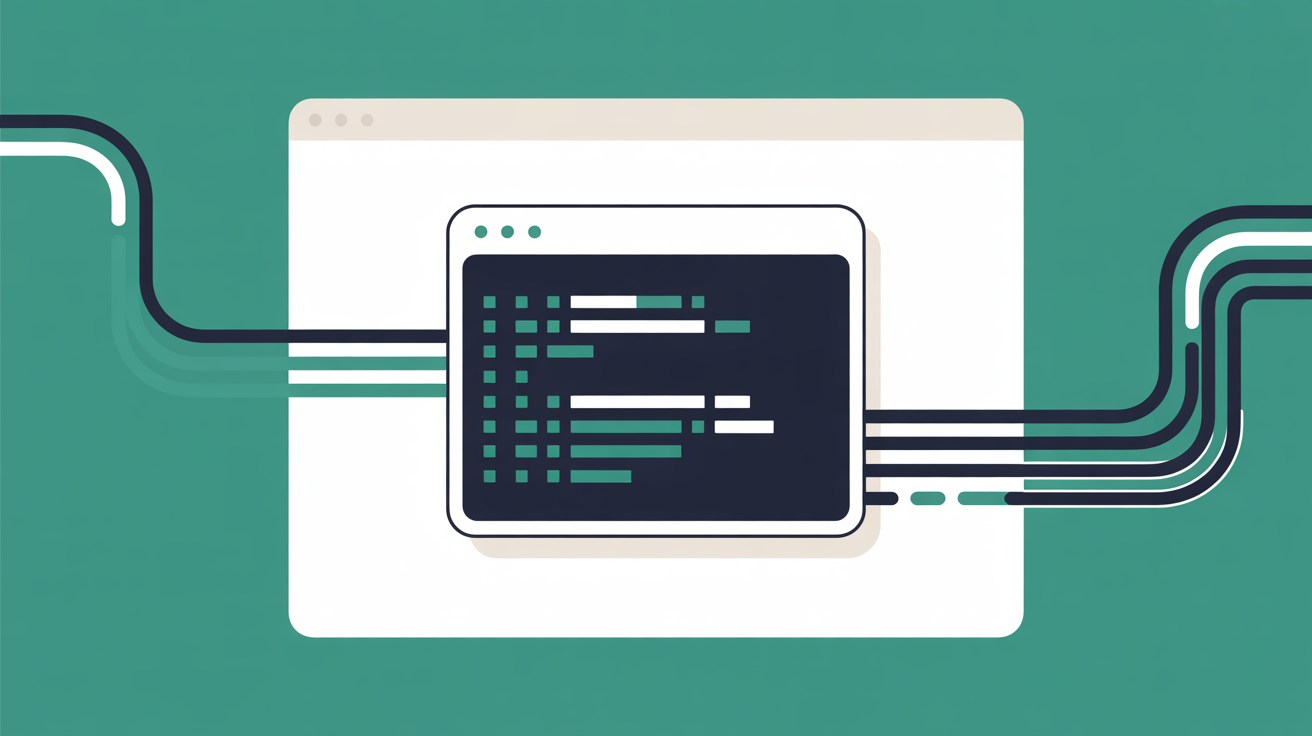
Marcus hits Ctrl+C for the third time this morning, watching the SSH connection timeout again. He is trying to run WP-CLI commands on a client's WordPress site from their Dublin office, but the corporate firewall blocks port 22. No SSH means no command-line access. No command-line access means he cannot bulk-update plugins, cannot export the database properly, cannot run the performance diagnostics that would take thirty seconds in terminal but three hours through the WordPress admin. This is a composite scenario based on common patterns we see, developers frustrated by infrastructure they cannot control, reduced to clicking through admin panels like beginners when they should be deploying professional workflows.
The SSH Barrier: Why Command-Line Access Has Been Developer-Only
SSH access requires three things most businesses do not have: technical knowledge to generate and manage key pairs, network infrastructure that allows outbound connections on port 22, and the patience to configure PuTTY on Windows or remember terminal commands on macOS. This complexity has kept WordPress command-line tools locked away from developers who need them most.
Traditional SSH setup involves generating public-private key pairs, uploading the public key to your server, configuring your local SSH client with the correct port and authentication method, and hoping your network administrator has not blocked the connection. SiteGround uses port 18765 instead of the standard 22, adding another configuration step. WP Engine routes SSH through a gateway with 10-minute session timeouts.
Corporate firewalls compound the problem. IT departments block SSH because they see it as a security risk, an open tunnel that could be exploited. They are not wrong. SSH gives complete server access to anyone with valid credentials. For a marketing agency working from client offices, this means no command-line access when you need it most.
WP-CLI, WordPress's official command-line interface, transforms how developers work. Instead of clicking through plugin updates one by one, wp plugin update --all handles everything instantly. Instead of exporting databases through phpMyAdmin's timeout-prone interface, wp db export creates clean SQL files in seconds. Instead of searching-and-replacing URLs through WordPress admin panels that break with serialised data, wp search-replace handles complex migrations safely.
But if you cannot SSH to the server, you cannot use any of these tools.
Browser Terminal: The SSH Alternative That Works Everywhere
Browser terminal access eliminates every SSH barrier. No client software installation. No key management. No firewall configuration. Any device with a modern web browser becomes a WordPress development workstation.
Rocket.net introduced web-based WP-CLI terminal access in May 2023, recognising that developers needed command-line power without SSH complexity. The implementation runs a terminal emulator directly in the browser, typically using libraries like xterm.js, which powers VS Code's integrated terminal and other professional development environments.
Browser terminals connect through HTTPS, the same protocol that loads WordPress admin panels. If you can access your hosting dashboard, you can access the terminal. Corporate firewalls that block SSH port 22 have no problem with HTTPS traffic on port 443.
The browser becomes your SSH client. Commands execute on the server exactly as they would through traditional SSH, but the interface renders in your browser tab. Copy and paste work normally. Command history persists across sessions. Multiple terminal tabs run simultaneously.
For developers working across client locations, this changes everything. The same WP-CLI commands that worked from your office work from the client's conference room, from the coffee shop, from the train. No network configuration. No IT approval process. No explanation to reception about why you need special firewall rules.
I recommended a popular page builder to a client in Cork three years ago. Their PageSpeed score dropped 20 points the week after launch. Took me a while to connect the dots. Would not make that call again. Browser terminal means I can run performance diagnostics immediately, from any location, without depending on local network policies.
WordPress CLI Commands That Transform Your Browser
Browser terminal gives you the full WP-CLI toolkit through any web browser. Every command that works through SSH works through the browser interface.
Database Operations That Actually Work:
wp db export backup-$(date +%Y%m%d).sql creates timestamped database backups without phpMyAdmin's memory limits. wp db search-replace old-domain.com new-domain.com handles URL changes in serialised WordPress data correctly, something the WordPress admin's search-and-replace cannot do safely.
Plugin Management At Scale:
wp plugin update --all --dry-run shows which plugins need updates without actually updating them. wp plugin activate --all or wp plugin deactivate --all handles bulk operations instantly. wp plugin delete inactive removes plugin files that accumulate over time.
Theme and Content Operations:
wp theme install theme-slug --activate installs and activates themes directly from the WordPress repository. wp post delete $(wp post list --post_status=draft --format=ids) removes draft posts in bulk. wp media regenerate rebuilds image thumbnails after changing theme image sizes.
Cache and Performance Commands:
wp cache flush clears object cache immediately. wp rewrite flush updates permalink structure without visiting WordPress admin. wp cron event run --all processes scheduled tasks manually.
Site Health and Diagnostics:
wp core verify-checksums checks for modified WordPress core files. wp plugin verify-checksums --all does the same for plugins. wp db check verifies database integrity.
Browser terminal maintains full command history and supports command completion. Tab completion works for WP-CLI commands, making it as functional as native terminal applications.
Corporate Networks: Where Browser Terminal Wins
Corporate IT departments understand HTTPS. They monitor it, they secure it, they allow it. SSH remains suspicious, a protocol they associate with server administration and potential security breaches.
Enterprise networks often implement SSH restrictions through multiple layers: firewall rules blocking port 22, proxy servers that inspect outbound connections, and security policies that prevent installation of SSH clients like PuTTY or Terminal. These same networks readily allow HTTPS traffic because it powers every web application the business depends on. For a deeper look, see professional WordPress development toolkit.
Browser terminal leverages this existing trust relationship. The connection uses the same encryption standards as online banking. Traffic flows through monitored HTTPS channels. No additional ports, no special protocols, no security exceptions required.
For agencies working on client premises, this eliminates the awkward conversation with IT support. No explaining why you need SSH access. No requesting firewall exceptions. No installing software on client machines. Your development workflow works immediately, using infrastructure that already exists.
Remote work amplifies these benefits. Home networks, co-working spaces, client offices, conference venues, every location handles HTTPS traffic reliably. SSH support varies wildly depending on router configuration and ISP restrictions.
Consider a typical scenario: an agency developer needs to migrate a client's WordPress site during a weekend maintenance window. The client's office network blocks SSH, but the migration cannot wait until Monday. Browser terminal means the migration runs on schedule, from any location with internet access.
Enterprise managed WordPress providers like Kinsta and WP Engine offer SSH access, but pricing starts at €35 monthly. For most Irish businesses, that enterprise-tier cost structure does not match the complexity of their WordPress requirements.
Security: How Browser Terminal Stays Safe
Browser terminal security relies on the same HTTPS encryption that protects online banking and e-commerce transactions. Commands travel through encrypted channels between your browser and the server.
Authentication happens through your hosting dashboard login, typically protected by the same password policies and two-factor authentication that secures your WordPress admin access. No separate credential management. No SSH key files stored on local machines that could be compromised.
Session management provides additional security layers. Browser terminals typically implement automatic timeouts, ending inactive sessions without manual logout. This prevents abandoned sessions from remaining accessible on shared or unattended computers.
The browser sandbox adds another security boundary. Terminal commands execute on the server, but the browser environment isolates the interface from local system access. Malicious commands cannot escape the browser tab to affect the local machine.
Traditional SSH requires storing private keys locally, usually in hidden folders that users forget about. These key files, if compromised, provide direct server access until manually revoked. Browser terminal eliminates this local key storage vulnerability.
Network security improves as well. HTTPS traffic blends with normal web browsing patterns, making it harder for network monitoring tools to identify and potentially block development activities. SSH traffic stands out in network logs as administrative activity.
One limitation worth noting: browser terminals depend on stable internet connections. Unlike SSH clients that can maintain connections through brief network interruptions, browser sessions typically terminate if connectivity drops for more than a few seconds. For long-running operations, traditional SSH with screen or tmux still offers better reliability.
Performance and Practical Limitations For a deeper look, see command-line control for WordPress development.
Browser terminals perform well for typical WordPress development tasks: running WP-CLI commands, editing configuration files, viewing logs, managing backups. Response time matches SSH clients for interactive commands.
Memory usage varies by browser, but modern implementations optimise for efficiency. Browser terminal tabs consume comparable resources to other web applications, integrating naturally into existing development workflows.
Command history and session persistence work reliably across browser tabs and windows. Most implementations maintain command history between sessions, providing the continuity developers expect from native terminal applications.
However, browser terminals cannot match native SSH clients for intensive operations. Large file transfers work better through SFTP clients. Long-running scripts benefit from SSH with screen or tmux session management. Database imports exceeding several hundred megabytes may timeout in browser environments where they would complete through direct SSH connections.
Copy-paste functionality sometimes behaves differently than native terminals. Complex multi-line commands or formatted text may require adjustment when pasting from documentation or scripts.
Browser terminal sessions typically cannot run background processes after the browser tab closes. Commands that spawn long-running tasks need to complete within the active session, unlike SSH sessions that can detach and continue running on the server.
For most WordPress development workflows, plugin updates, cache clearing, database exports, content management, these limitations rarely matter. Browser terminal handles the commands developers run daily without the setup complexity that SSH requires.
When Traditional SSH Still Makes Sense
If you are managing enterprise WordPress deployments with dedicated DevOps teams and complex deployment pipelines, traditional SSH infrastructure genuinely suits that workload better. Teams that run automated deployment scripts, manage multiple environments through configuration management tools, or require persistent background processes need the full power that SSH provides.
Developers who primarily work from controlled network environments, office locations with properly configured SSH access, may prefer native terminal applications for their superior performance with large operations and advanced session management features.
Browser terminal excels for mixed-environment development: agencies working from client locations, remote developers connecting from various networks, businesses that need command-line power without IT infrastructure complexity.
Web60 includes browser terminal access as part of our developer-first approach to managed WordPress hosting. Our Irish infrastructure means your commands execute from Dublin data centres, eliminating the latency that affects overseas hosting providers. Try building your site in 60 seconds to see how browser terminal integrates with professional WordPress development workflows that do not sacrifice usability for power.
Conclusion
Browser terminal removes the last barrier between developers and professional WordPress workflows. SSH complexity, firewall restrictions, and client software dependencies no longer determine whether you can run proper diagnostic commands, manage plugins efficiently, or handle database operations safely. Every modern browser becomes a WordPress development environment.
The infrastructure shift is subtle but significant. When command-line access works everywhere, developers make different decisions about where and how they work. Remote collaboration improves. Client site maintenance becomes more flexible. Professional WordPress management no longer requires compromising on tools or techniques.
For Irish businesses ready to move beyond clicking through admin panels, the question becomes whether your hosting platform provides the browser terminal access that makes advanced WordPress management practical from any location.
Frequently Asked Questions
Do I need to install any software to use browser terminal?
No, browser terminal works through any modern web browser without installing additional software. Chrome, Safari, Firefox, and Edge all support browser terminal interfaces. You access it through your hosting dashboard like any other web application.
Can I run WP-CLI commands through browser terminal?
Yes, browser terminal provides full WP-CLI access. All WordPress command-line tools work exactly as they would through SSH: plugin management, database operations, cache clearing, content management, and diagnostic commands. The functionality is identical, just delivered through your browser.
Is browser terminal secure for WordPress development?
Browser terminal uses HTTPS encryption and authenticates through your existing hosting dashboard login. This provides comparable security to SSH while eliminating the need to manage private key files locally. Sessions timeout automatically, and the browser sandbox provides additional isolation.
Will browser terminal work if my company blocks SSH?
Yes, that is precisely the problem browser terminal solves. It uses HTTPS traffic on port 443, the same protocol that loads web pages and web applications. Corporate firewalls that block SSH port 22 typically allow HTTPS traffic without restrictions.
Can I use browser terminal for large database operations?
Browser terminal handles typical WordPress database operations well: exports, imports, search-replace commands, and maintenance tasks. For very large databases (several gigabytes), traditional SSH with proper session management may prove more reliable for extended operations.
Does browser terminal maintain command history between sessions?
Most browser terminal implementations preserve command history across sessions, similar to native terminal applications. You can use up-arrow navigation and command completion features as you would in traditional SSH sessions.
Sources
WordPress.com Support Documentation - https://wordpress.com/support/cpanel/
Rocket.net Blog: Introducing Web-Based WP-CLI Terminal - https://rocket.net/blog/introducing-web-based-wp-cli-terminal-for-managed-wordpress-hosting/
SiteGround Knowledge Base: SSH Access - https://www.siteground.com/kb/how_do_i_activate_ssh_access_for_my_account/
xterm.js Official Website - https://xtermjs.org/
WordPress.org Plugin Repository: WPTerm - https://wordpress.org/plugins/wpterm/

Graeme Conkie founded SmartHost in 2020 and has spent years building hosting infrastructure for Irish businesses. He created Web60 after seeing the same problem repeatedly — Irish SMEs paying too much for hosting that underdelivers. He writes about WordPress infrastructure, server security, developer workflows, managed hosting strategy, and the real cost of hosting decisions for Irish business owners.
More by Graeme Conkie →Ready to get your business online?
Describe your business. AI builds your website in 60 seconds.
Build My Website Free →More from the blog
Complete Guide: Converting Your Web60 Demo to a Live WordPress Website
Convert your Web60 WordPress demo to a live website in 15 minutes. Keep all content, settings, and customizations without starting over. No rebuild required.
Advanced WordPress Settings: Why Irish Developers Don't Need Server Access Anymore
Professional WordPress configuration doesn't require root access. Control memory limits, caching, security through modern hosting interfaces. Irish developers deserve better.