

Web60 Features
Never Break Your Live Website Again: The Complete Guide to Staging Environments
You know that sinking feeling when you click 'Update' on a plugin and your website immediately throws up a white screen of death. Or when you test a new theme tweak and suddenly your homepage looks like it's been through a blender. Your heart pounds as you frantically try to undo whatever you just did, knowing that every minute your site is broken, potential customers are bouncing straight to your competitors.
If you've ever broken your live website while making what seemed like a harmless change, you're not alone. It happens to the best of us. But what if I told you there's a way to test every update, every plugin installation, every design tweak without ever risking your live site? That's where staging environments come in, and they're not just for big agencies with technical teams anymore.
That Sinking Feeling When Your Website Goes Down
Let me paint a picture you'll probably recognise. It's a Tuesday afternoon, and you decide to update that contact form plugin that's been nagging you with notifications for weeks. Simple enough, right? Click update, wait for the green checkmark, job done.
Except this time, instead of the usual success message, you're staring at a blank white screen where your website used to be. Panic sets in immediately. You try refreshing. Still nothing. You clear your browser cache, try a different browser, even grab your phone to check on mobile. All blank.
Now you're frantically googling 'how to fix white screen WordPress' while simultaneously calculating how much revenue you might be losing every minute your site is down. For Irish SMEs, even a few hours of downtime can mean lost sales, missed enquiries, and damaged credibility with customers who might assume you've gone out of business.
Research from ITIC shows that 91% of businesses now face downtime costs exceeding €300,000 per hour, with some facing over €1 million in losses from a single hour offline. Even for smaller operations, the average SME loses around €2,500 monthly during just 5 hours of downtime. More damaging still, studies show that 9% of visitors who find your site down never return.
The frustrating part? Most of these disasters are completely preventable. That plugin update that broke your site? It would have broken your staging environment first, giving you a chance to fix the compatibility issue before it ever reached real customers. That theme customisation that seemed perfect on your laptop? You'd have spotted the mobile display issues on staging before they went live.
What Exactly Is a Staging Environment?
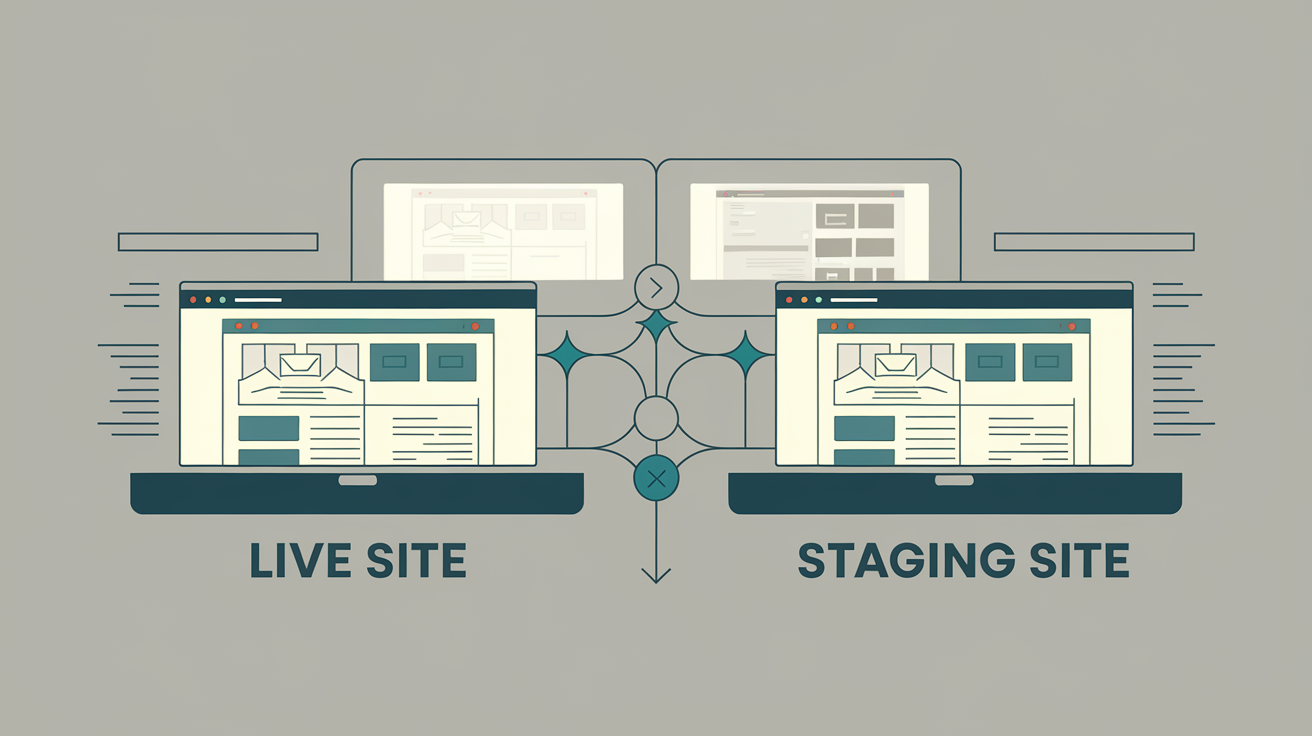
Think of a staging environment as your website's identical twin. It's an exact copy of your live site, running on the same server infrastructure, with all the same content, plugins, themes, and settings. The key difference? Nobody except you can see it.
When you want to test a plugin update, install a new theme, or make content changes, you do it on the staging site first. If something breaks, no harm done. Your live site continues running perfectly while you fix the issue on staging. Only when everything works exactly as expected do you push those changes to your live site.
The beauty of staging environments lies in their completeness. This isn't just a preview feature or a development sandbox. Your staging site runs on the same performance optimisations, the same security configurations, and the same server setup as your live site. If a change works perfectly on staging, you can be confident it'll work on the live site too.
Traditionally, staging environments were the domain of developers and large agencies with technical teams. Setting up staging required server administration knowledge, complex deployment workflows, and ongoing maintenance. For most Irish SMEs, it simply wasn't feasible.
That's changing rapidly. Modern managed WordPress hosts like Web60 now offer one-click staging environments that work exactly like your live site but require zero technical knowledge to use. You're not just getting a basic copy - you're getting the full infrastructure stack, including Redis object caching, FastCGI page caching, and all the performance optimisations that make your live site fast.
The Real Cost of Testing Changes on Your Live Site
Every time you make changes directly to your live website, you're essentially gambling with your business. The stakes vary depending on when you make changes and how critical your website is to your operations, but the potential losses can be substantial.
Consider the immediate financial impact. Small businesses face downtime costs ranging from €120 to €380 per minute according to Pingdom's latest research. For an e-commerce site during peak shopping hours, even 15 minutes of downtime from a broken plugin update could cost hundreds in lost sales.
But the damage extends beyond immediate lost revenue. Search engines notice when sites go down repeatedly. Google's algorithms factor site reliability into rankings, meaning frequent outages can hurt your search visibility for months. Customer trust, once damaged, takes far longer to rebuild than the few minutes it takes to fix a broken plugin.
There's also the hidden cost of stress and lost productivity. How many hours have you spent frantically trying to fix a site you accidentally broke? Time you could have spent on actual business development instead of emergency damage control.
For a Cork hair salon trying to compete with chain franchises, a broken booking system during the busy Saturday morning rush doesn't just mean lost appointments. It means potential clients calling competitors instead, and some of those clients might never come back.
The irony is that most website disasters happen when you're trying to improve things. That new booking plugin that promised better functionality? The theme update that fixed a security vulnerability? The content changes that were supposed to improve your conversion rate? These improvements become disasters when they're tested on live sites instead of staging environments first.
How Web60's Staging Works (Without the Technical Headaches)
Web60's approach to staging environments eliminates the traditional barriers that kept this professional practice away from smaller businesses. Included as standard in Web60's feature set, you get a simple one-click process that creates an exact replica of your live site.
Here's what makes Web60's staging different from the enterprise-focused solutions you might have encountered elsewhere. When you create a staging environment, you're not getting a stripped-down preview version. The staging site runs on the same WordOps stack as your live site, complete with Nginx, PHP-FPM, Redis object caching, and FastCGI page caching.
This means your staging environment performs exactly like your live site. Plugin compatibility issues, theme conflicts, or performance problems that would occur on your live site will show up on staging first. You're not just testing functionality - you're testing the complete user experience.
The synchronisation process handles all the technical complexity automatically. When you're ready to push approved changes from staging to live, Web60 handles the database updates, file transfers, and cache clearing without requiring any server administration knowledge.
For businesses that can't afford to hire dedicated developers, this accessibility is crucial. You get the same professional staging practices that large agencies use, but without needing to understand server configurations, deployment scripts, or database management.
Compare this to enterprise-focused competitors like WP Engine, where staging workflows assume you have dedicated DevOps teams managing complex deployment pipelines. If you're running 50 WooCommerce stores with a dedicated technical team billing €200k annually, those enterprise workflows genuinely suit that operation. But that's not most Irish businesses.
Web60's staging integrates smoothly with other managed WordPress features too. Your staging site includes the same automatic malware scanning, server-level security hardening, and fail2ban intrusion prevention as your live site. When you test changes on staging, you're testing them in the exact security environment they'll run in when live. You can check out Web60's hosting features to see what this means in practice. You can see how Web60 works to see what this means in practice.
Step-by-Step: Your First Staging Test
Let's walk through creating and using your first staging environment with a practical example. Imagine you want to install a new e-commerce plugin to add product reviews to your WooCommerce store.
Step 1: Create Your Staging Environment Log into your Web60 dashboard and navigate to the staging section. Click 'Create Staging Site' and wait while the system creates an exact copy of your live site. This typically takes 2-3 minutes depending on your site size.
Step 2: Access Your Staging Site Once creation is complete, you'll see a staging URL that looks like staging-yoursite.smartsitebuilder.ie. This is your testing playground. Bookmark this URL for easy access during testing phases.
Step 3: Install and Test the Plugin Navigate to your staging site's WordPress admin (the URL will be staging-yoursite.smartsitebuilder.ie/wp-admin). Install your review plugin exactly as you would on the live site. Configure all the settings, test the functionality, and check how it displays on different devices.
Step 4: Identify and Fix Issues In our example, you might discover the review plugin conflicts with your existing theme, creating layout issues on mobile devices. On staging, this is just a problem to solve. On your live site, this would be a business emergency.
Step 5: Verify Everything Works Once you've resolved any compatibility issues, thoroughly test the plugin functionality. Submit test reviews, check email notifications, verify the reviews display correctly across your site.
Step 6: Push Changes to Live When everything works perfectly on staging, use Web60's sync feature to push the changes to your live site. The system handles all the technical details of transferring files, updating databases, and clearing caches.
Step 7: Final Live Site Check After the sync completes, quickly verify everything works as expected on your live site. Since you've thoroughly tested on an identical staging environment, there should be no surprises.
This entire process might take 30-45 minutes, but it eliminates any risk of breaking your live site during plugin installation. Compare this to the traditional approach of installing directly on live sites and hoping for the best.
Common Staging Scenarios for Irish SMEs
Different types of businesses face different website risks, but staging environments provide value across all scenarios. Here are the most common situations where Irish SMEs benefit from staging:
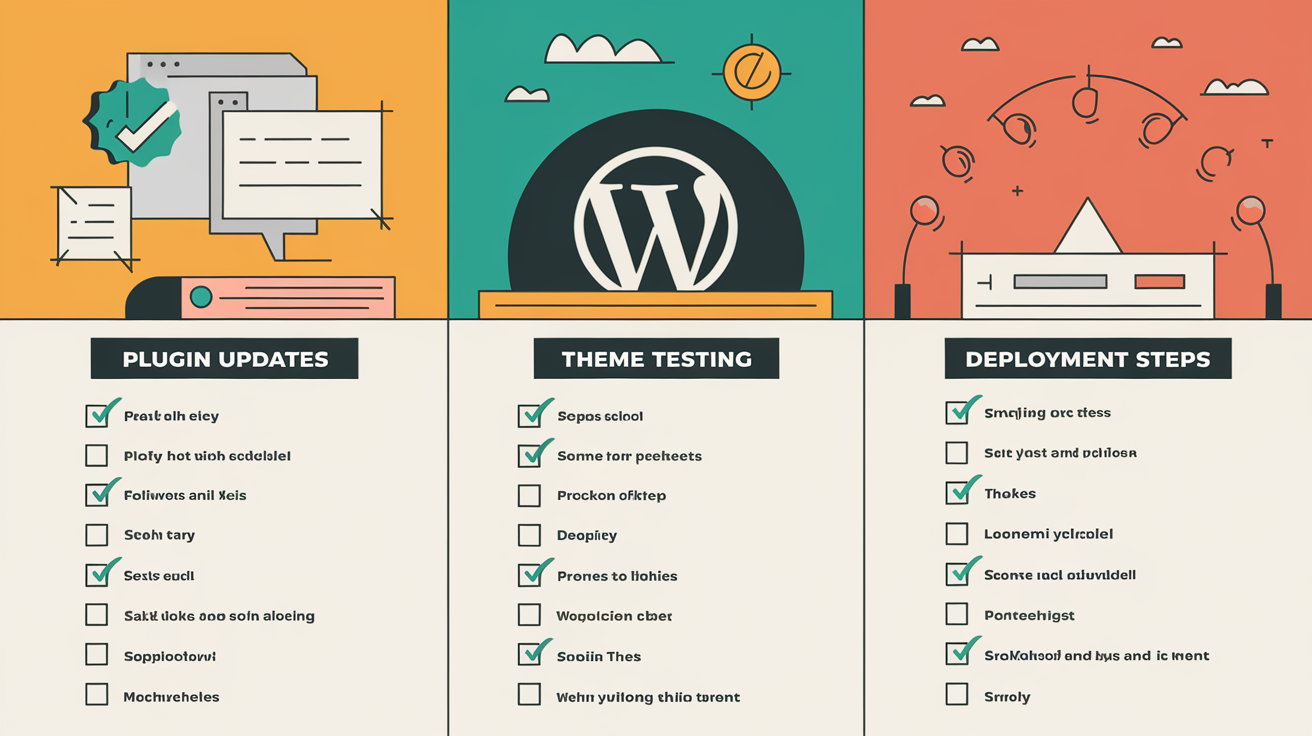
WordPress Core and Plugin Updates Every WordPress site needs regular security updates, but plugin compatibility issues can break functionality. Staging lets you test updates safely, identifying conflicts before they affect customers.
Theme Customisations Whether you're tweaking CSS for better mobile display or installing a completely new theme, staging prevents design disasters from reaching your audience. This is particularly crucial for retail businesses where visual presentation directly impacts sales.
E-commerce Changes WooCommerce updates, payment gateway modifications, or shipping configuration changes can break checkout processes. Testing these on staging ensures customers can always complete purchases.
Content Strategy Testing Major content restructuring, new page layouts, or navigation changes benefit from staging tests. You can gather feedback from team members or trusted customers before making changes live.
SEO Optimisation Plugin installations for SEO improvements, schema markup additions, or sitemap modifications should be tested on staging first. SEO mistakes can take months to recover from in search rankings.
Performance Optimisation Caching plugin installations, CDN configurations, or database optimisations require careful testing. Performance changes that break functionality defeat their purpose entirely.
Third-party Integrations CRM connections, email marketing integrations, or booking system installations often require configuration testing to ensure data flows correctly between systems.
The pattern across all these scenarios is the same: changes that seem simple often have unexpected consequences. Staging environments let you discover and resolve these consequences safely.
When Staging Saves Your Business (Real Examples)
The value of staging environments becomes clearest when you see real scenarios where they prevented disasters. These examples illustrate why staging is business insurance, not just a technical convenience.
The Security Update That Wasn't A Limerick accountancy firm received urgent security update notifications for their appointment booking plugin. The update promised to fix a critical vulnerability, so they installed it immediately on their live site during tax season rush. The update broke their entire booking system, preventing clients from scheduling essential meetings during their busiest period.
With staging, they would have discovered the booking system incompatibility before it affected real clients. The fix required rolling back the update and finding an alternative security solution - work that could have been done safely on staging without disrupting business operations.
The Theme That Looked Perfect (Until It Didn't) An online retailer found the perfect new theme that promised better mobile conversion rates. The theme looked flawless in the demo, but after installing it on their live site, they discovered it broke their product filtering system. Customers couldn't narrow down product searches, effectively making the site unusable for finding specific items.
The theme installation happened on a Friday evening. By Monday morning, they'd lost an entire weekend of sales while frantically trying to restore functionality. Staging would have revealed the filtering incompatibility immediately, allowing them to find solutions before customers were affected.
The Plugin Conflict Discovery A professional services firm wanted to add live chat functionality to improve client communication. They installed what seemed like a simple chat plugin, but it conflicted with their existing contact form system. Suddenly, potential clients couldn't submit enquiry forms through the website.
The conflict wasn't obvious because both systems worked fine independently. Only when running together did the JavaScript conflict emerge. On staging, this would have been detected during testing. On the live site, it meant lost business enquiries until the conflict was resolved. For related reading, see our guide on Your Website Data Stays in Ireland: Why Data Sovereignty Matters for Irish Businesses. For related reading, see our guide on WordPress Security & Backup: The Complete Guide for Irish Websites.
The Performance 'Improvement' That Wasn't A restaurant installed a caching plugin promised to improve their site speed, hoping to enhance their online ordering experience. Instead, the caching configuration broke their dynamic menu pricing, showing outdated prices to customers. Orders came in at incorrect prices, creating confusion and lost revenue.
Testing the caching plugin on staging would have revealed the dynamic content issues immediately. They could have configured the caching properly or chosen a different solution without affecting real customer orders.
These scenarios share a common thread: well-intentioned improvements became business problems because they were tested on live sites instead of staging environments first.
Making Staging Part of Your Website Routine
The goal isn't just to use staging environments occasionally - it's to make them a standard part of how you manage your website. This shift from reactive troubleshooting to proactive testing transforms how you approach website management.
Establish a Testing Schedule Set aside time monthly for testing updates and improvements. Rather than installing updates as they arrive, batch them for testing on staging during planned maintenance windows. This approach prevents update fatigue while ensuring your site stays secure and current.
Create a Pre-Launch Checklist Develop a standard checklist for testing changes on staging before going live. Include functionality testing, mobile responsiveness checks, performance verification, and user experience reviews. Consistent testing processes catch issues more reliably than ad-hoc approaches.
Document Your Staging Process Keep notes about what you test and when. If a particular plugin has caused issues before, you'll remember to pay extra attention during future updates. Documentation also helps if you need to train team members on staging procedures.
Plan for Peak Season Testing Before busy periods like Christmas shopping or tax season, use staging to test your site under expected load conditions. Install any necessary updates well in advance, ensuring your site performs optimally when you need it most.
Integrate Staging with Content Planning For major content updates or site restructuring, use staging as a preview environment for stakeholder review. Team members can see exactly how changes will look before they go live, improving decision-making and reducing revision cycles.
The key to successful staging adoption is treating it as standard procedure rather than an emergency tool. When staging becomes routine, you'll naturally catch problems before they affect customers. If you want to go deeper on safe testing practices, our guide to making safe changes to your WordPress site in Ireland walks through the full workflow. And for businesses concerned about what happens when things go wrong, understanding why WordPress backup testing matters provides essential context.
Web60's approach removes the traditional barriers to staging adoption for Irish SMEs. The one-click creation process means there's no excuse not to test changes safely. The €60 annual pricing includes staging functionality without additional charges - unlike competitors who treat staging as a premium add-on.
With staging as standard practice, website management shifts from crisis response to proactive improvement. You're no longer gambling with your live site every time you make changes. Instead, you're confidently implementing improvements that you know work correctly.
Conclusion
The difference between professional website management and hoping for the best often comes down to one thing: testing changes before they go live. Staging environments transform website updates from risky gambles into confident improvements.
You don't need a technical team or complex deployment workflows to benefit from professional staging practices. Web60's one-click staging gives you the same capabilities that enterprise agencies use, but designed for Irish SMEs who manage their own websites.
Every plugin update, theme change, or content modification is an opportunity to improve your website - or accidentally break it. With staging environments, you eliminate the breaking part while keeping all the improvement potential.
The cost of website downtime for Irish businesses continues rising, but the cost of preventing downtime has never been lower. For €60 annually, you get staging environments alongside all of Web60's managed WordPress features, with Irish-based infrastructure and support.
Stop gambling with your live website. Start testing changes safely with Web60's staging environments and never experience that sinking feeling of a broken website again.
Frequently Asked Questions
How long does it take to create a staging environment on Web60?
Creating a staging environment on Web60 typically takes 2-3 minutes, depending on your website size. The process is fully automated - you just click 'Create Staging Site' and Web60 handles all the technical details of copying your live site, including files, databases, and configurations.
Can I test e-commerce functionality safely on staging?
Yes, staging environments are perfect for testing e-commerce changes. You can test plugin updates, payment gateway configurations, shipping settings, and checkout processes without affecting real customer transactions. Just remember that any test orders placed on staging won't appear in your live store.
What happens to my staging site if I don't use it for a while?
Web60 maintains your staging environments as long as your hosting account is active. However, staging sites don't automatically stay in sync with your live site after creation. If you make changes to your live site, you'll need to refresh your staging environment to test new changes against your current live setup.
How do I push changes from staging to my live site?
Web60 provides a one-click sync feature that pushes approved changes from your staging site to your live site. The system handles all the technical complexity, including database updates, file transfers, and cache clearing. You simply review your changes on staging, then click sync when you're ready to go live.
Do staging environments use the same performance optimisations as live sites?
Yes, Web60's staging environments run on the same WordOps stack as your live site, including Nginx, PHP-FPM, Redis object caching, and FastCGI page caching. This ensures that performance testing on staging accurately reflects how changes will perform on your live site.
Can other people access my staging site to review changes?
Your staging site is private by default and only accessible through your Web60 dashboard. However, you can share the staging URL with team members or clients for review purposes. The staging site uses a subdomain that's not indexed by search engines and won't appear in search results.
What should I do if my staging tests reveal compatibility issues?
If staging tests reveal problems, you have several options: contact the plugin developer for support, look for alternative plugins that provide the same functionality, or postpone the update until compatibility issues are resolved. The key benefit is discovering these issues on staging rather than your live site. You might also find our article on The First 7 Things to Do After Your AI Website Builder Creates Your Site useful. You might also find our article on What Happens After You Try the Web60 Demo: From Test Site to Live Business in Minutes useful.
How often should I refresh my staging environment?
It's good practice to refresh your staging environment before major testing sessions, especially if you've made significant changes to your live site since the last staging refresh. For regular plugin updates and minor changes, refreshing monthly or before busy seasons ensures your staging environment stays current.
Sources

Graeme Conkie founded SmartHost in 2020 and has spent years building hosting infrastructure for Irish businesses. He created Web60 after seeing the same problem repeatedly — Irish SMEs paying too much for hosting that underdelivers. He writes about WordPress infrastructure, server security, developer workflows, managed hosting strategy, and the real cost of hosting decisions for Irish business owners.
More by Graeme Conkie →Ready to get your business online?
Describe your business. AI builds your website in 60 seconds.
Build My Website Free →More from the blog
Unit Pricing: The Second Price Your Online Shop Has to Show
Irish law wants a second price on your product pages, the price per kilo or litre. Where the rule reaches an online shop, who is exempt, what it costs.
Made in Ireland: What the Law Requires Before You Write It
Made in Ireland is a claim of origin with a statutory test behind it. What Irish law actually requires before those words go on your product page.