
Web60 Features
How to Convert Your Web60 Demo to a Live Website (Without Starting Over)
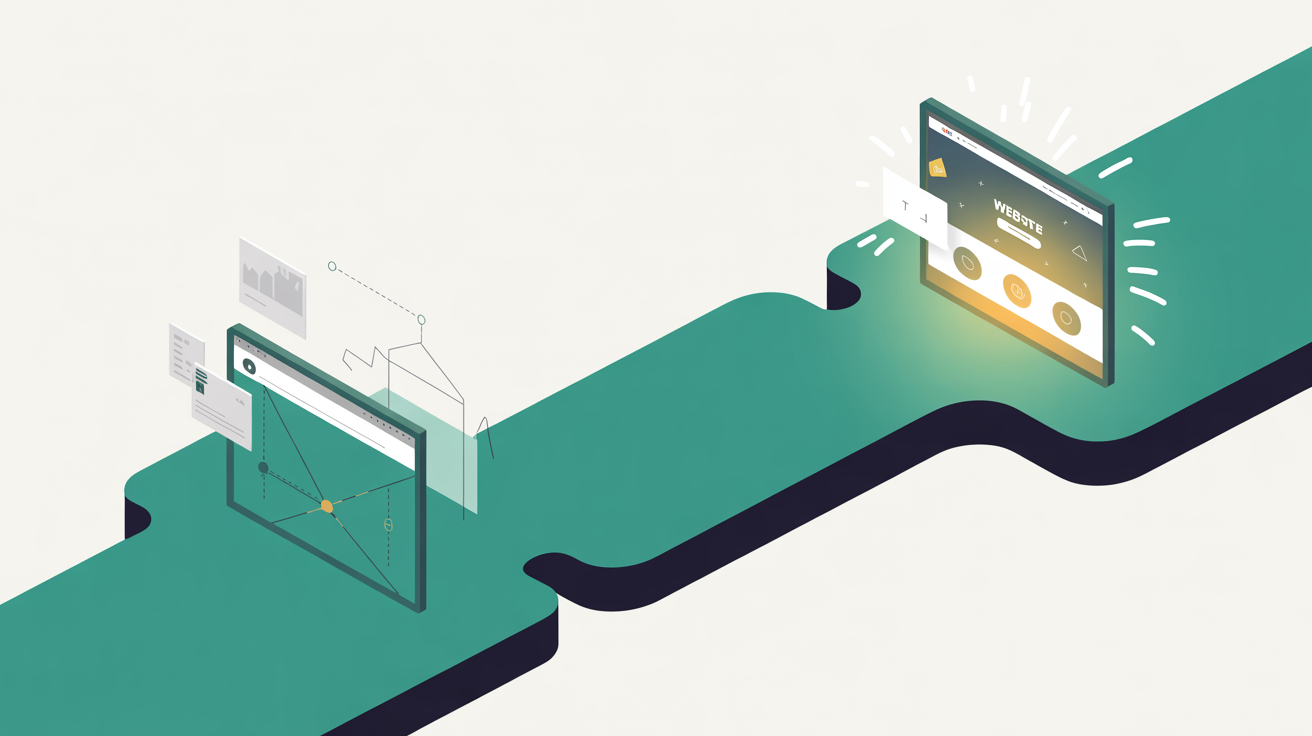
Most WordPress hosts force you to rebuild everything when moving from demo to live. That wasteful, time-consuming nonsense is completely unacceptable for Irish businesses who need to move fast in a competitive market. You spend hours perfecting your demo site, getting the design exactly right, adding your content, configuring your plugins, then discover your hosting provider expects you to start from scratch on the live environment. It's maddening, and it's why so many promising website projects die in the demo phase.
Why Most WordPress Hosts Make You Start From Scratch
The dirty secret of WordPress hosting is that most providers offer 'demos' that are essentially marketing tricks. WordPress.com gives you a crippled sandbox with no plugin access. SiteGround's 'staging' environment only works after you've already paid for hosting. WP Engine doesn't offer demos at all, just a 60-day money-back guarantee that requires you to build everything live from day one.
Traditional hosting providers separate demo and production environments because it's cheaper for them to maintain. They give you a limited playground, let you build something impressive, then force you to rebuild it properly on their paid infrastructure. It's like being shown a beautiful show home, then being told you need to construct an identical one yourself using different materials.
I recommended a popular page builder to a client in Cork three years ago. Their PageSpeed score dropped 20 points the week after launch. Took me a while to connect the dots. The demo environment ran on different caching, different PHP versions, different everything. What worked beautifully in testing performed terribly in production. Would not make that call again.
The result? Irish businesses waste hundreds of hours and thousands of euros rebuilding websites they already perfected. Or worse, they abandon the project entirely when they realise the scope of work ahead.
What You Keep When Converting Your Web60 Demo
Web60's demo-to-live conversion preserves everything you've built. Every page, every plugin configuration, every customisation, every piece of content. The demo environment runs on identical infrastructure to the live platform, same caching layer, same PHP version, same WordOps stack with Nginx and Redis object caching.
Here's exactly what transfers during conversion:
Complete WordPress Installation: Your entire WordPress site, including all themes, plugins, and core files. Nothing gets rebuilt or reconfigured.
All Content and Media: Every blog post, page, image, video, and document you've uploaded. Your media library transfers intact with all file paths preserved.
Database and Settings: User accounts, plugin configurations, theme customisations, widget settings, and WordPress options. Your site behaves identically before and after conversion.
Design and Customisations: Custom CSS, theme modifications, and any design work you've completed. Your site looks exactly the same post-conversion.
The only thing that changes is the domain. Your demo site runs on a smartsitebuilder.ie subdomain. After conversion, you connect your own domain or keep the subdomain if you prefer.
One limitation worth noting: if you've made significant changes to your demo site and then wait weeks before converting, you might want to verify that all plugins are still current. The demo environment doesn't auto-update plugins the way live sites do. It's a minor consideration, easily addressed by checking for updates before conversion.
Step-by-Step: Converting Your Demo to Live
The conversion process takes minutes, not hours. You're not migrating between different systems, you're simply changing the status of your existing site from demo to live.

The Dead Simple Conversion Workflow
Step 1: Verify. Check that your demo site displays exactly as you want it. Test all functionality, forms, and plugins one final time.
Step 2: Convert. Click 'Convert to Live' in your Web60 dashboard. The system processes your site for billing and applies live site configurations.
Step 3: Connect. Add your domain name or keep your smartsitebuilder.ie subdomain. SSL certificates generate automatically within minutes.
Step 4: Deploy. Your site is now live with all demo content, settings, and functionality intact. No rebuilding required.
During conversion, Web60 handles the technical requirements automatically:
- Billing activation: Your €60/year hosting plan begins
- SSL certificate generation: Free Let's Encrypt certificates provision automatically
- DNS configuration: If using your own domain, you'll receive nameserver details
- Backup scheduling: Automatic nightly backups begin immediately
- Performance optimisation: Live site caching and performance features activate
The entire process typically completes within 15 minutes. Your site remains accessible throughout, no downtime, no broken periods while systems update.
For businesses ready to test without commitment, you can try building your site in 60 seconds using Web60's AI website builder before deciding whether to convert to live hosting.
Post-Conversion Checklist: Going Live Properly
Converting your demo successfully is only half the job. Going live properly means ensuring your new website performs well and reaches your intended audience.
Domain and DNS Setup If you're using your own domain, update your nameservers to point to Web60's infrastructure. This typically takes 24-48 hours to propagate fully across the internet. During this period, some visitors might see your old site while others see the new one.
SSL Certificate Verification Web60 provisions SSL certificates automatically, but verify the green padlock appears in your browser address bar. Force SSL redirects activate automatically to ensure all traffic uses HTTPS.
Contact Form Testing Test every contact form, enquiry form, and lead capture mechanism on your live site. Send test submissions to ensure emails reach your inbox and auto-responders function correctly.
Analytics and Tracking Setup Web60 includes privacy-first analytics by default, but you might want to connect Google Analytics, Google Search Console, or other tracking tools. The conversion process doesn't affect existing tracking code.
Search Engine Indexing Submit your new site to Google Search Console and request indexing for your most important pages. This accelerates the process of your site appearing in search results.
Performance Verification Run your live site through PageSpeed Insights or GTmetrix to confirm performance matches your demo environment. Web60's optimised hosting stack should deliver strong Core Web Vitals scores immediately.
Backup Confirmation Verify that automatic nightly backups are running correctly. Your first backup should complete within 24 hours of going live.
## Who Needs This Most?
-
Service businesses and consultants: Test different messaging and service presentations without committing to hosting costs. Perfect your professional positioning before going live with client-facing content.
-
eCommerce businesses: Build your entire product catalogue, test payment processing, and configure shipping options in a risk-free environment. One poorly tested WooCommerce setup can kill conversions on launch day.
-
Local retailers and restaurants: Experiment with menu layouts, booking systems, and location information until everything works perfectly. Your opening day shouldn't be spent fixing website problems.
Troubleshooting Common Conversion Issues
Most conversions complete without problems, but occasionally issues arise. Here's how to handle the most common scenarios:
Domain Propagation Delays Your domain might not point to the new site immediately after conversion. This is normal DNS propagation delay, not a hosting issue. Wait 24-48 hours before escalating to support.
Email Delivery Problems Contact forms that worked in demo might fail after going live if your domain's email records aren't configured properly. Ensure your domain's MX records point to your email provider, not just Web60's servers.
Plugin Licence Issues Premium plugins requiring licence keys might deactivate after conversion because the domain changed. Reactivate licences using your new live domain name.
Image or File Path Errors Rarely, images or files might not display correctly after conversion. This typically happens if you've hardcoded absolute URLs during demo development. Web60's WordPress environment should handle this automatically, but custom code might need adjustment.
Performance Differences If your live site performs differently than your demo, it's usually due to caching differences or plugin conflicts that weren't apparent in the demo environment. Web60's staging environment can help you troubleshoot these issues safely.
Search Engine Indexing of Old Demo URLs Google might have indexed your smartsitebuilder.ie demo URL. Set up 301 redirects from your old demo URL to your new live domain to preserve any search engine visibility you've gained.
For complex technical issues, Web60's Irish-based support team handles all troubleshooting personally, no outsourced ticket systems or chatbots.
Real Irish Business Case Studies: Demo to Success
Cork-based Craft Brewery A Kilkenny craft brewery used Web60's demo environment to build their entire online shop over three months. They tested different product layouts, configured brewery tour bookings, and set up their mailing list integration. The demo-to-live conversion took 12 minutes. Six months later, online sales account for 30% of their revenue.
Galway Consulting Practice A management consultant in Galway spent two weeks perfecting their service descriptions and case study presentations in demo mode. They wanted everything pixel-perfect before showing clients their new professional website. The conversion preserved every customisation, and they gained three new client enquiries within the first month.
Dublin Restaurant Chain A small restaurant chain used the demo environment to test their online ordering integration with multiple locations. They configured different menus, delivery zones, and payment options for each location. Converting all three sites to live hosting took less than an hour total.
The common thread: these businesses used the demo period to solve problems and refine their approach before committing to hosting costs. They avoided the expensive mistakes that come from building live, and they launched with confidence.
For agencies and freelancers, this approach also provides a better client experience. You can show clients a fully functional website rather than mockups or wireframes, increasing approval rates and reducing revision cycles.
To see how this works in practice, explore try Web60's demo environment and see how much you can accomplish before committing to hosting costs.
Conclusion
The demo-to-live conversion process should be effortless, not a complete rebuild project. Web60's approach treats your demo site as a fully functional WordPress installation that simply needs activation, not reconstruction. Everything you build during your demo period transfers intact to your live hosting environment.
This isn't just about technical convenience, it's about respecting the time and effort you invest in creating your website. Irish businesses move fast and need hosting solutions that support rapid decision-making, not create additional barriers to going live.
Ready to see how smoothly this process works? Start building your website in Web60's demo environment today, knowing that every minute you invest will transfer directly to your live site when you're ready to launch.
Frequently Asked Questions
How long does the demo-to-live conversion take?
The conversion process typically completes within 15 minutes. Your site remains accessible throughout the conversion with no downtime. The system automatically handles billing activation, SSL certificate generation, and performance optimisation during this process.
Do I lose any content or settings when converting from demo to live?
No, everything transfers intact. Your complete WordPress installation, all content and media files, database settings, plugin configurations, and design customisations all preserve exactly as configured in your demo environment.
Can I keep my smartsitebuilder.ie subdomain after going live?
Yes, you can continue using your smartsitebuilder.ie subdomain on your live site if you prefer. Alternatively, you can connect your own custom domain during or after the conversion process.
What happens to my demo site URL after conversion?
Your demo site URL becomes your live site URL if you're keeping the smartsitebuilder.ie subdomain. If you're using a custom domain, Web60 automatically sets up redirects from your demo URL to prevent any broken links.
Is there a time limit on how long I can use the demo environment?
Web60's demo environment doesn't have a strict time limit, allowing you to fully develop and test your website before committing to hosting costs. This gives you the freedom to perfect your site at your own pace.
Will my website perform the same after conversion as it did in demo mode?
Yes, because both demo and live environments run on identical infrastructure, same WordOps stack, same caching layer, same performance optimisations. Unlike other hosting providers, there's no difference in performance between demo and live environments.
Can I convert back to demo mode if I change my mind?
Once converted to live hosting, your site remains on the paid platform. However, Web60's staging environments allow you to continue testing changes safely without affecting your live site. This provides ongoing development flexibility even after going live.
Do premium plugins and themes work the same way after conversion?
Premium plugins and themes function identically after conversion. However, you may need to reactivate licence keys for premium plugins because the domain name has changed from your demo URL to your live domain.
Sources

Eamon leads sales at Web60 and SmartHost, working directly with Irish business owners making the switch from cheap shared hosting to managed WordPress. With a background in enterprise technology sales — including Oracle and multiple Irish SaaS businesses — he understands the questions Irish SMEs ask before committing to a hosting platform. He writes about hosting comparisons, total cost of ownership, web design for Irish businesses, and how to evaluate what you’re actually buying.
More by Eamon Rheinisch →Ready to get your business online?
Describe your business. AI builds your website in 60 seconds.
Build My Website Free →More from the blog
The €520 Million Reality Check: How Irish Retailers Are Winning with Hybrid Online-Offline Strategies
Discover how Irish retailers achieve 24% growth with hybrid online-offline strategies. Learn from €520 million in data revealing the winning approach.
The €16.5 Billion Reality: How 'Phygital' Irish Consumer Behaviour is Breaking Traditional WordPress E-commerce
Irish consumers shop phygitally—browsing online, buying in-store. Traditional WordPress hosts miss this €16.5B opportunity. Web60's infrastructure handles it.