

WordPress Block Editor
Edit your AI-generated website with WordPress’s built-in block editor. Click any element to change it. No coding, no drag-and-drop — just direct, visual editing.
After the Web60 AI builds your website, you have full access to the WordPress block editor — the same editor used by millions of websites worldwide. Every page, heading, image, and button on your site is a block you can click and edit directly. Change text, swap images, add new sections, or delete elements you don’t need. Everything updates in real time.
The block editor works with the AI assistant built into your WordPress admin. You can ask the AI to make changes in plain English — ‘change the hero headline to something more direct’, ‘add a testimonials section to the homepage’ — and it applies the changes for you. For everything else, you edit blocks directly.
Every change you make is saved as a revision, so you can always undo or roll back to an earlier version. Changes are published with a single click — there’s no deployment step, no FTP upload, no waiting. The block editor is available from your Web60 portal with one click, and you’re logged in automatically.
Because Web60 sites run on real WordPress, the block editor works with the full WordPress ecosystem. Install any block plugin to add new content types — forms, maps, galleries, booking widgets. Everything integrates natively. You’re not limited to what a proprietary builder decides to support.
How it works
Three steps to wordpress block editor
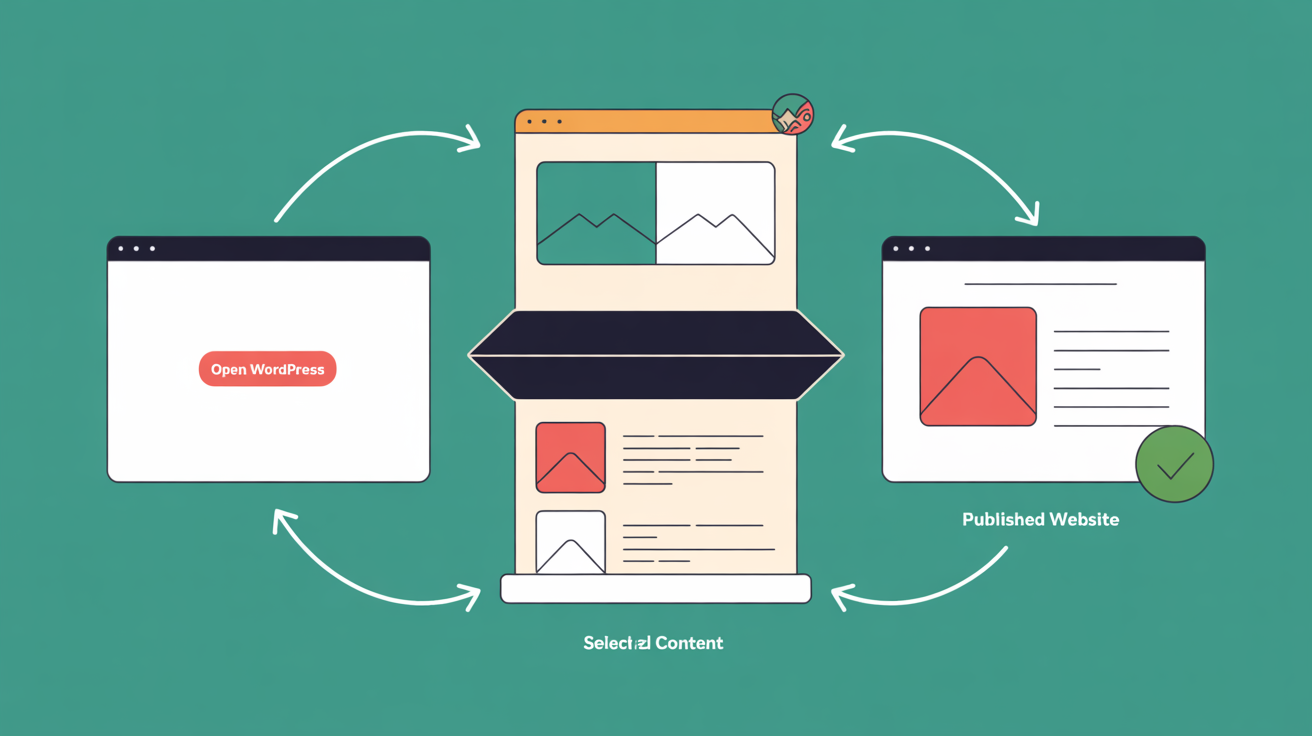
Open your site in WordPress
From your Web60 portal, click Open WordPress. You’re logged in automatically — no password needed.
Click any element to edit it
Every heading, paragraph, image, and button is a block. Click it, make your change, and see it update live.
Click Update to publish
Your changes go live instantly. No deployment, no FTP, no waiting.
What you get
WordPress Block Editor benefits
Click to edit anything
Every element on your page is directly editable. Click a heading, change the text, click Update. No menus, no drag handles.
AI assistant built in
Ask the AI assistant to make changes in plain English. It edits your site for you.
Full revision history
Every edit is saved as a revision. Undo any change or roll back to any previous version with one click.
FAQ
Frequently asked questions
How do I open the editor for my Web60 site?
From your Web60 portal, click ‘Open WordPress’ on your site dashboard. You’re logged in automatically. Go to Pages, click any page, and it opens in the block editor.
Can I change the design after the AI generates it?
Yes. Every design element — colours, fonts, layouts, images — can be changed in the block editor or via the AI assistant. The AI output is your starting point, not a locked template.
Do I need any technical knowledge to use it?
No. The block editor is designed for non-technical users. Click an element, type your changes, click Update. Most edits take less than a minute.
Can I add new sections or pages?
Yes. Click the + icon in the editor to add new blocks — text, images, buttons, columns, and more. Add new pages from Pages → Add New in WordPress.
What’s the difference between the block editor and the AI assistant?
The block editor lets you edit elements directly by clicking on them. The AI assistant lets you describe changes in plain English and applies them for you. Use whichever is faster for the change you want to make.
Ready to get started?
Build your website in 60 seconds — no card required.