

Web60 Features
How to Update Your WordPress Website Yourself Without Breaking Anything
You built your website. Or someone built it for you. Either way, it is yours now, and there is something on it that needs changing.
Maybe it is your phone number. Maybe you moved premises six months ago and the old address is still sitting on the contact page. Maybe your opening hours changed for the summer and your website still says you close at five. You know it needs updating. You have known for weeks. But you have not touched it because, honestly, you are afraid of breaking something.
You are not alone in this. I talk to business owners every single week who feel exactly the same way. They built a perfectly good website, and then they treat it like a museum piece. Something to look at but never touch. The content goes stale. The pricing goes out of date. The "latest news" section is from 2023.
Here is the thing that might change your perspective: WordPress, the platform your site runs on, powers roughly 43% of all websites on the internet, according to W3Techs' latest data [1]. It is not some fragile experiment. It is the most widely used content management system in the world. And its editor was specifically designed so that people without technical skills can update their own content.
This guide is for you. Not for developers. Not for designers. For you, the person who runs the business and owns the website.
The Real Cost of Leaving Your Website Untouched
Let me be direct about what happens when you do not update your site.
Google's own documentation on creating helpful content states it plainly: sites should update previously published content regularly or remove it if it is no longer relevant [2]. Outdated content does not just look bad to visitors. It actively signals to search engines that your site might not be trustworthy.
And visitors notice. Industry research consistently shows that somewhere between 35% and 40% of people will leave a website if the content or design looks outdated. That is roughly four out of every ten potential customers who arrive at your site, see a phone number from two years ago or a "Coming Soon" section that never came, and quietly click away to your competitor.
The alternative? Paying an agency to make changes for you. Web design agencies in Ireland typically charge between €60 and €100 per hour for ongoing work, according to Irish agency pricing guides [3]. Changing a paragraph of text takes an agency perhaps fifteen minutes of actual work, but by the time you have emailed them, they have added it to their queue, made the change, and invoiced you, you are looking at a minimum charge. Often somewhere between €75 and €150 for something you could have done yourself in two minutes.
Or worse, you just leave it. The outdated content sits there, quietly turning away customers you will never know about.
Your Safety Net: Why You Cannot Actually Break Anything Permanently
Here is what I tell every business owner who is nervous about making changes: you have a safety net, and it is better than you think.
On Web60's managed WordPress hosting, your site gets automatic nightly backups. Every single night, a complete copy of your entire website (every page, every image, every setting) is saved. If you make a change tomorrow and somehow everything goes sideways, you can restore your site to exactly how it was tonight. One click. Done. You can try the Web60 demo to see what this means in practice. You can see how Web60 works to see what this means in practice.
That means the worst case scenario is losing one day's work. Not your entire website. Not your business. One day.
But here is the reality check that keeps this honest: a backup is only as good as its last run. If you spend an entire day making dozens of changes and something breaks at 11pm, you lose those changes because the next backup has not run yet. That is the tradeoff. Know it. Accept it. It is still infinitely better than having no backup at all, which is what a surprising number of hosting providers actually deliver.
And if you want to be extra cautious, Web60 offers staging environments where you can test changes on a copy of your site before they touch your production environment. Think of it as a practice run. You make the change in staging, verify it looks right, then push it live. Nothing goes to production until you are satisfied.
Changing Text on Your Pages
This is the change that most business owners need most often, and it is the simplest.
Log in to your WordPress dashboard. Your login address is usually yourdomain.ie/wp-admin. Enter your username and password.
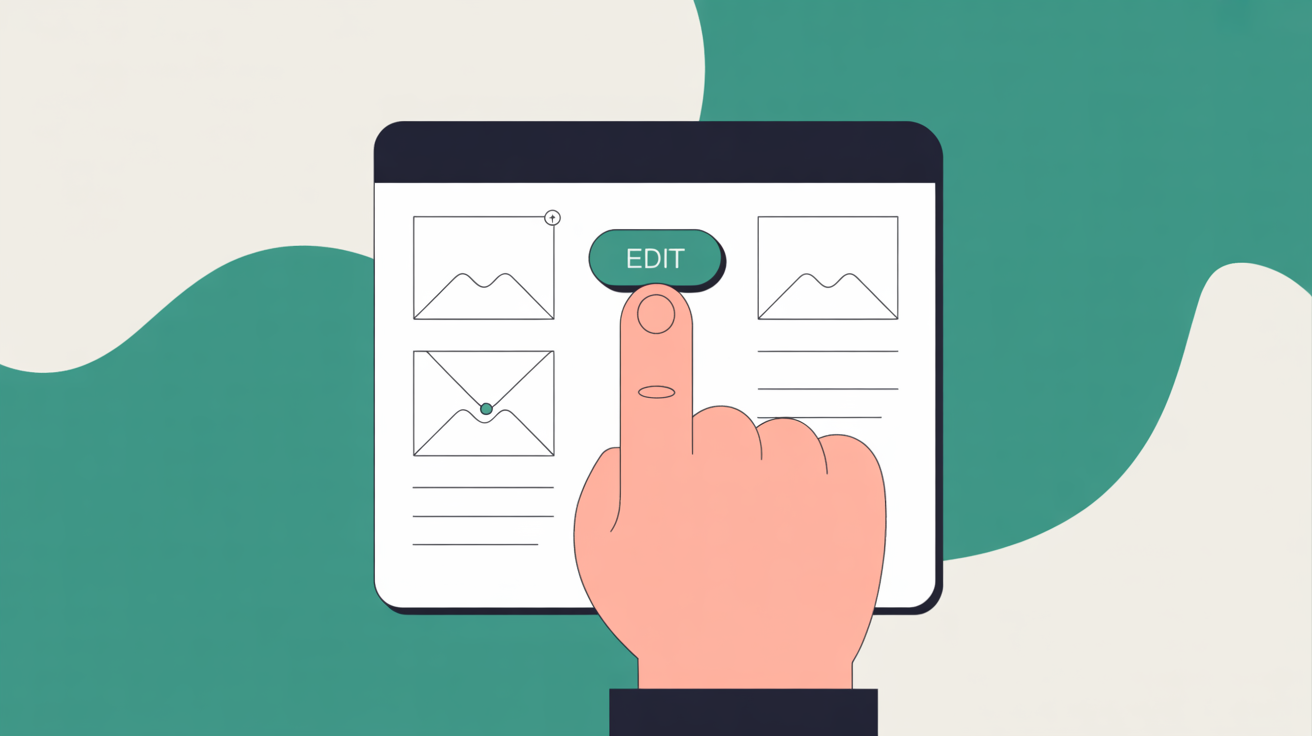
Find the page you want to edit. In the left sidebar, click Pages. You will see a list of every page on your site. Hover over the one you want and click Edit.
Make your change. WordPress uses a block editor. Each paragraph, heading, and image on your page is a separate "block." Click on the text you want to change, and just type. It works like a word processor. Delete the old text, type the new text.
Preview before you deploy. This is the step most people skip, and it is the step that prevents mistakes. Click the Preview button at the top right. Your browser will show you exactly what the page will look like to visitors. Check it on both desktop and mobile.
Publish. When you are happy, click Update. Your change is live immediately.
That is it. No code. No technical knowledge. No agency invoice.
Updating Images and Photos
Outdated images are almost as damaging as outdated text. If your team photo still shows someone who left two years ago, visitors notice. If your product images show last season's range, that is a missed opportunity.
Open the page in the editor just like you did for text changes.
Click on the image block you want to replace. You will see a toolbar appear above it.
Click Replace. You can upload a new image from your computer or choose one from your media library. Select your new image, and it swaps in immediately.
Check the alt text. When you click on the image, look for the Alt Text field in the right sidebar. Write a short description of what the image shows. This helps with accessibility and search engine visibility.
Preview and update. Same process as before. Preview, verify, publish.
One practical tip: resize your images before uploading. A photo straight from your phone might be 4,000 pixels wide and several megabytes. Your website does not need that. Resize to around 1,200 pixels wide and compress it. Free tools like Google's Squoosh handle this in seconds. Your pages will load faster, and your visitors on slower mobile connections will thank you.
Adding a New Page to Your Site
Maybe you have launched a new service. Maybe you want a dedicated page for testimonials or a seasonal menu. Adding a page is straightforward.
Go to Pages, then Add New Page. Give it a title. This becomes both the heading visitors see and the basis for the page's web address.
Add your content using blocks. Click the plus icon to add blocks. Paragraph blocks for text, Image blocks for photos, Heading blocks for section titles. Arrange them in the order you want.
Set the page's visibility. In the right sidebar under Page settings, you can control whether the page is published immediately or saved as a draft. If you are not ready to go live, keep it as a draft and come back later.
Add it to your navigation menu. This is the step people forget. Go to Appearance, then Menus. Add your new page to the navigation so visitors can actually find it.
Consider this scenario: a cafe owner on the Galway Quays decides to add a private event bookings page one quiet Tuesday morning. No agency call. No three-week wait. Just a new page, a few photos of the venue, a contact form, and it is live by lunchtime. That is what owning your own website actually means.
Updating Your Contact Information and Opening Hours
This is the change that costs businesses the most when it is wrong. A customer who drives to your old address or calls a disconnected number does not come back. By the time anyone notices, you have already lost them.
Check every page. Your contact details might appear on your Contact page, your footer, your About page, and possibly your homepage. Search your site for the old phone number or address to make sure you catch every instance.
Update your footer. Footer content is usually controlled through Appearance, then Widgets or the Customiser, depending on your theme. Find the footer section with your contact details and update it there. This change will appear on every page automatically.
Update Google Business Profile too. This is outside WordPress, but while you are at it, make sure your Google Business Profile matches your website. Inconsistent information between your website and your Google listing is one of the most common local SEO mistakes, and it is entirely preventable.
What to Do If Something Goes Wrong
It will happen eventually. You will make a change, click Update, and something will look wrong. A heading that is too big. An image in the wrong place. Text that vanished.
Do not panic.
Undo immediately. WordPress keeps a revision history. In the editor, click the three dots menu at the top right and select Revisions. You can see every previous version of the page and restore any of them with one click.
If the page is more seriously broken and revisions do not help, restore from your nightly backup. On Web60, this is a single click in your dashboard.
For significant changes like theme or plugin updates, this is exactly what staging environments exist for. Test structural changes in staging first. Deploy to production only when you have verified everything works.
The point is this: nothing is permanent. Every change can be undone. The risk of making a mistake is a few minutes of inconvenience. The risk of never updating your site is months of lost customers. For related reading, see our guide on Your Website Hosting Matters More Than You Think: What to Look For. For related reading, see our guide on How to Get Your First Business Website Live This Weekend for €60.
When You Should Call a Professional
I want to be honest with you about the limits of self-service updates.
If you need to change how your site fundamentally works, that is a different conversation. Redesigning your homepage layout, adding eCommerce functionality, migrating to a new theme, integrating booking systems: these tasks involve dependencies that go beyond content editing. A developer who understands WordPress architecture will save you time and frustration on structural work.
For larger organisations with dedicated marketing teams and complex multi-site WordPress installations, managed agency relationships genuinely make sense. The workflow, the approval chains, the integration with broader digital strategy: that is a different scale of operation entirely.
But changing your phone number? Updating your prices? Adding a blog post about your latest project? Swapping out a team photo? You do not need a professional for that. You need two minutes and the confidence to click Update.
Take Ownership of Your Website
WordPress powers roughly 43% of all websites for a reason. It was built to be managed by the people who own the sites, not just the people who built them.
Every day your website shows outdated information is a day you are paying for in lost trust and lost customers. With Web60's all-inclusive managed hosting and 60-second AI site builder, you get nightly backups, staging environments, and a visual editor that makes content changes genuinely simple. Everything included for €60 per year. No agency fees. No hourly invoices for text changes. No gatekeepers between you and your own content.
Your website is a business asset. The tools to keep it current are already in your hands.
Frequently Asked Questions
Can I really edit my WordPress website without any technical knowledge?
Yes. WordPress's block editor works like a word processor. You click on text, you type. You click on images, you replace them. No code, no technical training required. If you can write an email, you can update your website.
What happens if I accidentally delete something important?
WordPress keeps a revision history for every page. You can restore any previous version with one click. If the worst happens, your nightly backup lets you roll back the entire site to last night's state.
How often should I update my website content?
At minimum, verify your contact details, opening hours, and pricing quarterly. Update team photos and service descriptions whenever something changes. Google's guidance explicitly recommends keeping published content current or removing it if it is no longer relevant [2].
Will updating my site affect my Google rankings?
Keeping content fresh and accurate is a positive signal for search engines. Outdated content, on the other hand, can erode trust with both visitors and search algorithms. Regular updates are good for your rankings, not risky.
Do I need to back up my site before making changes?
On Web60, your site is backed up automatically every night. For routine content changes like text and images, you do not need to create a manual backup first. For larger changes like theme updates or plugin installations, taking a manual backup beforehand is good practice, and Web60 makes that a single click. You might also find our article on Green WordPress Hosting: How Carbon-Neutral Infrastructure Cuts Energy Costs by 23% useful. You might also find our article on WordPress Management Made Simple: How Business Owners Reclaim Their Weekends useful.
Can I test changes before they go live?
Yes, if your hosting supports staging environments. Web60 includes one-click staging so you can make and verify changes on a copy of your site before pushing them to production. This is the safest way to make significant updates.
Sources

Eamon leads sales at Web60 and SmartHost, working directly with Irish business owners making the switch from cheap shared hosting to managed WordPress. With a background in enterprise technology sales — including Oracle and multiple Irish SaaS businesses — he understands the questions Irish SMEs ask before committing to a hosting platform. He writes about hosting comparisons, total cost of ownership, web design for Irish businesses, and how to evaluate what you’re actually buying.
More by Eamon Rheinisch →Ready to get your business online?
Describe your business. AI builds your website in 60 seconds.
Build My Website Free →More from the blog
WordPress Missed Schedule: Why Scheduled Posts and Sales Fail to Publish
Scheduled post not published? Why WordPress shows Missed schedule, what else stalls with it (WooCommerce sales, reminders) and how to verify and fix it.
Website Change Freeze: Finish the Work in October, Then Leave Your Site Alone for Christmas
A website change freeze stops risky plugin and design changes during your Christmas peak. What to freeze, what to keep updating, and why October is the time.