

When you first try to access SFTP, the File Manager, or the Terminal in your Web60 dashboard, you will see a verification screen. This is a one-time security step that confirms your identity before giving you direct access to your website files.
Once you complete the verification, File Manager access is available immediately. SFTP and Terminal access requires a 24-hour activation period before it is enabled. Learn more about why SFTP and Terminal require a 24-hour activation period.
What gets unlocked
After verification, the following features are enabled across all your active sites:
- File Manager (immediate) - browse, upload, download, and manage your website files directly in the dashboard
- SFTP (after 24 hours) - connect to your website files using software like FileZilla
- Terminal (after 24 hours) - run commands and use WP-CLI from the built-in terminal
Step 1: Go to SFTP, Files, or Terminal
- Log in to your Web60 dashboard at app.web60.ie.
- Select the website you want to manage.
- Click SFTP, File Manager, or Terminal in the left-hand sidebar.
If you have not yet verified your identity, you will see the verification screen.
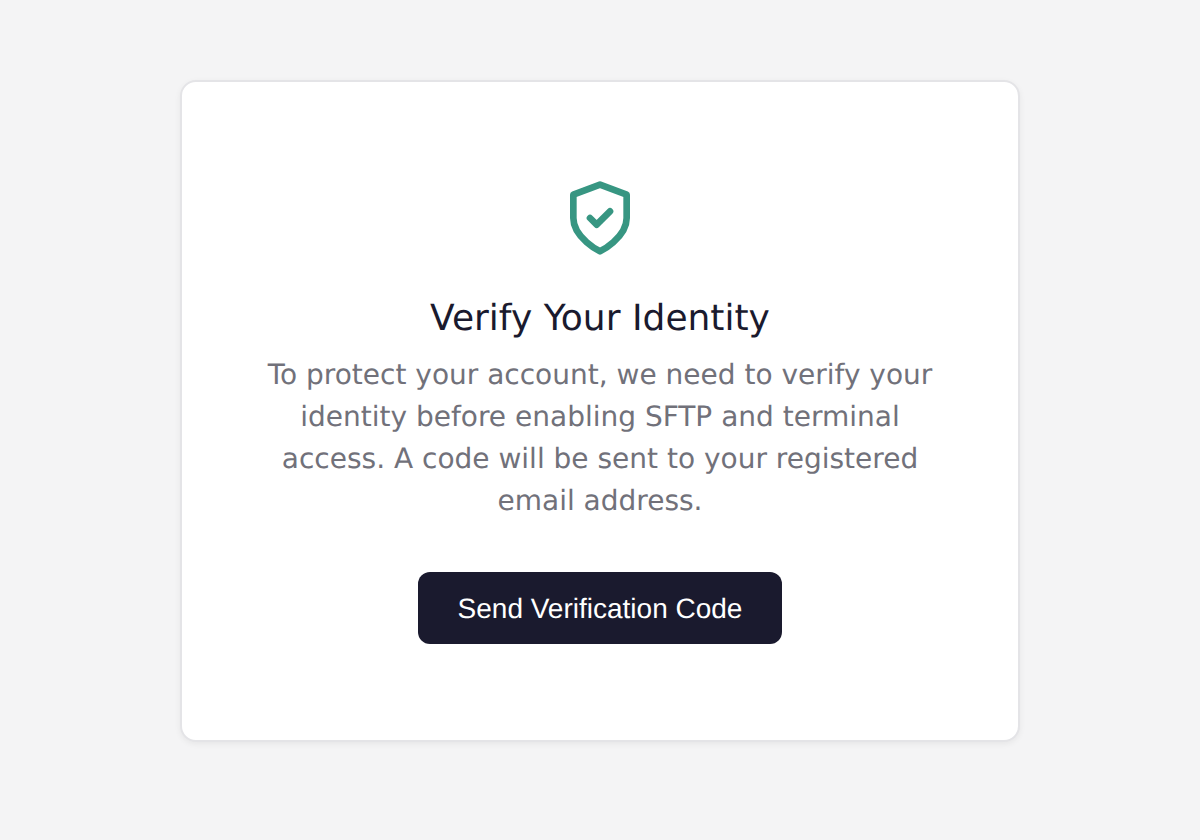
Step 2: Request a verification code
- Click the Send Verification Code button.
- A 6-digit code will be sent to the email address registered on your Web60 account.
- Check your inbox for the email. It may take up to a minute to arrive.
If you do not see the email, check your spam or junk folder. The code expires after 15 minutes.
Step 3: Enter the code
- Type the 6-digit code from the email into the verification field.
- Click Verify Code.
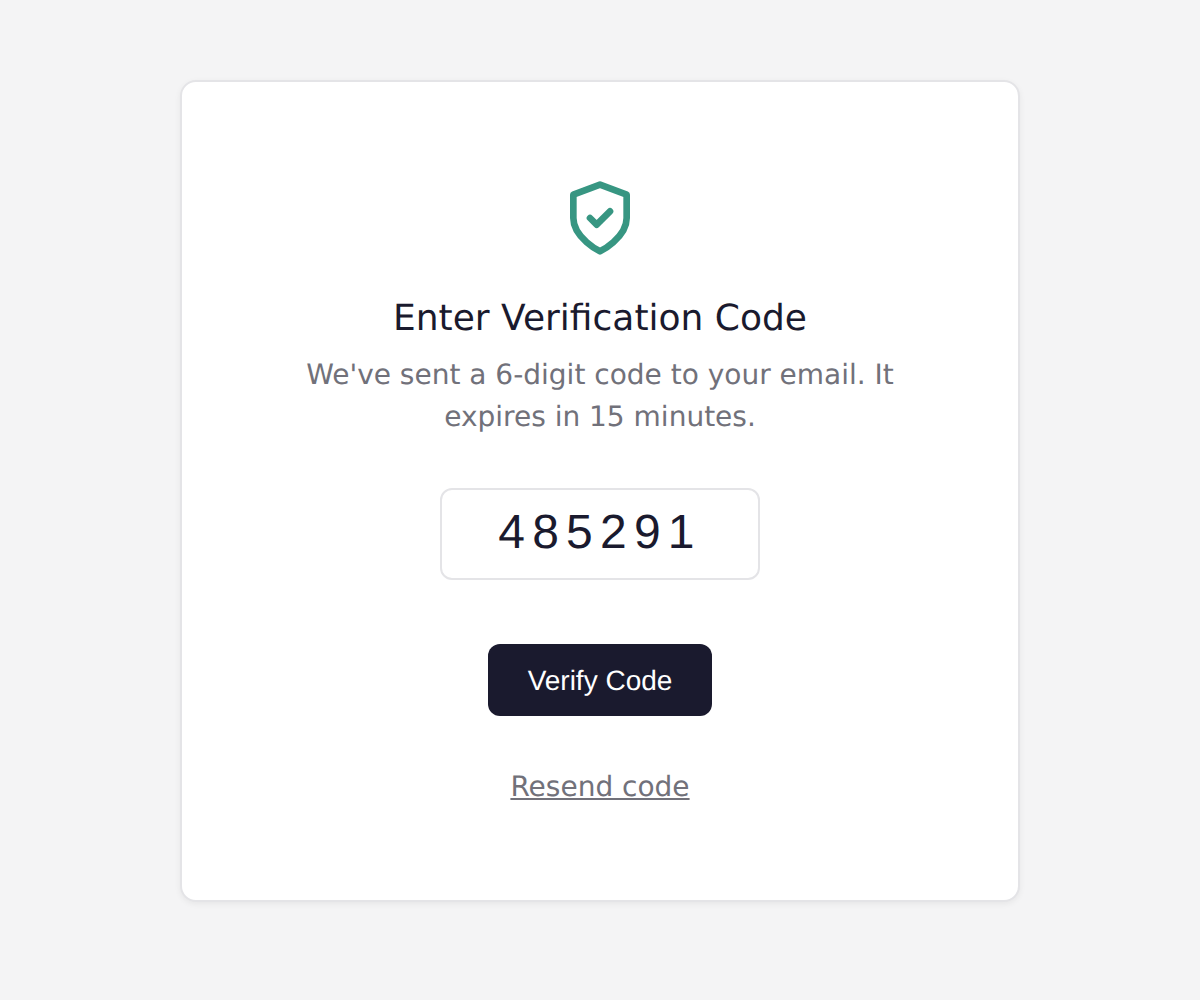
If you mistyped the code or it has expired, click Resend code to receive a new one.
Step 4: Use the File Manager immediately
After entering the correct code, File Manager access is available straight away. You can navigate to the File Manager page in your dashboard and start browsing, uploading, and managing your website files.
Step 5: Check your confirmation email
You will also receive a confirmation email from Web60 confirming that your identity has been verified. The email explains that SFTP and Terminal access is pending a 24-hour activation period.
This email includes a Cancel Verification link. If you did not make this request, or you change your mind, click the link to cancel the verification immediately. This is a final security layer that lets you undo the verification before SFTP and Terminal access is enabled.
Step 6: Wait for SFTP and Terminal activation
SFTP and Terminal access requires a 24-hour security review period before activation. During this time, the system performs additional checks to confirm that the request is legitimate.
You will see a countdown on the SFTP and Terminal pages showing how long remains. You do not need to stay on the page - activation will complete automatically after 24 hours.
Once the activation period is complete, you will be able to connect via SFTP and use the Terminal from your dashboard.
What happens after verification
- File Manager is enabled immediately across every active site on your account
- SFTP and Terminal are enabled after the 24-hour activation period
- You do not need to verify again unless access is revoked by an administrator
- You can browse files directly using the built-in File Manager
- You can connect via SFTP using FileZilla or similar software (after 24 hours)
- You can run commands using the Terminal (after 24 hours)
Troubleshooting
"Connection Not Permitted" error
If you see a message saying verification is not available from your current connection, you may be using a VPN or proxy. Disable it and try again from your normal internet connection. If the error persists, contact support.
Code not arriving
- Check your spam and junk folders
- Make sure you are checking the email address registered on your Web60 account
- Click Resend code to request a new one
- Wait a minute before requesting again (there is a rate limit of 3 codes per 10 minutes)
Access was working but has stopped
If your access was previously working but is now showing the verification screen or an error, your access may have been revoked by an administrator. Contact support at hello@web60.ie for help.
Need help?
If you are having trouble with the verification process, visit our support page or email hello@web60.ie and we will help you get access.
Frequently asked questions
Why do I need to verify my identity?
SFTP, the File Manager, and the Terminal give direct access to your website files. Identity verification ensures that only you can enable these features, protecting your site from unauthorised access.
How long does the activation take?
File Manager access is available immediately after entering your verification code. SFTP and Terminal access requires a 24-hour activation period. This security window allows the system to verify that the request is legitimate and protects your account from unauthorised access.
I did not receive the verification code. What should I do?
Check your spam or junk folder. The email comes from Web60 and may take a minute to arrive. If it still has not appeared, click the Resend code link on the verification screen. If the problem continues, contact support.
Do I need to verify every time I use SFTP or the Terminal?
No. You only need to verify once. After verification, SFTP, File Manager, and Terminal access remain enabled on your account unless access is revoked by an administrator.
Can I use a VPN when verifying?
No. For security reasons, verification requests from VPN or proxy connections are blocked. Please use your normal internet connection and try again.
Can I cancel the verification after entering the code?
Yes. After entering the code, you will receive a confirmation email with a Cancel Verification link. Clicking it will immediately cancel the activation. This link only works during the 24-hour activation period - once access has been activated, you will need to contact support to revoke it.
Does verification apply to all my sites?
Yes. Once verified, SFTP and File Manager access is enabled across all active sites on your account. You do not need to verify separately for each site.
Last updated: 25 March 2026