

Your Web60 dashboard includes a comprehensive set of security controls in the Security card inside Advanced Settings. The card combines a security scanner with toggles for individual hardening measures, giving you a clear view of what is protected and the ability to fix everything with one click.
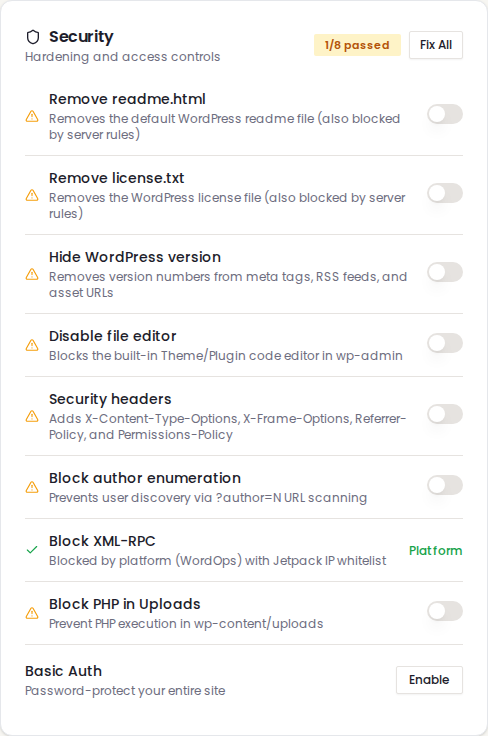
Finding the Security card
- Log in to your Web60 dashboard.
- Select the website you want to manage.
- Click Advanced Settings in the sidebar.
- Find the Security card.
The badge in the top-right corner shows how many items are passing (for example, 8/8 passed). If any items need attention, a Fix All button appears.
Security scan items
The card checks six hardening measures and shows a green tick or amber warning for each:
| Setting | What it does |
|---|---|
| Remove readme.html | Deletes the WordPress readme file that reveals your version |
| Remove license.txt | Deletes the WordPress license file from your webroot |
| Hide WordPress version | Strips version numbers from page source, RSS, and asset URLs |
| Disable file editor | Removes the code editor from the WordPress admin |
| Security headers | Adds protective HTTP headers to every server response |
| Block author enumeration | Blocks ?author=N scans that reveal usernames |
Each setting has a detailed guide - see Security scan overview for links to all of them.
Block XML-RPC
XML-RPC is an older method that allows external tools to connect to your WordPress site remotely. While it was once widely used, it has become a popular target for attackers who use it to try thousands of password combinations at once.
What the toggle does: When enabled, all requests to your site's XML-RPC address are blocked with a 403 error. Normal visitors and your WordPress editor are completely unaffected.
Platform-managed sites: If your site's XML-RPC is already managed at the platform level, you will see a label that reads Platform instead of a toggle. This means the setting is locked on, and connections from approved services (such as Jetpack) are automatically allowed through a whitelist.
For a deeper explanation, see What is XML-RPC and should I block it?.
Block PHP in Uploads
Your WordPress site has an uploads folder where images, documents, and other media files are stored. Attackers sometimes try to upload a disguised file containing harmful code into this folder. If PHP execution is allowed there, that code can run and compromise your entire site.
What the toggle does: When enabled, any attempt to execute PHP code inside the uploads folder is blocked. Your images, PDFs, and other media continue to work normally.
Recommendation: This toggle should always be enabled. There is almost no legitimate reason for PHP files to run inside your uploads folder.
Basic Auth
The Security card also includes a Basic Auth section for password-protecting your entire site at the browser level. This is covered in a separate guide: How to password-protect your entire website.
Our recommendation
For the strongest protection, click Fix All to enable every security item, then verify that XML-RPC and PHP-in-uploads are also toggled on. Together, these settings close the most commonly exploited attack methods against WordPress sites, with no impact on your day-to-day editing or your visitors' experience.
Need help?
If you are unsure about any of these settings or need advice on securing your site, our team is happy to assist. Visit our support page to get in touch.
Frequently asked questions
Where do I find the Security card?
Open your Web60 dashboard, select your website, and click Advanced Settings. The Security card is listed alongside other advanced options on that page.
Should I enable all security settings?
Yes. Every security item in the card has been chosen because it is safe for all WordPress sites. Click Fix All to enable everything at once, or toggle items individually.
Will blocking XML-RPC break anything on my site?
For most websites, no. The only exception is if you rely on Jetpack remote management or a specific integration that connects to your site through XML-RPC. If you are unsure, check with our support team before enabling the toggle.
Last updated: 26 March 2026