

When you have an active staging site, you can use all the same tools on it that you use on your live site - terminal, SFTP, and file manager. A simple toggle at the top of each tool page lets you switch between your live and staging environments.
The Live/Staging toggle
When you have a staging site, a toggle appears at the top of the Terminal, SFTP, and File Manager pages. It has two buttons: Live and Staging.
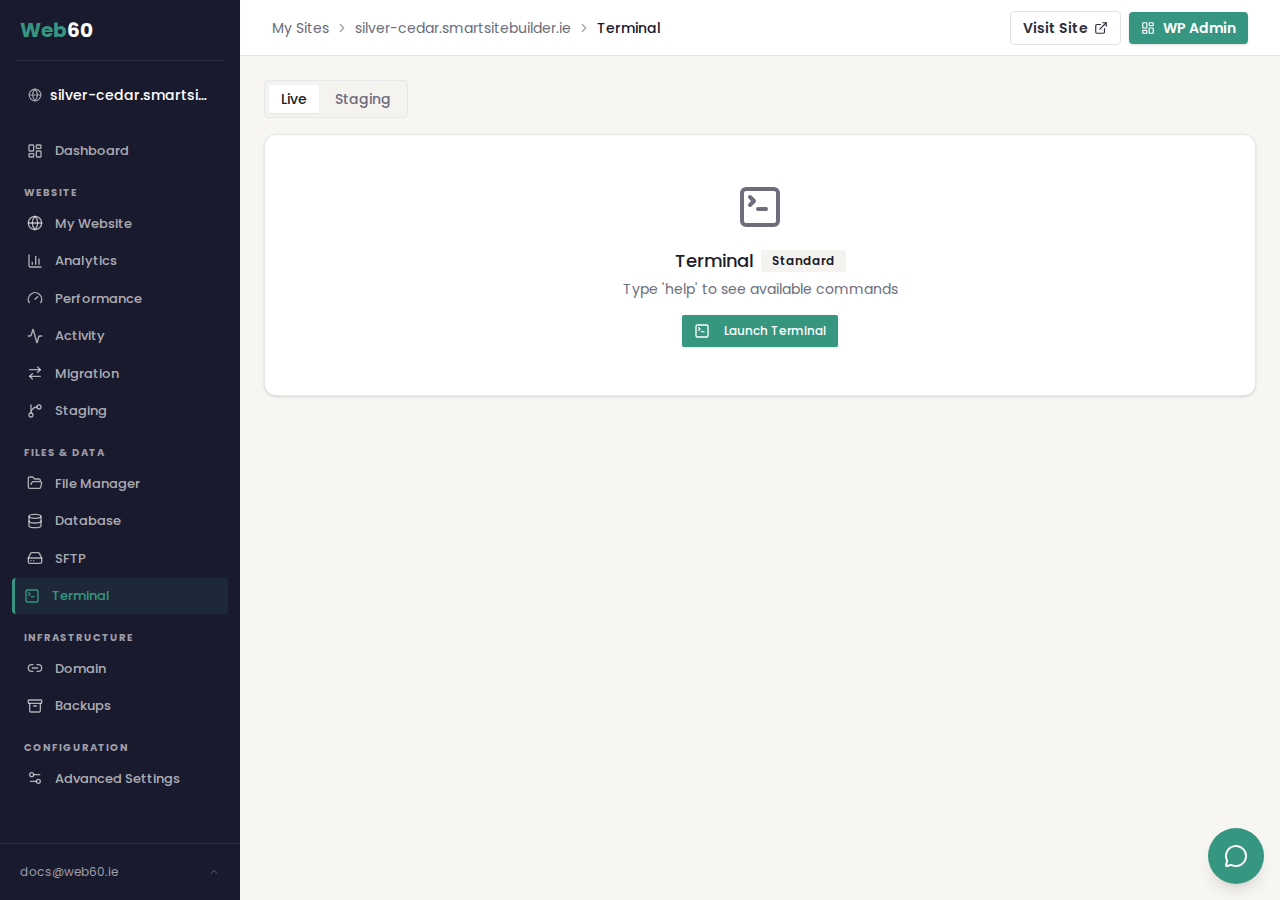
- Live (selected by default) - the tool connects to your live website, as normal.
- Staging - the tool connects to your staging site instead.
The toggle only appears when you have an active staging site. If you have not created one yet, the tools work on your live site as usual.
Terminal
- Go to Terminal in the sidebar.
- Click Staging in the toggle.
- Click Launch Terminal.
The terminal session will connect to your staging site. You can run WP-CLI commands, check logs, or make configuration changes - all on the staging copy, without affecting your live site.
SFTP
- Go to SFTP in the sidebar.
- Click Staging in the toggle.
- The SFTP credentials displayed will connect to your staging site.
Use these credentials in your SFTP client (FileZilla, Cyberduck, etc.) to upload or download files from staging. See SFTP access for more on connecting with an SFTP client.
File Manager
- Go to File Manager in the sidebar.
- Click Staging in the toggle.
- The file browser will show your staging site's files.
You can browse, edit, upload, and download files on your staging site just like you do on live.
Things to keep in mind
- The toggle defaults to Live every time you visit a tool page. You need to click Staging each time.
- Changes you make using tools while Staging is selected only affect your staging site.
- To apply staging changes to your live site, use Push to Live on the Staging page.
- The toggle is disabled if your staging site is not in an active state (for example, if it is still being created).
Frequently asked questions
Can I use the terminal on my staging site?
Yes. Open the Terminal page and click the Staging button in the Live/Staging toggle at the top. The terminal will connect to your staging site instead of your live site.
How do I access staging files via SFTP?
Go to the SFTP page and click Staging in the toggle. The SFTP credentials shown will connect you to your staging site's files.
Do I need to switch back to Live when I am done?
No. The toggle only affects the current page. If you navigate away and come back, it defaults to Live. Your live site is never affected by what you do on staging.
Last updated: 28 March 2026