

WP-CLI is a command-line tool for managing WordPress. Instead of clicking through the WordPress dashboard, you type short commands in a terminal window and WordPress responds instantly. It is the same technology used by web developers and hosting companies worldwide to manage WordPress sites efficiently.
Why use it?
Speed and power. Tasks that take ten clicks in the WordPress dashboard take one command in the terminal. Bulk operations like updating all plugins at once, finding all users, and exporting the database are easy. WP-CLI is especially useful for troubleshooting. If the WordPress dashboard is broken or locked, WP-CLI still works because it bypasses the web interface entirely.
How the Web60 terminal works
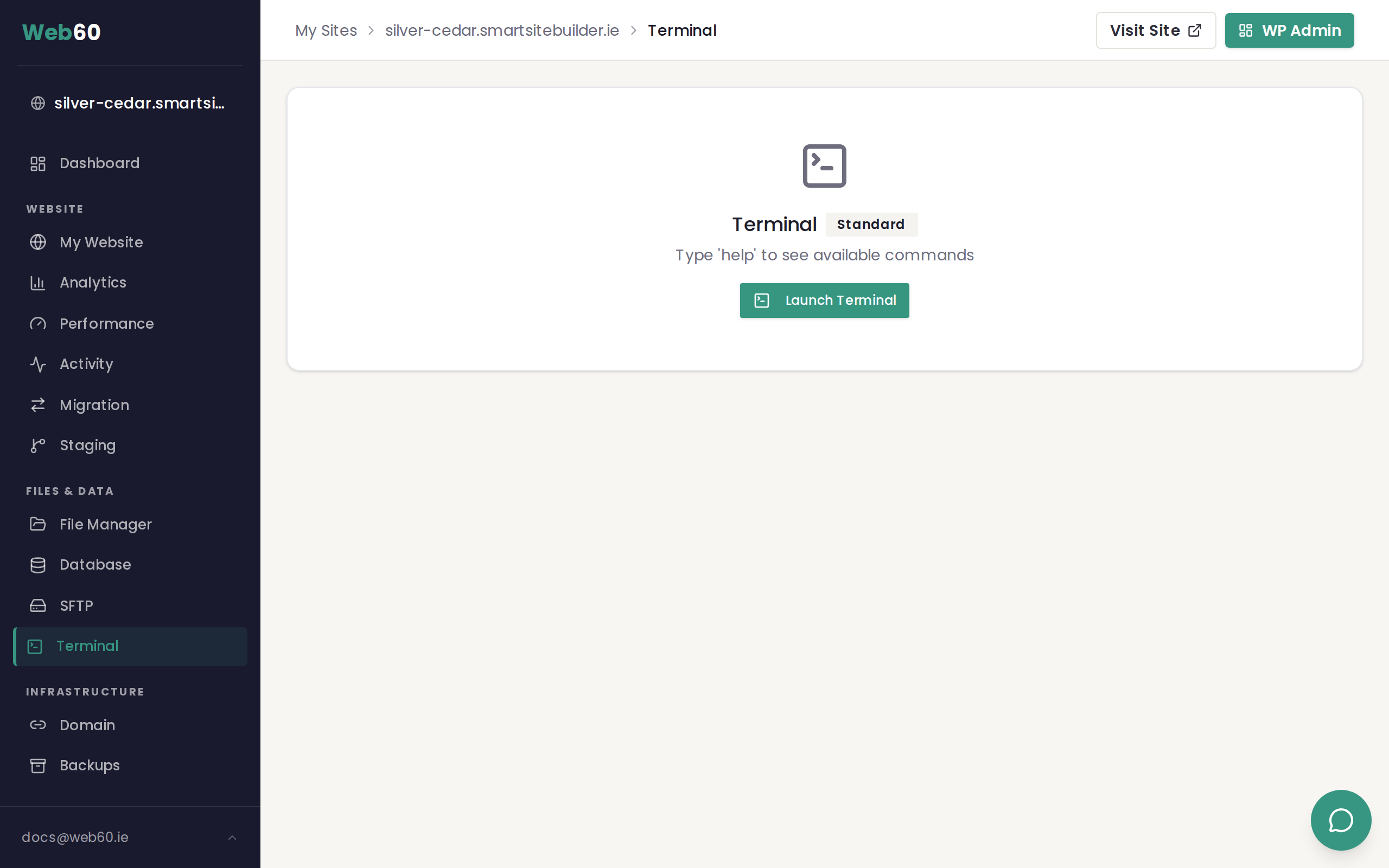
The terminal is built into your Web60 dashboard. You do not need to install anything on your computer. WP-CLI is pre-installed and ready to use on every Web60 site. Because the terminal already knows where your WordPress installation lives, you do not need to add the --path flag that other WP-CLI guides show. Your commands are shorter and simpler.
A note on access
Terminal access is disabled by default for all sites. If you have not yet requested access, read How to request terminal access for your site to get started.
How to open the terminal
- Go to your Web60 dashboard.
- Click your site name.
- Click Terminal in the left-hand menu.
- The terminal window opens in your browser.
- Type a command and press Enter.
Your first command
A good first command to try is checking your WordPress version:
wp core version
This prints the version number of WordPress running on your site, for example 6.7.1. If you see a version number, everything is working and you are ready to explore more commands.
Important things to know
- You do not need to add
--pathto any command. The terminal handles this automatically. - Commands run directly on your live site. There is no undo for destructive commands, so always take a backup first.
- Not all shell commands are available. This is a managed terminal focused on WordPress management.
- If you are unsure what a command does, check the relevant article in this category before running it.
Need help?
If you have questions about using WP-CLI on your Web60 site, visit our support page or email hello@smarthost.ie.
Frequently asked questions
Do I need to install WP-CLI myself?
No. WP-CLI is pre-installed on all Web60 sites. You just need terminal access enabled and then you can use it immediately.
Can I break my site with WP-CLI?
Yes. Some commands are destructive and cannot be undone. Always take a backup from your Web60 dashboard before running any command that modifies data.
Why do the commands in other WP-CLI guides show --path at the end?
Standard WP-CLI requires --path to tell it where WordPress is installed. The Web60 terminal adds this automatically, so you can leave it out.
Last updated: 25 March 2026