
The Web60 terminal gives direct access to your site files and WordPress installation, so it is disabled by default to keep sites safe. Once enabled, your terminal session is monitored and commands are limited to a safe set.
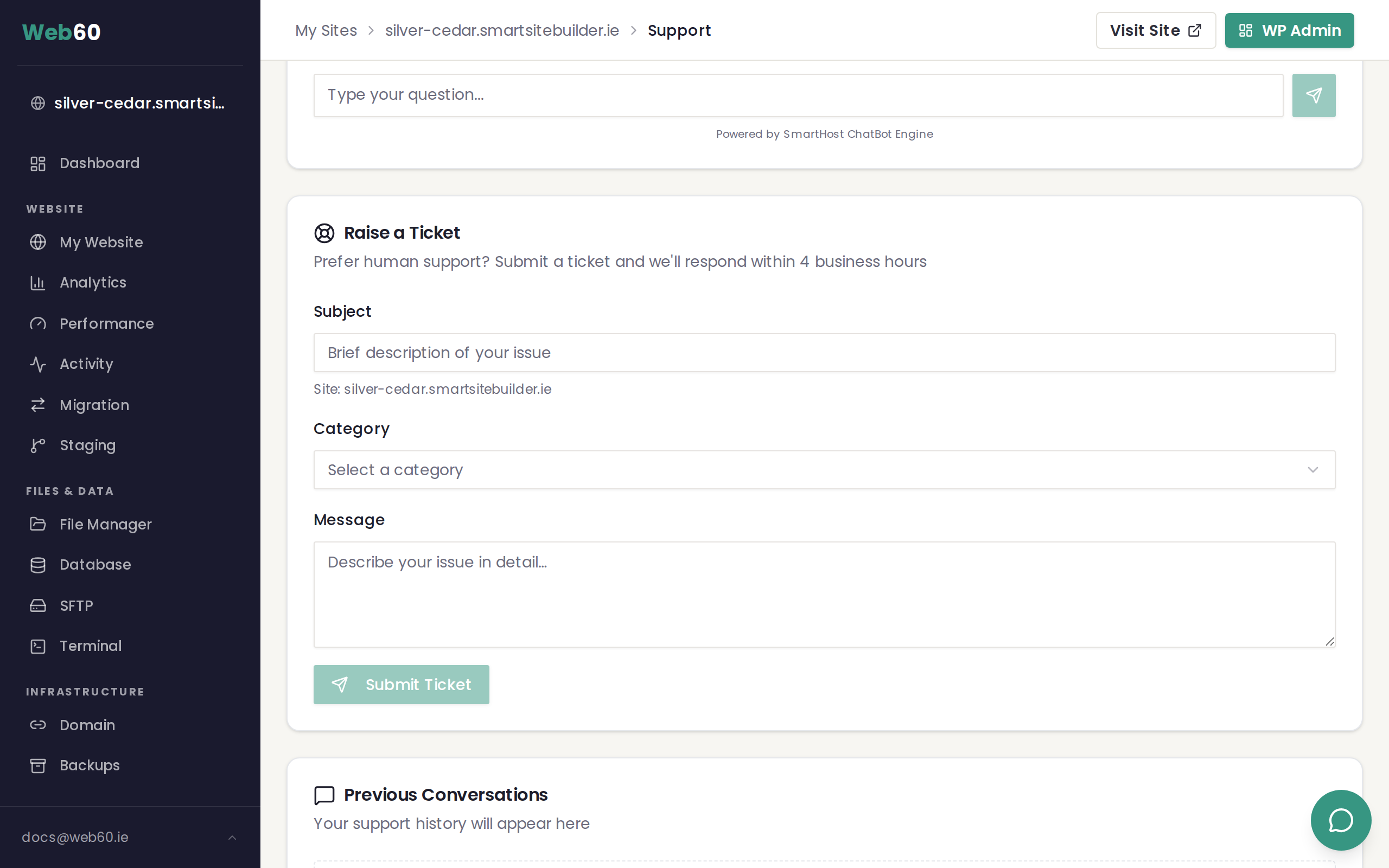
How to request access
- Go to your Web60 dashboard.
- Click your site name.
- Click Support in the left-hand menu.
- Submit a support request asking for terminal access to be enabled for your site.
- The Web60 team will review your request and enable it, usually within one business day.
- You will receive a confirmation email.
What happens after it is enabled
A new Terminal option will appear in your site's left-hand menu. You can then follow the steps in the WP-CLI overview article to open the terminal and start using commands.
Available commands
The terminal gives you access to WP-CLI (wp) plus standard file-management commands such as ls, cat, and cp. Advanced commands like git, mysql, and composer are available on request. A full list of available commands is available from the support team.
Need help?
If you have questions about requesting terminal access, visit our support page or email hello@smarthost.ie.
Frequently asked questions
How long does it take to get terminal access enabled?
Usually within one business day. Contact hello@smarthost.ie if you have not heard back.
Can terminal access be disabled again?
Yes. If you no longer need it, contact support and they will disable it. Access is also automatically suspended if unusual activity is detected.
Is terminal access available on all Web60 plans?
Yes, it is available to all paid Web60 customers on request. Demo sites do not have terminal access.
Last updated: 25 March 2026