

Your website is important, and Web60 makes sure it is always protected. Every night, we automatically create a complete backup of your website, so if anything ever goes wrong, you can get back to normal quickly.
What is a backup?
Think of a backup as a snapshot of your entire website at a specific moment in time. It saves everything:
- All your pages and content, including every word, heading, and paragraph
- All your images, including photos, logos, and any files you have uploaded
- Your website database, which is the behind-the-scenes information that makes your site work
If something were to go wrong, whether it is an accidental change or a technical issue, you can restore your website from a backup and it will be exactly as it was when that backup was taken.
How automatic backups work
Web60 runs a backup of your website every night, automatically. You do not need to do anything because it happens in the background while you sleep.
How long are backups kept?
- Daily backups are kept for 7 days. Each night a new backup is created, and the oldest daily backup is removed.
- Weekly backups are taken every Sunday and kept separately for longer.
This means you always have recent backups to choose from if you need to restore your site.
Manual backups
On top of the automatic nightly backups, you can also create a manual backup whenever you like. This is a good idea before making any big changes to your website.
For more on this, see our guide on creating a manual backup.
Where to view your backups
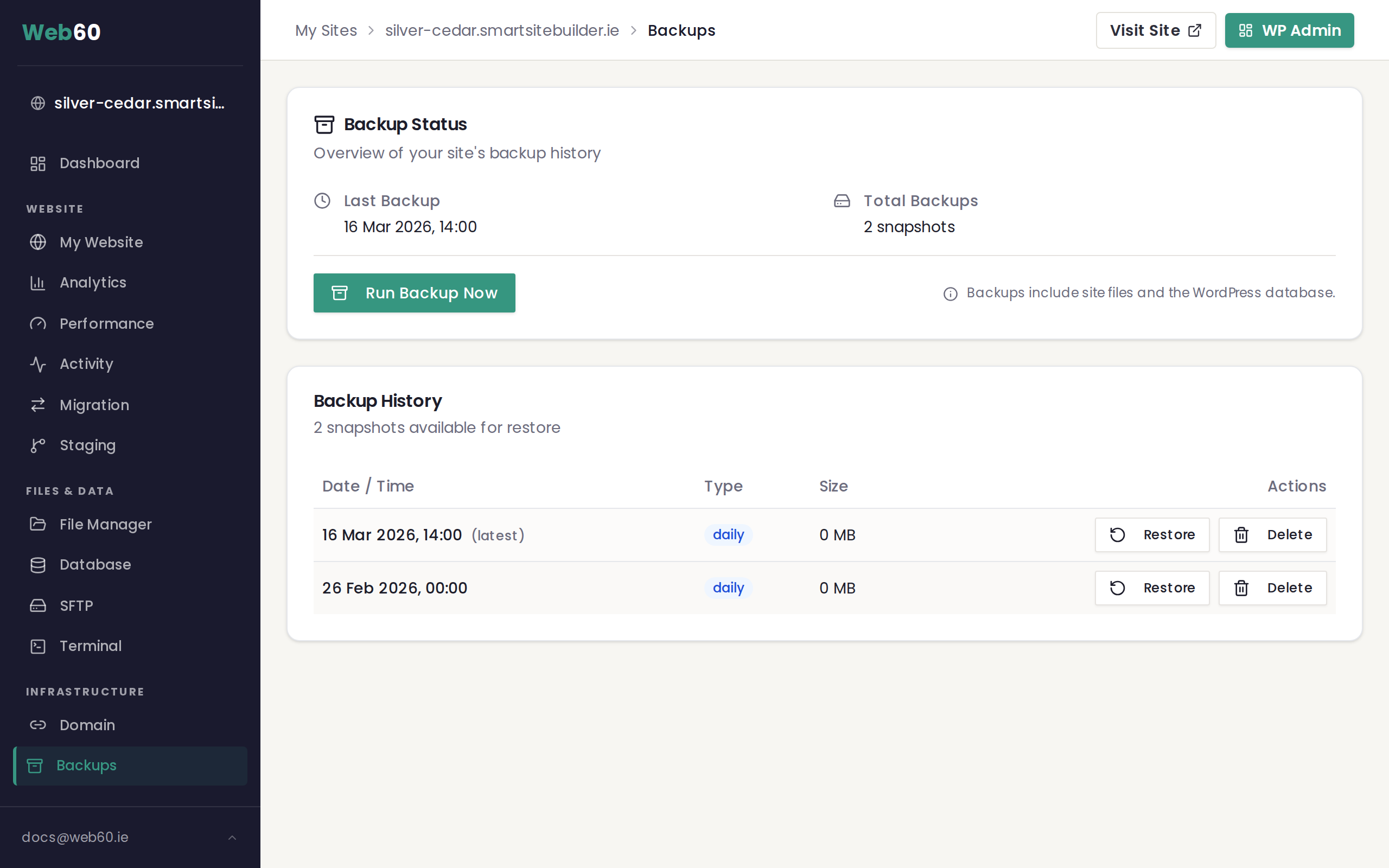
You can see all your backups, both automatic and manual, from inside your Web60 dashboard. Just click "Backups" in the left-hand sidebar. For a full walkthrough, see how to view your backups.
Can I download my backup?
No, backups are stored server-side only and cannot be downloaded directly from the Backups tab. They are designed to be restored through your Web60 dashboard when needed.
If you want a copy to keep yourself, you have a few options:
- Use the database export feature in the Database tab to download a copy of your database.
- Download your website files using the File Manager or SFTP.
- For a complete copy of everything, contact our support team and we will help you.
Backup types explained
You may notice that each backup in the Backups tab has a label showing its type. There are four types:
- Daily automatic backups. These run every night and are the most common type. They are kept for 7 days before being replaced by newer ones.
- Weekly backups. Each Sunday, the most recent daily backup is promoted to a weekly backup and kept separately for longer. This gives you a longer history to restore from if needed.
- Pre-restore backups. Whenever you restore your site from a backup, Web60 automatically takes a fresh backup of your site as it is right before the restore begins. This means you can undo the restore if needed.
- Pre-update backups. When you have automatic plugin or theme updates enabled with the backup toggle turned on, Web60 takes a backup before each update run. These backups are also created before manual updates triggered from the Software Manager.
All four types appear in the Backups tab with their type clearly labelled, so you always know what each backup was created for.
Need help?
If you have any questions about how your backups work, visit our support page and we will explain everything.
Frequently asked questions
What does a backup include?
A backup saves a complete copy of your website, including all your pages, images, uploaded files, and the database that powers your site. It contains everything you need to restore your website exactly as it was.
Do I need to do anything for backups to happen?
No. Web60 runs automatic backups every night without you needing to lift a finger. You can also create manual backups whenever you like.
What happens if I run out of backup storage?
You do not need to worry about storage. Web60 manages your backups automatically and removes the oldest daily backups after 7 days to keep everything running smoothly.
Last updated: 15 March 2026