

You can check on all your website backups at any time from inside your Web60 dashboard. This guide shows you where to find them and what all the information means.
How to view your backups
- Sign in to your Web60 dashboard.
- Click "Backups" in the left-hand sidebar.
You will see two sections: the Backup Status card at the top, and the Backup History table below it.
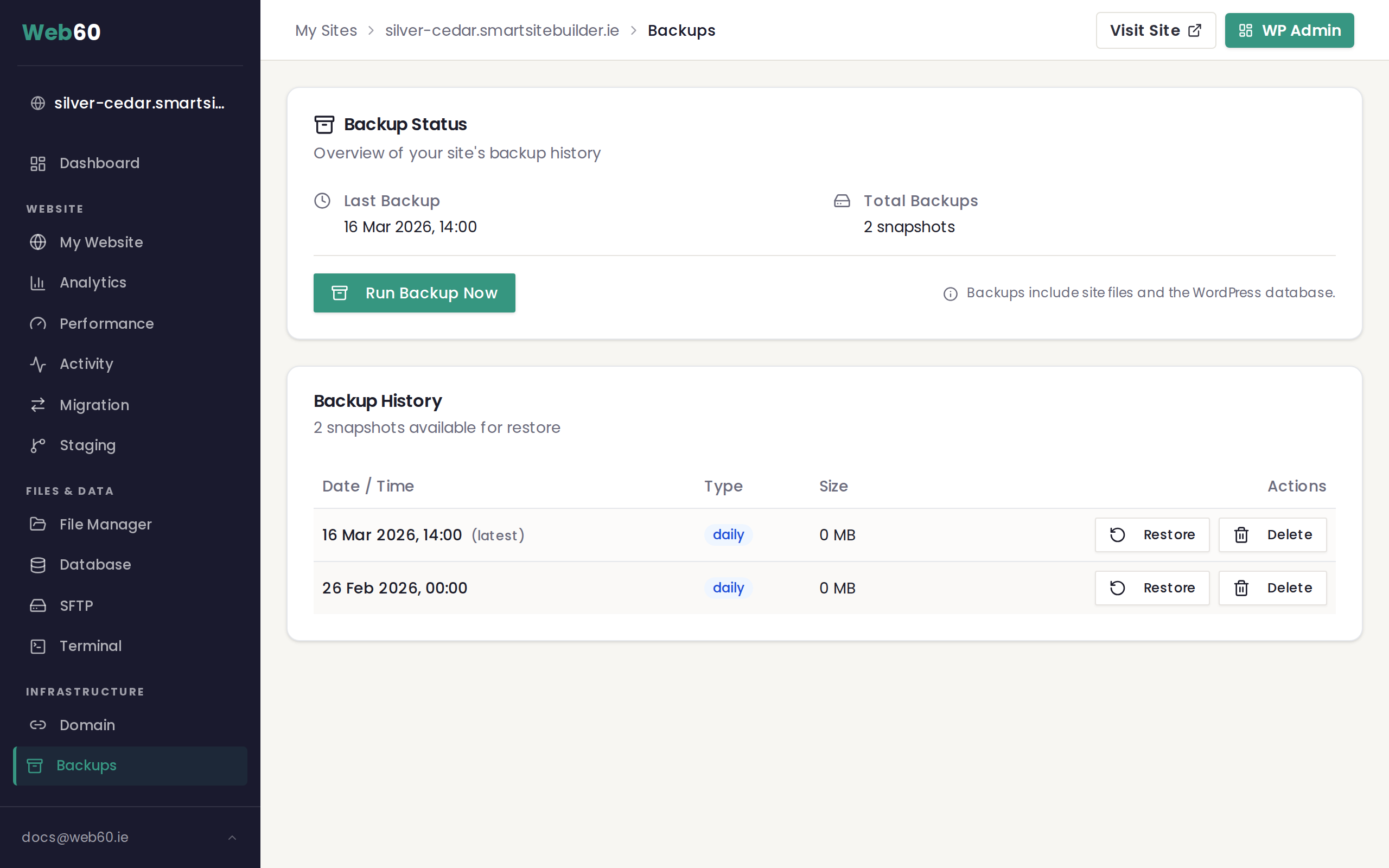
The Backup Status card
At the top of the page, the Backup Status card gives you a quick summary:
- Last Backup shows the date and time of your most recent backup.
- Total Backups shows how many backups are currently stored for your website.
You will also see the "Run Backup" button here, which lets you create a manual backup. There is a note reminding you that backups include your site files and the database that powers your website.
The Backup History table
Below the status card, you will find a table listing all your backups. Each row shows:
- Snapshot name is a label identifying the backup.
- Date is when the backup was taken.
- Size is how much space the backup takes up.
- Status shows whether the backup was successful or failed.
- Restore is a button to restore your website from that backup.
- Delete is shown only for manual backups, allowing you to remove them.
If the page is empty
If you have just set up your website and no backups have run yet, you will see a message saying "Your backup history will appear here." Your first automatic backup will be created overnight.
During a backup or restore
If a backup or restore is currently in progress, you will see a blue banner at the top of the page with an animated indicator. While this is showing, your backup is being created or restored. Just wait for it to finish.
Need help?
If you have any questions about your backups or anything looks unusual, visit our support page and we will take a look.
Frequently asked questions
What does the backup status mean?
A status of 'success' means the backup completed without any issues. A status of 'failed' means something went wrong during that particular backup. Do not worry though, the next automatic backup will usually succeed.
Why can I only delete some backups?
You can only delete manual backups, which are the ones you created yourself. Automatic backups are managed by the system and are removed automatically when they expire.
What happens if my backup page is empty?
If you have just set up your website, no backups have been taken yet. Your first automatic backup will be created overnight, and it will appear on this page the next day.
Last updated: 15 March 2026