
The Pages report in your Web60 dashboard shows exactly which pages on your website are receiving the most attention. This helps you understand what content your visitors find most useful and where they spend their time.
Opening the Pages report
- Log in to your Web60 dashboard.
- Select the website you want to review.
- Click Analytics in the left-hand sidebar.
- Click the Pages tab in the analytics navigation.
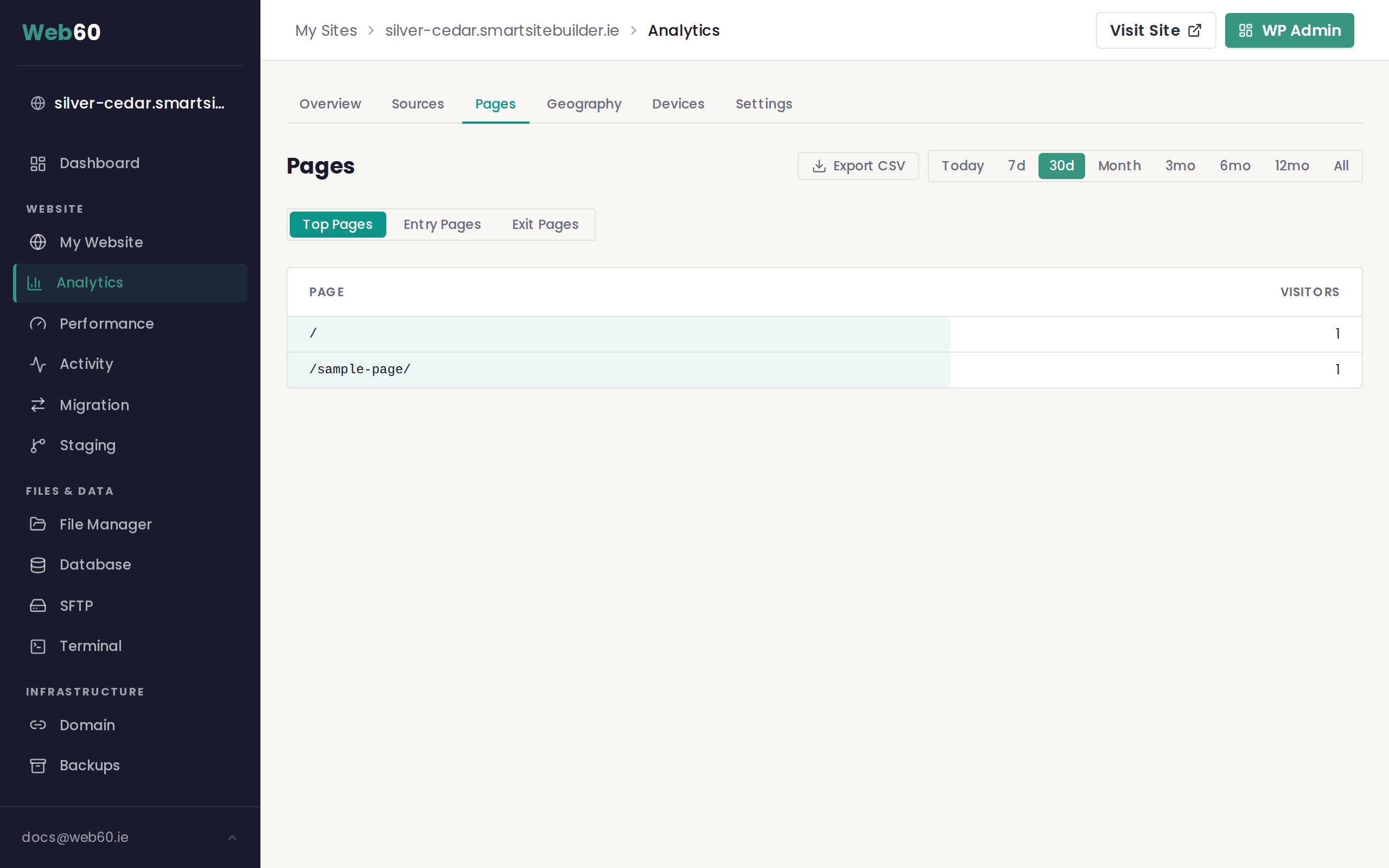
Three views of your page data
At the top of the report you will see three toggle buttons that let you switch between different views:
Top Pages
This is the default view. It lists every page on your site ranked by the number of visitors. Each row shows:
- Page showing the URL path (for example,
/aboutor/contact) - Visitors showing how many people viewed that page
A coloured bar behind each row gives you a visual comparison so you can quickly see which pages stand out.
Entry Pages
Click Entry Pages to see which pages visitors landed on first when they arrived at your site. This is useful for understanding how people discover your website. If a blog post appears high on this list, it may be ranking well in search engines or getting shared on social media.
Exit Pages
Click Exit Pages to see which pages visitors were viewing when they left your site. If an important page like your contact or pricing page appears near the top, it could mean visitors are finding what they need there. If an unexpected page appears high on the list, it may be worth reviewing that page for anything that could be improved.
Changing the date range
Use the period selector in the top right corner to adjust the time window. When you switch periods, the table updates to reflect the new range. Comparing different date ranges is a good way to spot trends. For example, you might check whether a new blog post you published last week is already attracting visitors.
Copying a page path
Hover over any row in the table and a small copy icon will appear next to the page path. Click it to copy the full path to your clipboard. This is handy if you need to share a specific URL with a colleague or paste it into another tool.
What to do with this information
- Double down on popular content. If a particular page or blog post is getting lots of visitors, consider creating more content on that topic.
- Improve underperforming pages. If a page you consider important has very few visitors, review its title and content to make it more discoverable.
- Check your entry pages regularly. These tell you which pages make the first impression on new visitors, so make sure they look their best.
Need help?
If you have questions about your page statistics, visit our support page and we will be happy to help.
Frequently asked questions
What is the difference between top pages, entry pages, and exit pages?
Top pages shows which pages received the most visits overall. Entry pages shows which pages visitors landed on first when they arrived at your site. Exit pages shows which pages visitors were on when they left your site.
Why is my homepage always at the top of the list?
Your homepage is typically the most common entry point for visitors, especially if your domain is shared on social media or appears in search results. This is normal for most websites.
Can I export the pages data?
Yes. Click the Export button at the top of the Pages report to download the current view as a spreadsheet file.
Last updated: 16 March 2026