
The analytics settings page in your Web60 dashboard lets you control what gets recorded in your reports. You can block specific IP addresses, countries, pages, and hostnames so that your analytics data stays clean and relevant.
Opening analytics settings
- Log in to your Web60 dashboard.
- Select the website you want to configure.
- Click Analytics in the left-hand sidebar.
- Click the Settings tab in the analytics navigation.
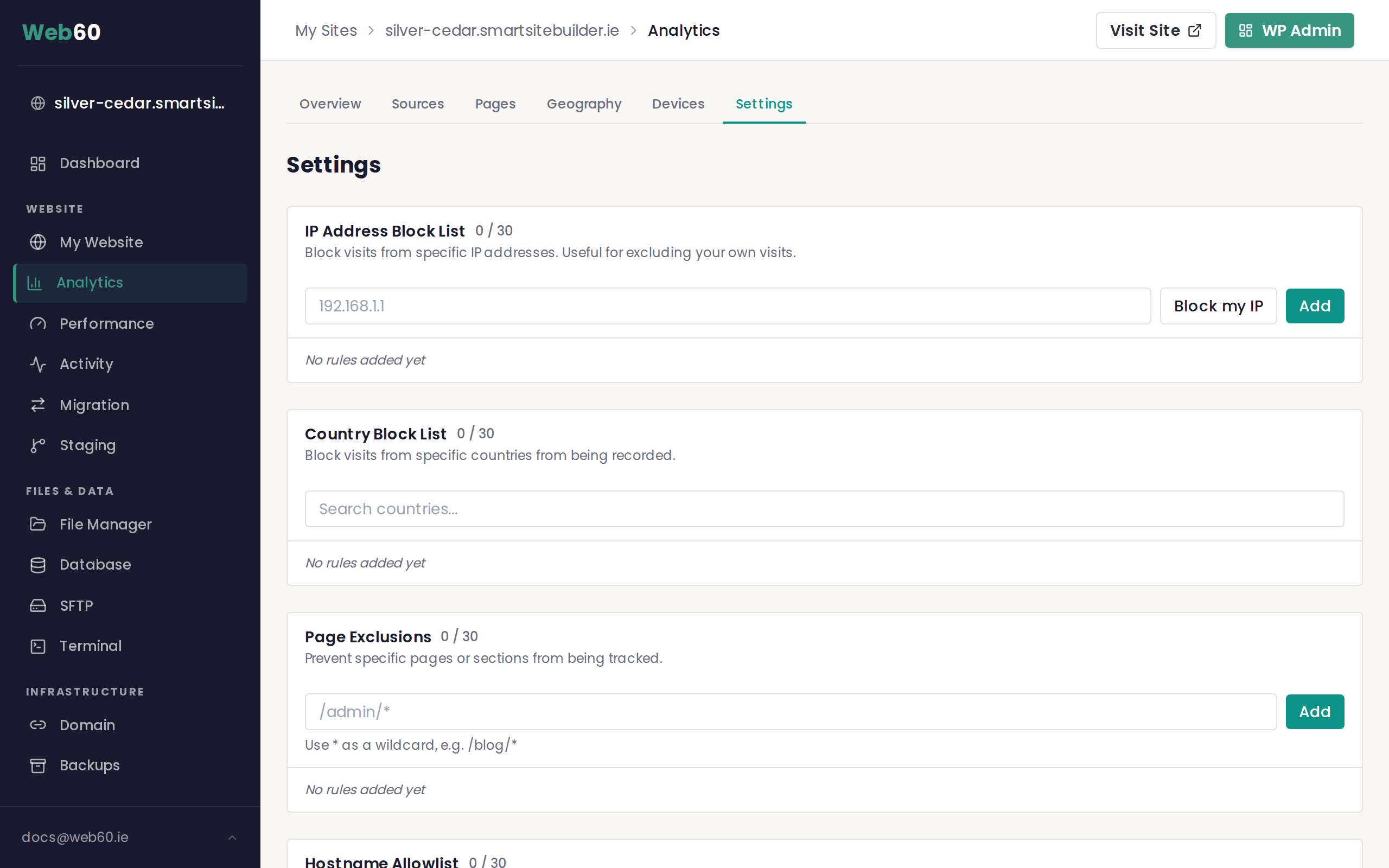
IP Address Block List
This section lets you prevent visits from specific IP addresses from being recorded. The most common use is to exclude your own visits so they do not inflate your traffic numbers.
To block your own IP address, click the Block my IP button. Your current IP address will be detected automatically and filled in for you. Then click Add to save the rule.
You can also type in any IP address manually if you want to block a specific address. Each rule blocks a single address.
Country Block List
If you see traffic from countries that are not relevant to your business (for example, automated traffic from regions you do not serve), you can block those countries from your reports.
Type the name of the country in the search box, select it from the dropdown list, and it will be added to your block list. Visits from that country will no longer appear in your analytics going forward.
Remember that blocking a country in analytics does not prevent those visitors from reaching your website. It only removes them from your reports.
Page Exclusions
If there are pages on your site that you do not want to track, you can exclude them here. Enter the page path starting with a forward slash. For example:
/adminwould exclude your admin page/blog/*would exclude all pages under your blog section (the asterisk acts as a wildcard)
This is useful if you have internal pages or test pages that you do not want cluttering your analytics data.
Hostname Allowlist
The hostname section lets you specify which domain names should be tracked. When this list is empty, traffic from all hostnames is recorded. If you add one or more hostnames, only visits to those specific domains will appear in your reports.
This is useful if your site is accessible at more than one address (for example, both your custom domain and a temporary preview address). By adding only your main domain, you ensure that test or preview traffic does not appear in your reports.
A note on domain changes
If you connect a new domain to your website, your analytics will start recording under that new domain from that point forward. Your historical data from the previous domain is preserved, but the two sets of data are separate. Keep this in mind if you compare time periods that span a domain change.
Managing your rules
Each section supports up to 30 rules. To remove a rule, click the delete icon next to it. The change takes effect immediately for all future visits.
Need help?
If you have questions about configuring your analytics, visit our support page and we will be happy to assist.
Frequently asked questions
Will blocking my own IP address delete my past visits?
No. Block rules only apply to future visits. Any visits already recorded will remain in your analytics history.
What happens to my analytics if I change my domain?
When you connect a new domain to your site, your analytics tracking starts fresh for that domain. Historical data from your previous domain is still available if you switch back to the old date range, but new visits will only be recorded under the active domain.
Is there a limit to how many rules I can add?
Yes. Each block list section supports up to 30 rules. This is more than enough for most websites.
Does blocking a country prevent visitors from that country seeing my site?
No. Country blocking in analytics settings only prevents those visits from appearing in your reports. The visitors can still access your website normally.
Last updated: 16 March 2026