

The WordPress Theme Detector lets you enter any website address and find out which WordPress theme it is using. It can also detect some of the plugins installed on the site.
What this tool does
When you enter a URL, the theme detector:
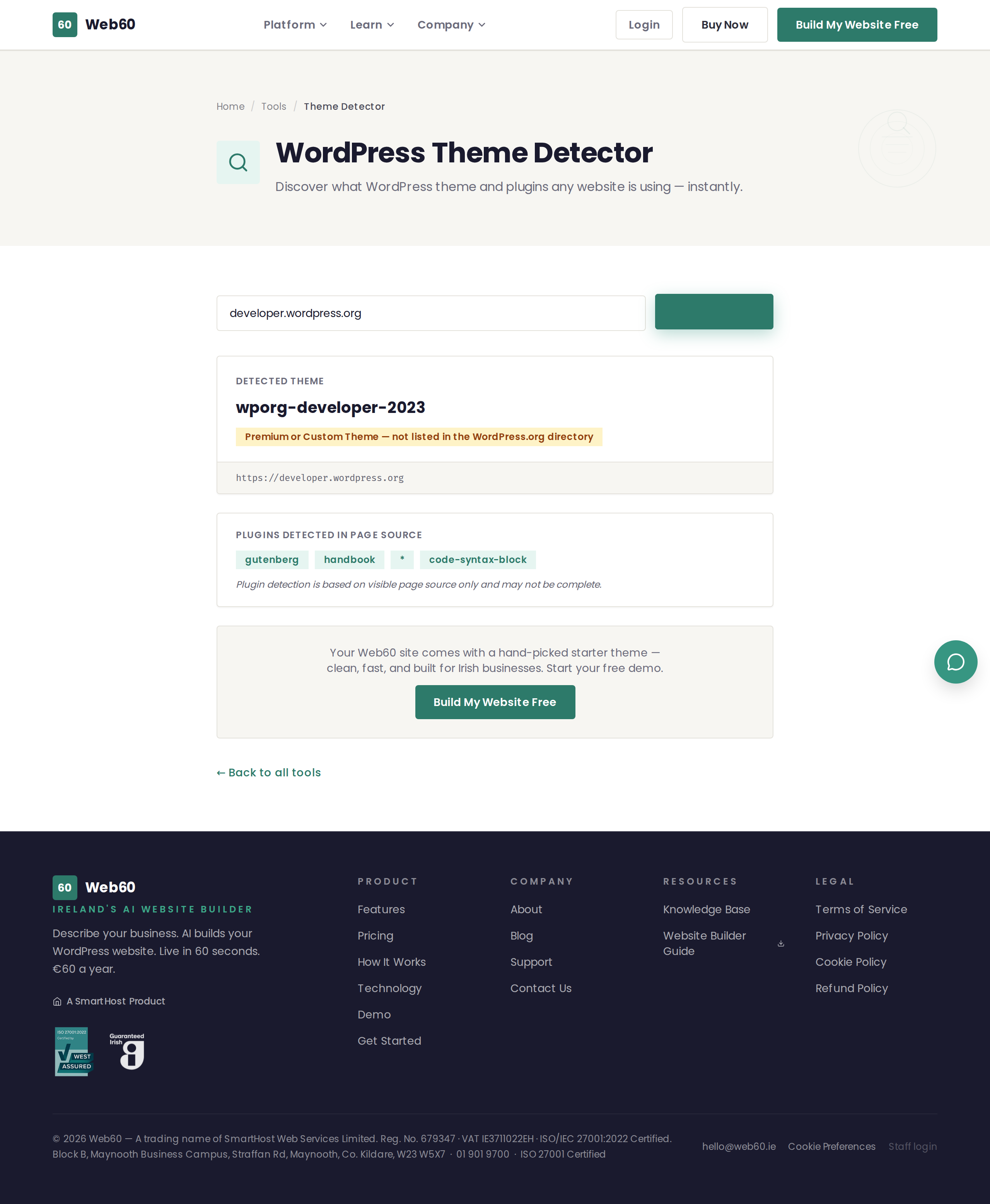
- Checks if the site uses WordPress - It looks for three separate indicators to confirm whether the site is built with WordPress.
- Identifies the theme - It finds the name, version, and author of the active WordPress theme.
- Looks up theme details - If the theme is listed on WordPress.org, it shows the rating, description, and a link to the theme's page.
- Detects plugins - It scans the page source for references to known WordPress plugins and lists the ones it finds.
How to use it
- Go to web60.ie/tools/theme-detector.
- Enter the full website address (for example,
https://example.com). - Click Detect Theme.
- Wait a few seconds for the scan to complete.
- Review the results.
Understanding the results
WordPress detection
The tool first confirms whether the site is WordPress. If it is, you will see a green confirmation. If not, the tool will display a message explaining that no WordPress installation was detected.
Theme information
If a theme is detected, you will see:
- Theme name - The name of the active theme.
- Author - Who created the theme.
- Version - The version currently installed.
- Rating - If the theme is on WordPress.org, its star rating is shown.
- WordPress.org link - A direct link to view the theme on the official WordPress theme directory.
Plugins detected
Below the theme information, you will see a list of plugins that were found in the page source. Each plugin name links to its page on WordPress.org so you can learn more about it.
Not all plugins are detectable - only those that include visible files or references in the page HTML.
Why this tool is useful
- Research - If you see a website you like, you can find out which theme and plugins power it.
- Comparison - Compare the technology behind competitor websites.
- Theme shopping - Discover popular themes by checking real websites rather than browsing theme directories.
- Troubleshooting - If you are helping someone with a WordPress site, knowing the theme and plugins is the first step.
Need help?
If you need advice on choosing a WordPress theme or want to know more about how Web60 sites are built, visit our support page.
Frequently asked questions
Can the tool detect every WordPress theme?
It can detect most themes that are publicly listed on WordPress.org. Custom or heavily modified themes may be identified by name but with limited details.
What if the tool says a website is not WordPress?
If a site does not show the typical signs of a WordPress installation, the tool will let you know. Some WordPress sites are heavily customised and may not be detected.
Can I see all the plugins a site uses?
The tool can detect plugins that leave visible traces in the page source code, such as references to plugin files. Not all plugins are detectable this way.
Last updated: 25 March 2026