

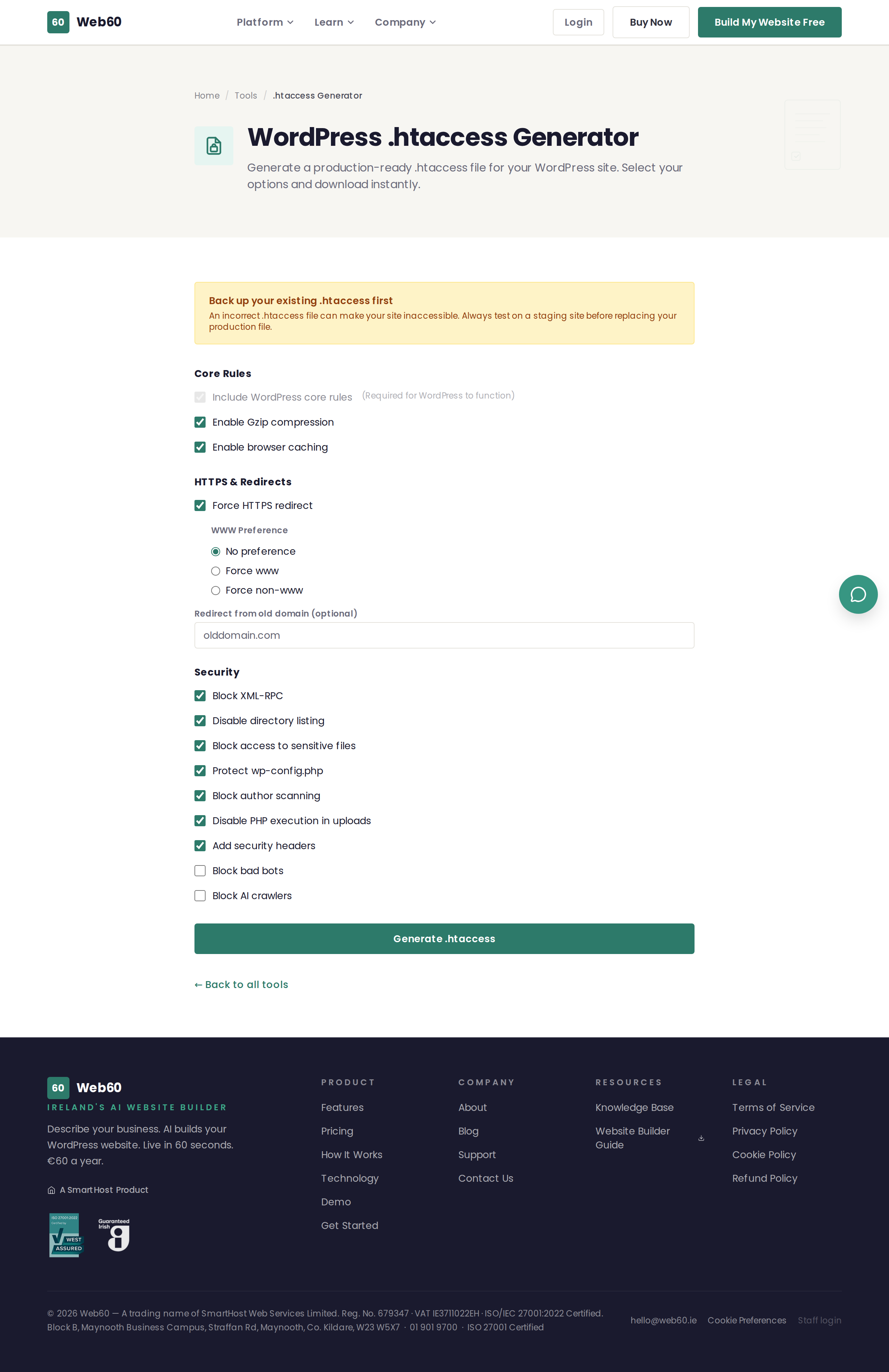
The .htaccess Generator creates a production-ready configuration file for WordPress websites running on Apache servers. You choose the options you need and download the file instantly.
What is an .htaccess file?
The .htaccess file is a configuration file that sits in the root folder of your website. It tells your web server how to handle requests, and it controls things like:
- Whether your site forces visitors to use the secure HTTPS version
- How long browsers should cache your images and files
- Which files and folders are protected from public access
- Whether security headers are sent to visitors' browsers
What options are available
The generator lets you configure settings across three main areas:
Core rules
- WordPress core rules - The standard rules WordPress needs to function (always included).
- Gzip compression - Compresses your pages before sending them to visitors, making your site load faster.
- Browser caching - Tells browsers to save copies of your images and files so returning visitors experience faster load times.
HTTPS and redirects
- Force HTTPS - Redirects all visitors to the secure version of your site.
- WWW preference - Choose whether your site uses
www.yourdomain.ieor justyourdomain.ie, and automatically redirect the other version. - Old domain redirect - If you have changed domain names, redirect visitors from the old address to the new one.
Security
- Block XML-RPC - Blocks an older WordPress feature that is frequently targeted by attackers.
- Disable directory listing - Prevents people from seeing the contents of your folders.
- Block access to sensitive files - Protects configuration files and other sensitive files from being downloaded.
- Protect wp-config.php - Blocks public access to the file that contains your database credentials.
- Block author scanning - Prevents attackers from discovering your WordPress usernames.
- Disable PHP execution in uploads - Stops uploaded files from being executed as code, which is a common attack method.
- Add security headers - Sends browser security headers that protect visitors from common web attacks.
- Block bad bots - Blocks known malicious crawlers and scraping tools.
- Block AI crawlers - Blocks AI training crawlers from companies like OpenAI, Anthropic, Google, and Meta.
How to use it
- Go to web60.ie/tools/htaccess-generator.
- Select the options you want to include. The recommended defaults are already enabled.
- Click Generate .htaccess.
- Review the generated code in the preview.
- Click Copy to clipboard or Download .htaccess to get the file.
- Upload the file to the root directory of your WordPress website, replacing the existing .htaccess file.
Important: back up first
Before replacing your .htaccess file, always download a copy of the existing one. If something goes wrong, you can restore it immediately and your site will return to normal.
If you are not sure how to upload files to your website, ask your hosting provider for guidance or check if they offer a file manager in their control panel.
How Web60 handles this
Web60 customers do not need to manage .htaccess files manually. All of these protections - HTTPS, caching, security headers, bot blocking - are configured automatically at the platform level.
Need help?
If you need help with your .htaccess file or are having trouble after uploading a new one, visit our support page.
Frequently asked questions
What is an .htaccess file?
It is a configuration file used by Apache web servers (the most common type for WordPress hosting). It controls things like security rules, redirects, caching, and access restrictions.
Will this break my website?
Always back up your existing .htaccess file before replacing it. If something goes wrong, you can restore the backup and your site will return to normal.
Do Web60 customers need to use this tool?
No. Web60 handles all of these settings automatically at the platform level - HTTPS, caching, security headers, and bot blocking are all configured for you.
Last updated: 25 March 2026