
A staging site is a private copy of your live website where you can make changes, try new plugins, or test a different theme without affecting what your visitors see. When you are happy with the changes, you push them to your live site in one step.
Create a staging site
- Log in to your Web60 dashboard.
- Click on your website name to open the My Website page.
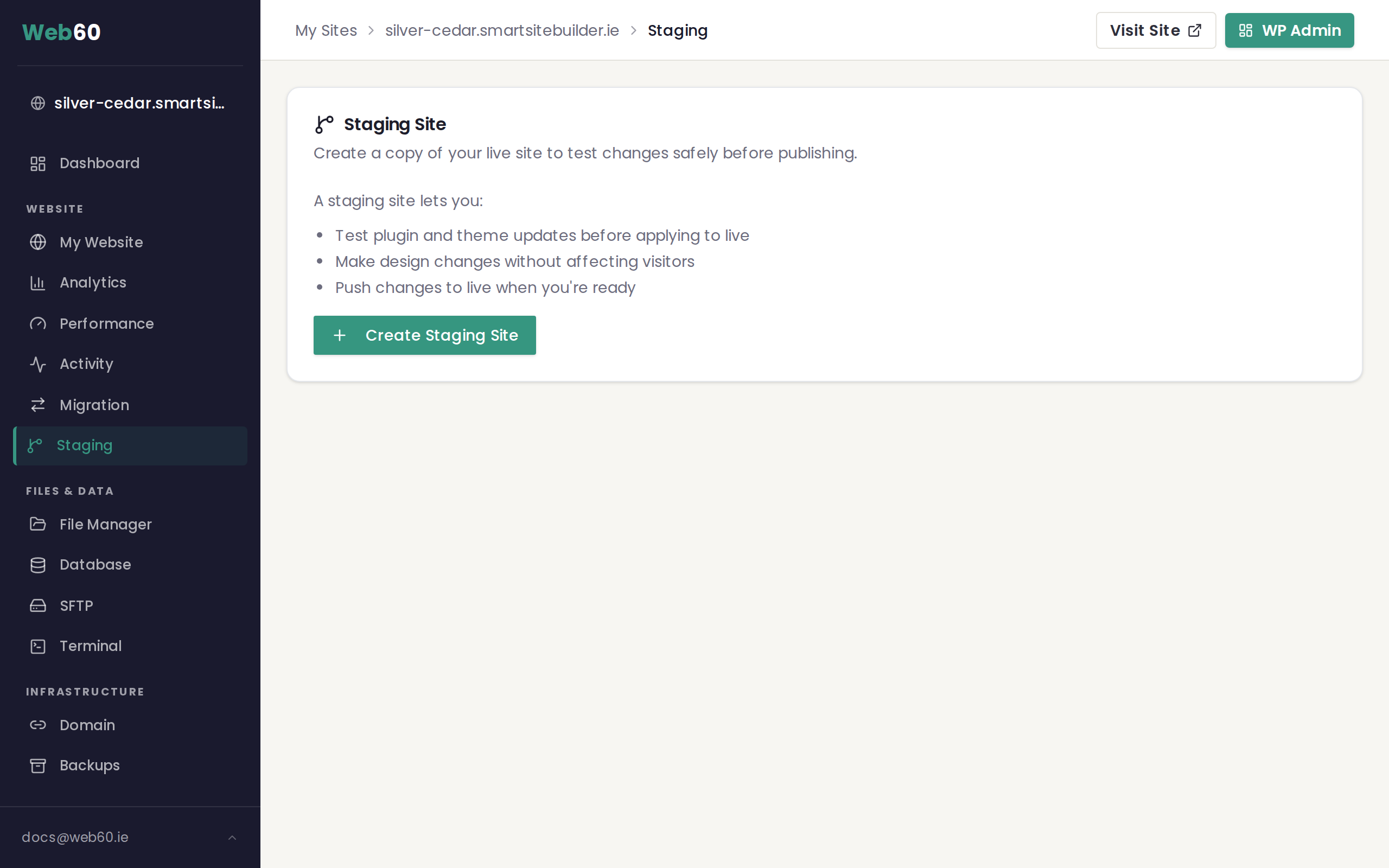
- Open the Staging tab.
- Click Create Staging Site.
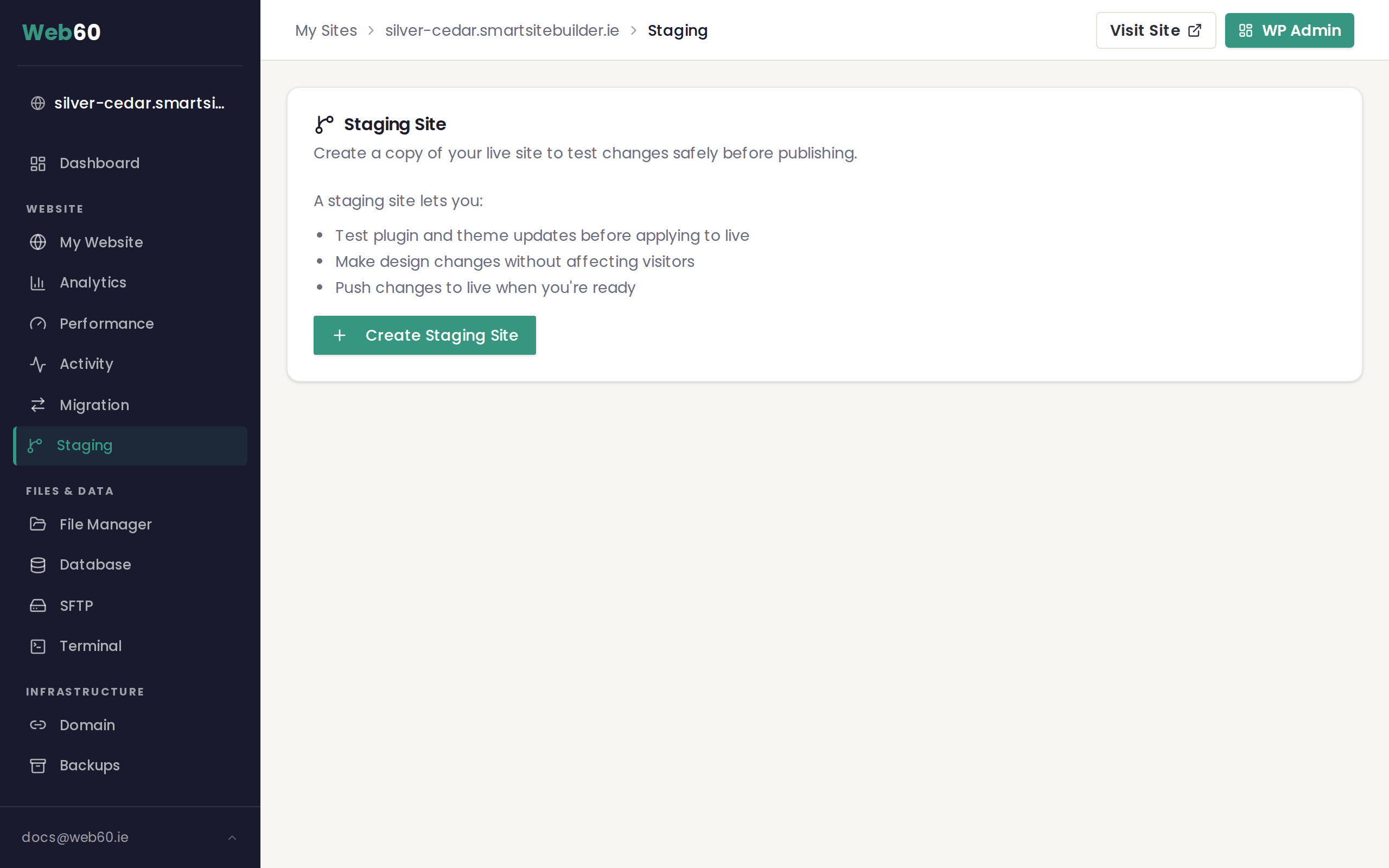
Web60 will create a complete copy of your live site. This includes all your pages, posts, images, plugins, themes, and database. The process takes a few minutes, and you will see a progress bar while it runs. Do not close the page until it finishes.
Once complete, your staging site will have its own web address, shown at the top of the Staging card.
What staging gives you
Your staging site is a fully working copy of your live website. You can:
- Install or remove plugins to see how they work before adding them to your live site
- Try a different theme or make design changes without visitors noticing
- Test content changes and preview how they will look
- Update WordPress, plugins, or themes to check for problems before updating your live site
Changes on staging do not affect your live site. They stay on the staging copy until you decide to push them live.
Make changes on your staging site
To edit your staging site, click Open Staging WP Admin in the WP Admin Access card on your dashboard. This logs you straight into the WordPress editor for your staging site, where you can make any changes you like.
Push staging to live
When you are satisfied with your changes and want to apply them to your live website:
- Go to the Staging tab in your Web60 dashboard.
- Click Push to Live.
- A confirmation box will appear. Type PUSH TO LIVE exactly as shown, in capital letters.
- Click Confirm Push to Live.
Web60 automatically takes a backup of your live site before pushing. If something goes wrong after the push, you can restore from that backup.
The push process copies your staging files and database to your live site, updates all the URLs, and clears the cache. Your live site will then match your staging site exactly.
Sync live to staging
If you have made changes on your live site since creating the staging copy, you can bring staging up to date:
- Go to the Staging tab.
- Click Sync Live to Staging.
This replaces the staging copy with a fresh copy of your live site. Any changes you had made on staging will be overwritten, so make sure you have finished testing before syncing.
Staging restrictions
There are a few differences between staging and your live site:
- Password protection is always on. Your staging site requires a username and password to access. This keeps it private while you work on it. You will find the credentials in the Staging Site Password section of your dashboard.
- Automatic plugin updates are turned off on staging to prevent unexpected changes while you are testing.
Delete a staging site
If you no longer need your staging site, click Delete Staging Site at the bottom of the Staging actions. This removes the staging copy completely. You can always create a new one later.
Need help?
If you have any questions about using your staging site, visit our support page and we will help you get started.
Frequently asked questions
Can visitors see my staging site?
No. Your staging site is protected by a username and password. Only people who have the staging credentials can access it.
Will changes on staging affect my live site?
No. Your staging site is a completely separate copy. Nothing you do on staging touches your live site until you choose to push staging to live.
How do I get the staging site password?
After creating a staging site, the password is shown in the Staging Site Password section of your dashboard. You can copy it from there or regenerate a new one at any time.
What happens to my live site when I push staging to live?
Web60 takes an automatic backup of your live site first. Then it replaces your live site with the staging version. If anything goes wrong, you can restore from that backup.
Last updated: 15 March 2026