

Your WordPress editor is where you create pages, write content, and manage your website. The good news is that you don't need to remember a separate login because your Web60 dashboard takes care of everything for you.
How to open your WordPress editor
Follow these three simple steps:
- Sign in to your Web60 dashboard at app.web60.ie using your email address.
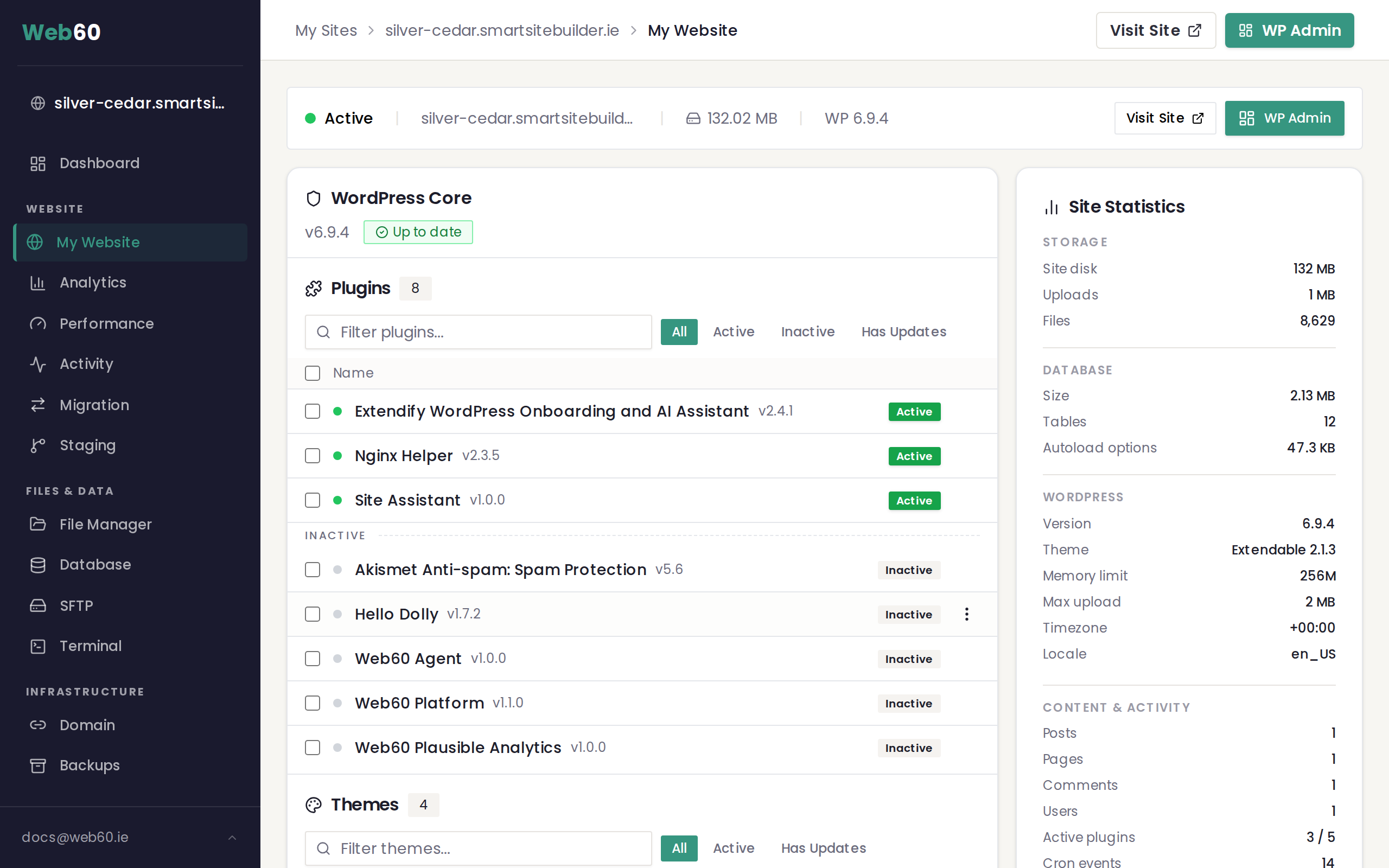
- Click "My Website" in the sidebar on the left-hand side.
- Click the "WP Admin" button on your website overview page.
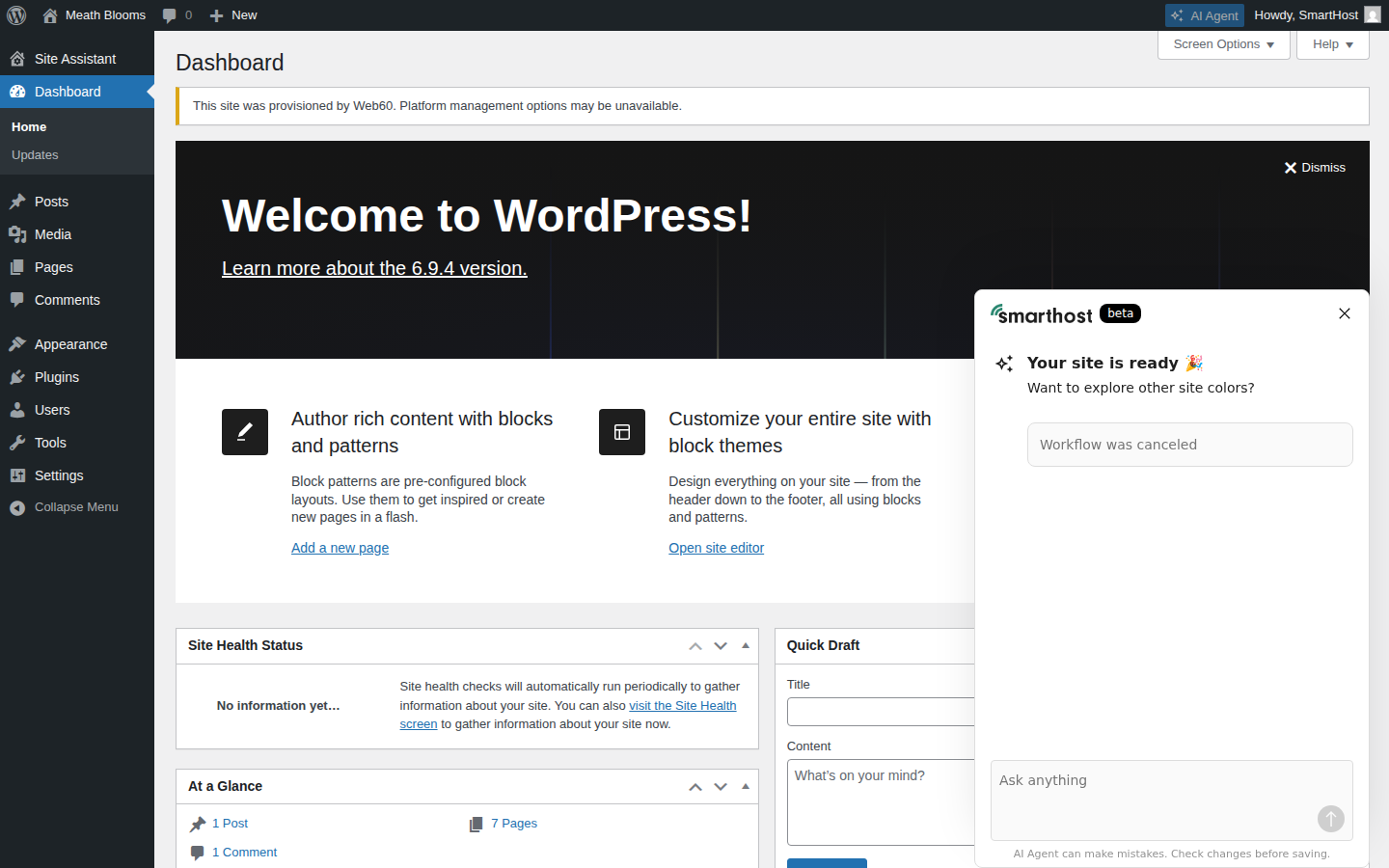
That's it. You'll be taken straight into your WordPress editor, already logged in. There's no need to enter a username or password.
Why you should always use your dashboard
It might be tempting to try and go directly to your WordPress editor by typing an address into your browser. Please don't do this. Always open WordPress through your Web60 dashboard, because:
- You're logged in automatically, so there are no passwords to remember or type.
- It's more secure. Your dashboard handles the login process safely behind the scenes.
- It's the supported way. If you ever need help from our team, we'll ask you to use this method.
What you'll see when WordPress opens
When your WordPress editor opens, you'll see a menu on the left-hand side with options like:
- Pages, where you create and edit the pages on your website.
- Posts, where you write blog articles (if your site has a blog).
- Media, where your uploaded images and files are stored.
- Appearance, where you can adjust your site's look and feel.
You don't need to understand every option right away. For most tasks, you'll be working with Pages and the Web60 Site Builder.
Quick access from your dashboard
Your Web60 dashboard also shows useful information about your website on the My Website page, including:
- Whether your site is online and running normally.
- Your domain name.
- How much storage space you're using.
- Which version of WordPress your site is running.
You'll also find a "Visit Site" button if you simply want to see your website as your customers see it.
Next steps
Once you're in your WordPress editor, you might want to:
- Learn about the Web60 Site Builder, the easiest way to design your pages.
- Take a tour of your WordPress editor to understand what each section does.
Need help?
If you're having trouble opening your WordPress editor, or if something doesn't look right, visit our support page and we'll help you get sorted.
Frequently asked questions
Do I need a separate username and password for WordPress?
No. Clicking 'Open WordPress' in your dashboard logs you in automatically. You don't need a separate WordPress password.
Can I bookmark my WordPress editor?
It's best to always access WordPress through your Web60 dashboard, as this ensures you're logged in automatically.
What do I do if clicking Open WordPress does not work?
Try refreshing your Web60 dashboard and clicking the button again. If it still does not open, clear your browser cache or try a different browser. You can also visit our support page for help.
Last updated: 15 March 2026