

The AI chose your initial colour scheme based on your business description. You can change it at any time.
Option 1: Use the colour palette panel (quickest)
After the builder finishes generating your site, a panel appears offering 8 alternative colour schemes.
- Click any palette to preview it on your site
- Click Save to apply it
- Click Cancel to keep the current colours
You can open this panel again any time from your WordPress admin: go to Web60 AI Site Builder in the left menu.
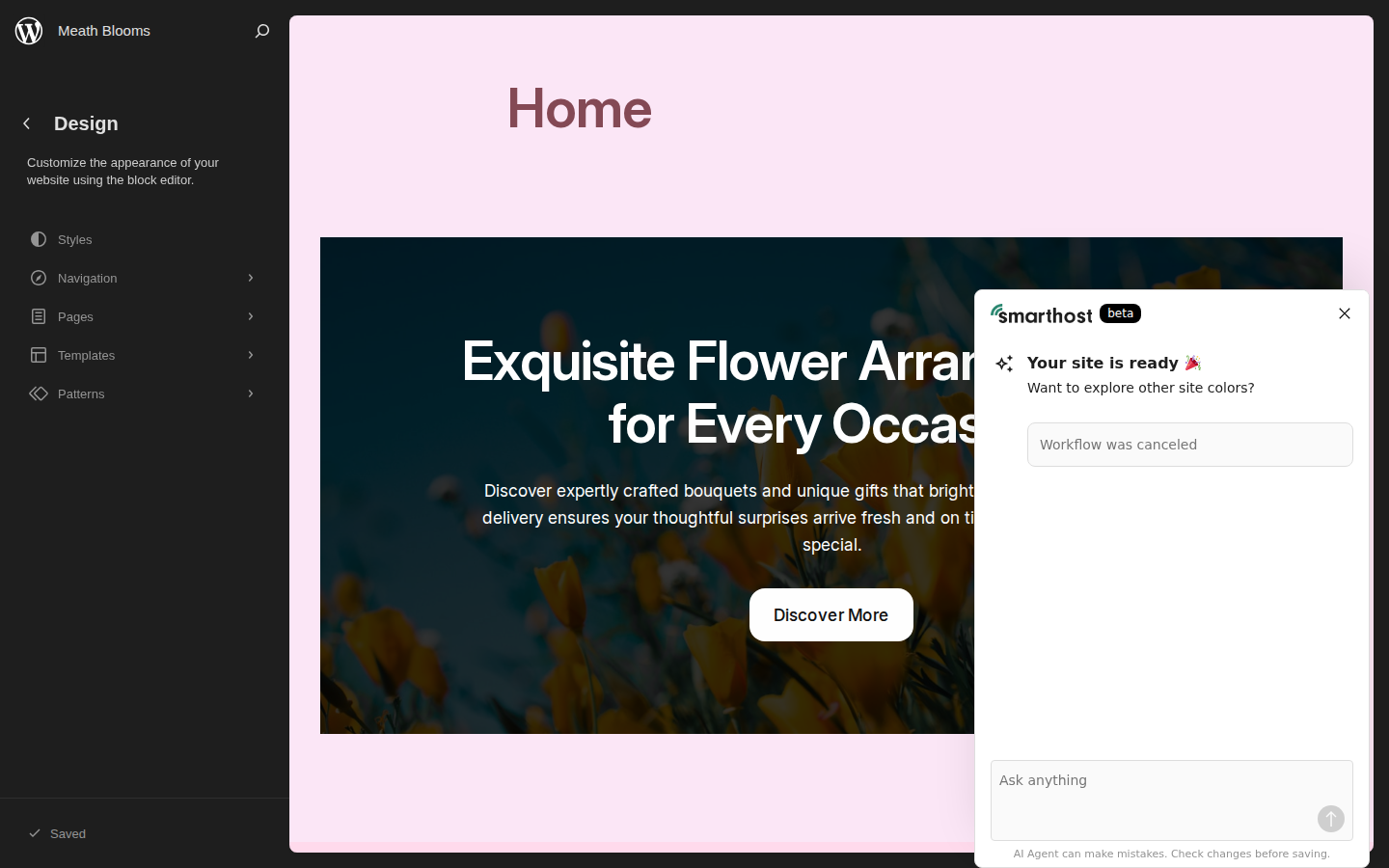
Option 2: Use the Site Editor (more control)
- Open your WordPress admin (see how to open WordPress)
- Go to Appearance → Editor in the left menu
- Click Styles (top right, looks like a half-filled circle)
- Choose from the preset style variations, or click into Colours or Typography to change individual elements
Changes in the Site Editor apply to your whole website, so every page updates at once.
Changing fonts
Fonts are changed in the same place as colours:
- Go to Appearance → Editor → Styles → Typography
- Choose separate fonts for headings and body text
- Click Save to apply
Will changes affect my content?
No. Changing colours or fonts never removes text or images. Only the visual style updates.
Frequently asked questions
Can I undo a design change?
Yes. Press Ctrl+Z (Windows) or Cmd+Z (Mac) in the editor, or use Revisions to roll back to a previous version.
Can I have different colours on different pages?
The colour scheme applies to the whole site. Individual sections can have their background colour changed separately in the block editor.
Last updated: 19 March 2026