
After you update your DNS settings to point your domain to Web60, you can track the connection status directly in your Web60 dashboard. This guide explains where to look and what each status means.
Where to check your domain status
- Sign in to your Web60 dashboard at app.web60.ie/login.
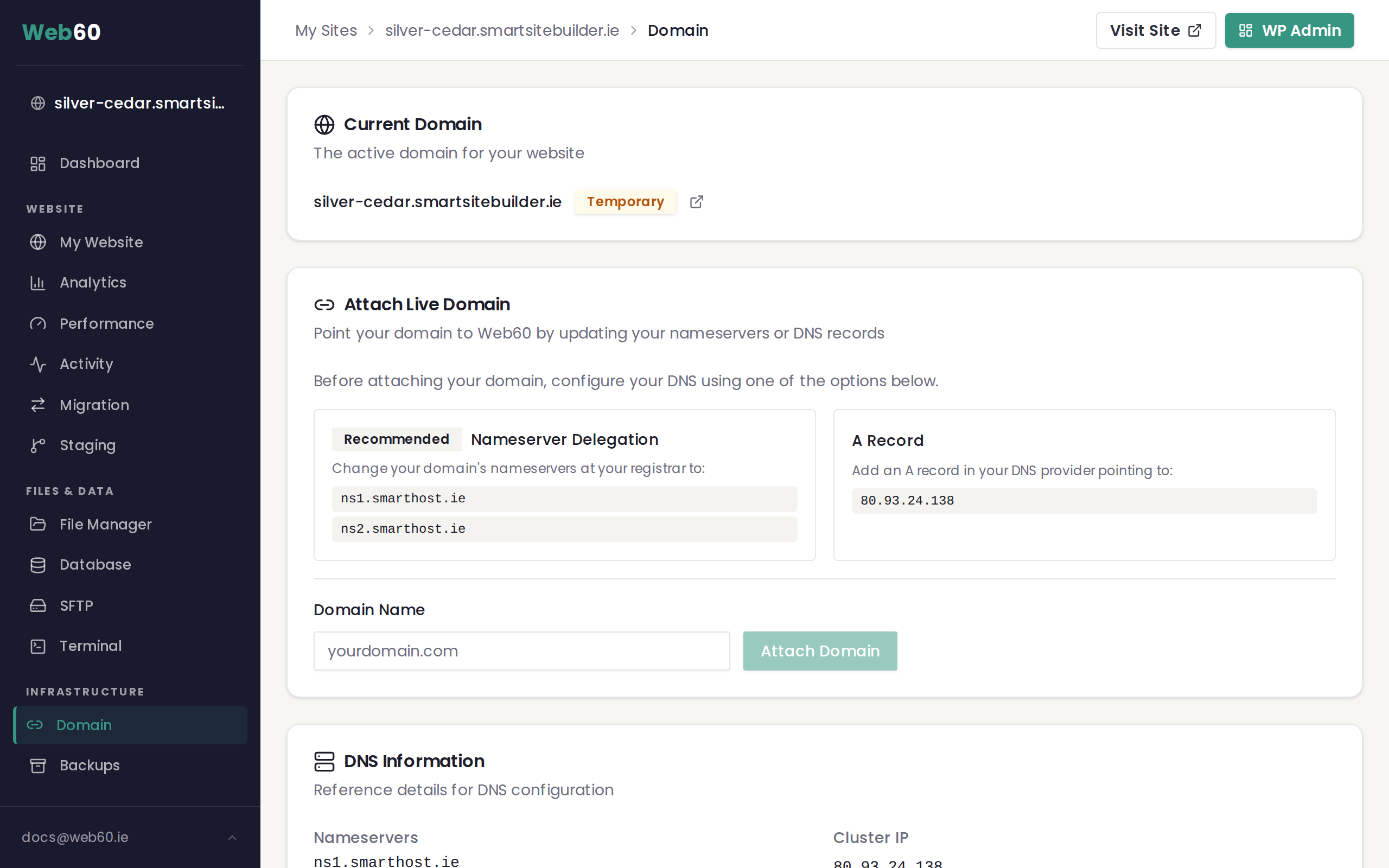
- Click My Website in the sidebar.
- Go to the Domain tab.
Your current domain and its connection status are displayed at the top of the page. You will see your domain name alongside a status badge that shows the current state.
Status indicators explained
Connected
Your domain is fully connected and working. Your website is accessible at your custom domain and the SSL security certificate is active. No further action is needed.
Pending DNS
Your domain has been attached in your Web60 dashboard, but the DNS changes have not finished propagating yet. This is normal and means the system is waiting for your DNS updates to take effect across the internet.
What to do: Wait. Most DNS changes complete within 1 to 4 hours, though it can take up to 48 hours in some cases.
SSL Provisioning
Your domain has connected successfully and Web60 is now generating your SSL security certificate. This ensures your website loads securely with https:// and the padlock icon in visitors' browsers.
What to do: This step usually completes within a few minutes. No action is needed from you.
Error
Something went wrong with the domain connection. This could mean your DNS settings are incorrect or there is a conflict preventing the domain from connecting.
What to do: Double-check your DNS settings match the values shown in your Web60 dashboard. If everything looks correct, contact our support team.
How long should I wait?
- Most domains: 1 to 4 hours
- Maximum: Up to 48 hours
- SSL certificate: A few minutes after DNS connects
If you have been waiting for more than 48 hours and your domain is still showing as Pending DNS, something may need to be corrected.
How to check outside your dashboard
You can also verify your domain is pointing to Web60 using a free online DNS lookup tool. Search for "DNS lookup" in your browser and enter your domain name. Look for:
- A record: Should show
80.93.24.138if you used the A record method. - Nameservers: Should show
ns1.smarthost.ieandns2.smarthost.ieif you used the nameserver method.
If these values are correct and your dashboard still shows Pending DNS, the changes are still propagating. Give it more time.
What to do if still pending after 48 hours
If your domain has not connected after 48 hours:
- Verify your DNS settings are correct by checking them at your domain registrar.
- Make sure you entered the correct domain name in your Web60 dashboard (no typos, no
www.prefix). - If using the A record method, confirm the record points to
80.93.24.138. - If using nameservers, confirm they are set to
ns1.smarthost.ieandns2.smarthost.ie.
If everything looks correct and it still has not connected, contact our support team with your domain name and we will investigate.
Need help?
If your domain is not connecting as expected, visit our support page and we will help you get it sorted.
Frequently asked questions
How long does it take for my domain to connect?
Most domains connect within 1 to 4 hours. In some cases it can take up to 48 hours for DNS changes to fully propagate. If your domain is still showing as pending after 48 hours, contact our support team.
What does SSL Provisioning mean?
SSL Provisioning means your domain has connected successfully and Web60 is now setting up your security certificate. This certificate ensures your website loads securely with the padlock icon in the browser. It usually completes within a few minutes.
Can I speed up the domain connection process?
Unfortunately, DNS propagation is controlled by global DNS servers and cannot be sped up. The best thing to do is make sure your DNS settings are correct and then wait. Most connections complete much faster than the 48-hour maximum.
Last updated: 16 March 2026