

Connecting your own domain name (like yourbusiness.ie) to your Web60 website is straightforward. This guide walks you through each step.
Before you start
You will need:
- A domain name you already own. If you do not have one yet, see our guide on registering a domain.
- Access to your domain provider's website, which is wherever you bought your domain.
Step 1: Open your domain settings in Web60
- Sign in to your Web60 dashboard.
- Click "Domain" in the left-hand menu.
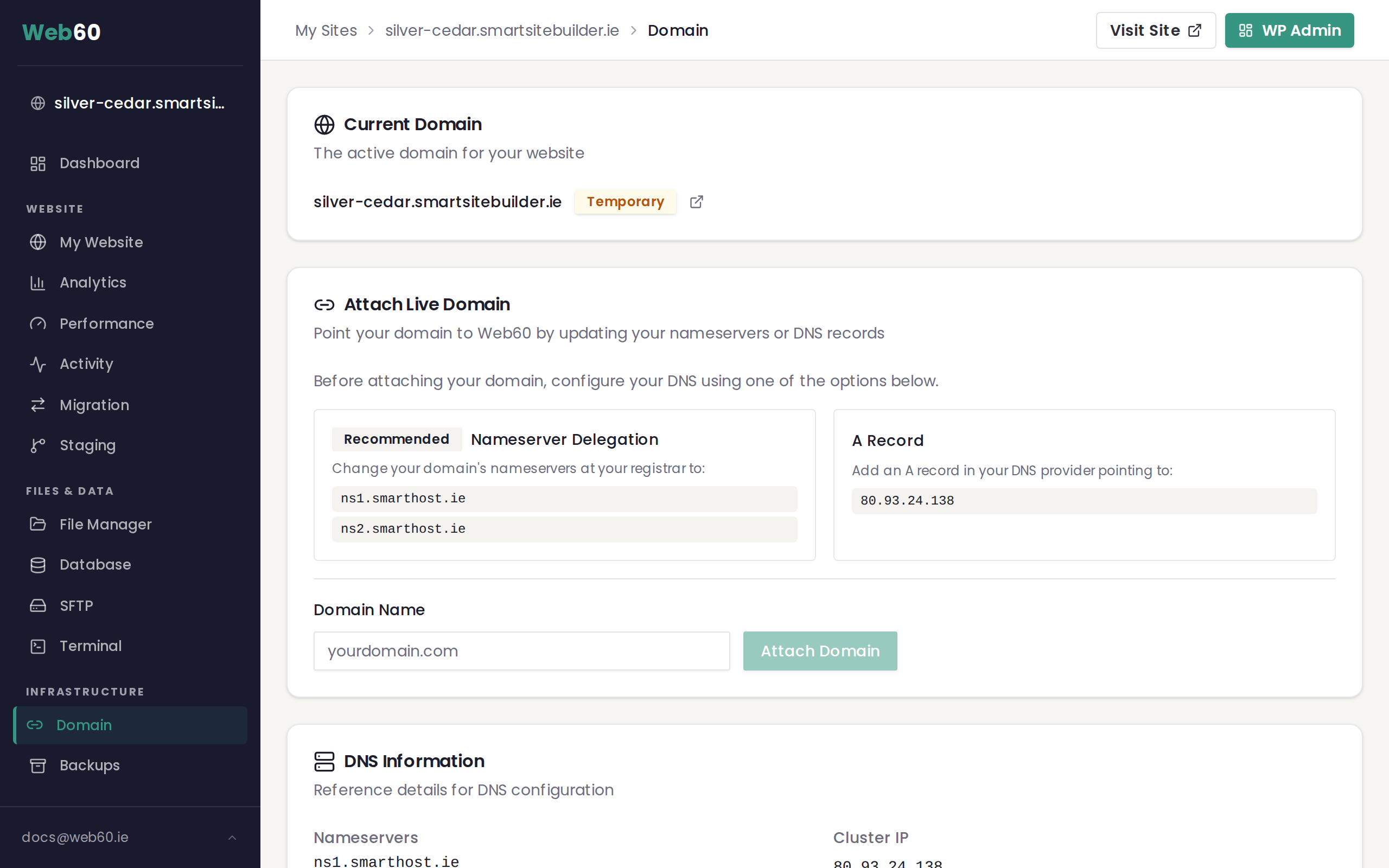
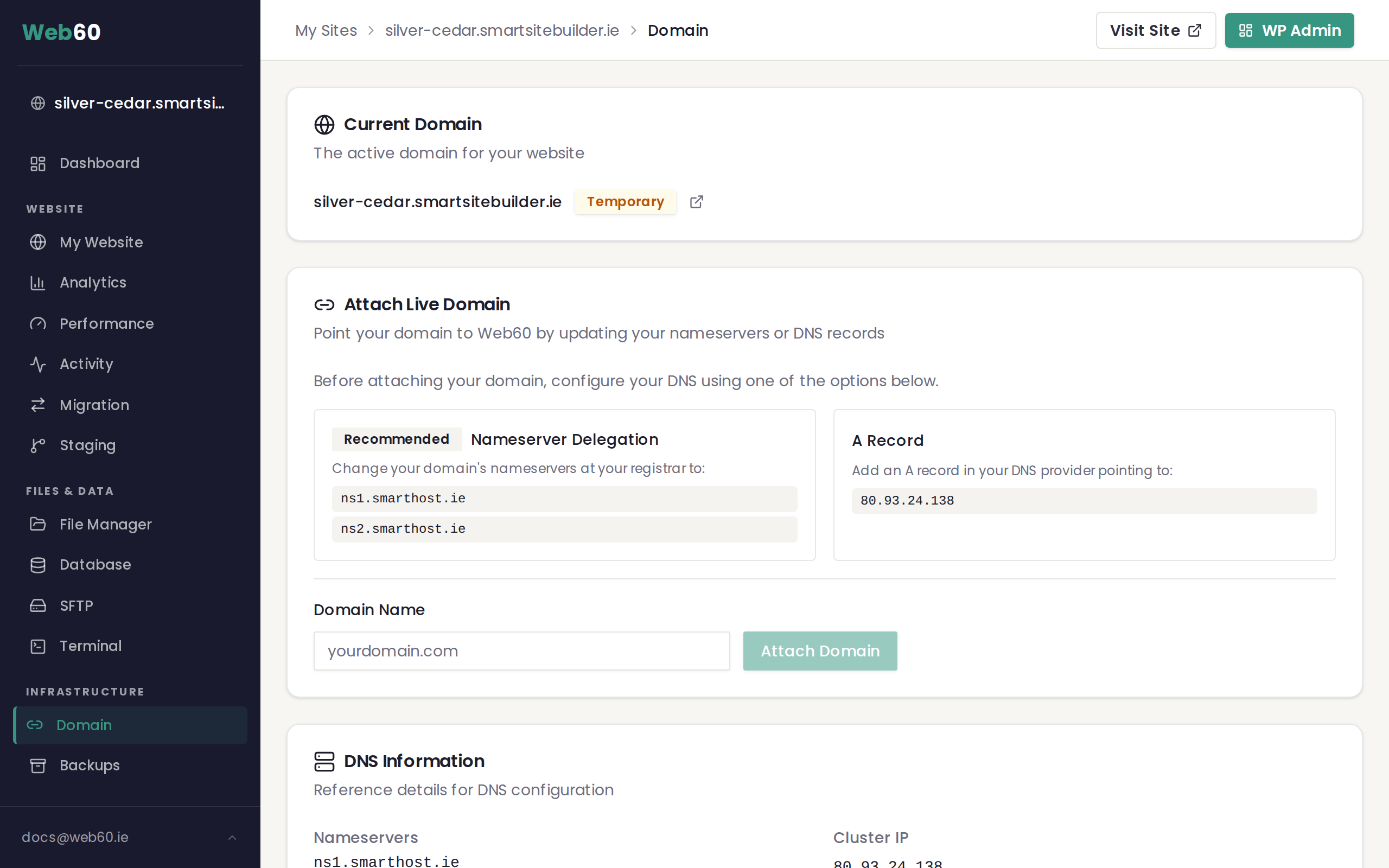
- You will see the Attach Live Domain card with instructions.
Step 2: Update your settings at your domain provider
You have two options. We recommend Option 1 for most people.
Option 1: Nameserver delegation (recommended)
This is the simplest method. It lets Web60 manage your domain settings automatically.
- Log in to the website where you bought your domain (your domain provider).
- Find the nameserver settings. This is usually under "Domain settings", "DNS", or "Nameservers". If you are not sure where to find it, your domain provider's support team can help.
- Change the nameservers to the following two addresses:
- ns1.web60.ie
- ns2.web60.ie
- Save the changes.
Option 2: A record
If you prefer to keep your domain's other settings (like email) managed by your current provider, you can use the A record method instead.
- Log in to your domain provider's website.
- Find the DNS settings. This is usually under "DNS management" or "Advanced DNS".
- Create or edit an A record and set it to point to: 80.93.24.138
- Save the changes.
Step 3: Attach the domain in your Web60 dashboard
- Go back to your Web60 dashboard.
- In the Attach Live Domain card, type your domain name into the box (for example, yourbusiness.ie).
- Click "Attach Domain".
Step 4: Wait for the change to take effect
Domain changes are not instant. Most domains connect within 1 to 4 hours, but it can take up to 48 hours in some cases.
During this time:
- Your temporary smartsitebuilder.ie address continues to work as normal.
- Do not make any additional changes to your domain settings while waiting.
Once your domain is connected, Web60 will automatically set up a free security certificate for your site. This is the padlock icon you see in your browser, which tells your visitors the site is safe. You can read more about this in our SSL certificate guide.
What happens next
When the domain change has taken effect, the badge next to your domain in your Web60 dashboard will change from Temporary (amber) to Live (green). Your visitors can now reach your website using your custom domain name.
For more information about why domain changes take time, see our guide on why domain changes take up to 48 hours.
Need help?
If you are having any difficulty connecting your domain, visit our support page and we will get it sorted for you.
Frequently asked questions
Which method should I use, nameservers or A record?
We recommend the nameserver method. It's simpler and means Web60 can manage everything for you automatically.
How long does it take for my domain to start working?
Most domains start working within 1 to 4 hours, but it can take up to 48 hours in some cases.
Can I keep my email working while I connect my domain?
Yes. If you use the A record method instead of the nameserver method, your existing email settings stay exactly as they are and will not be affected.
Last updated: 15 March 2026