

MX records are a type of DNS record that tell the internet where to deliver email for your domain. For example, if someone sends an email to info@yourbusiness.ie, the MX records for yourbusiness.ie determine which email service receives that message. This guide explains how to add them.
Before you start
You will need MX records from your email provider. When you sign up with a service like Google Workspace, Microsoft 365, or Zoho Mail, they will give you the specific MX records to add during the setup process. Have these ready before you begin.
If you have not chosen an email provider yet, see our guide on email hosting options.
Adding MX records using Web60 nameservers
If your domain uses Web60's nameservers, you can add MX records directly from your Web60 dashboard:
- Sign in to your Web60 dashboard
- Click your site to open the site overview
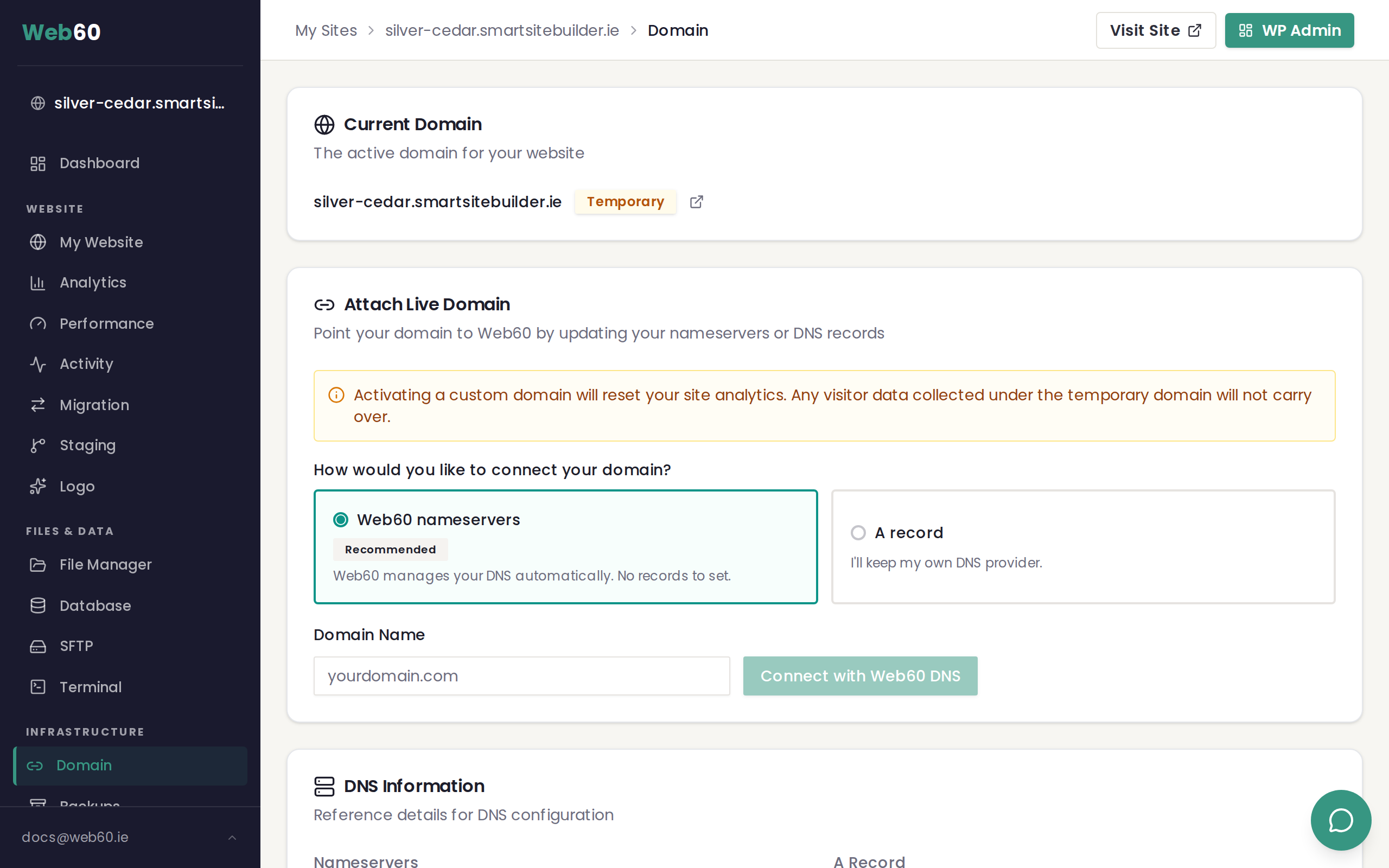
- Click the Domain tab in the left sidebar
- Scroll to DNS Records
- Click Add Record
- Choose MX as the record type
- Enter the values provided by your email provider:
- Host — usually left blank or set to @ (meaning your main domain)
- Value — the mail server address from your provider (e.g. ASPMX.L.GOOGLE.COM)
- Priority — a number that tells the system which server to try first (lower numbers are tried first)
- Save the record
- Repeat for each MX record your provider requires (most providers give you between two and five records)
Adding MX records at your registrar
If your domain's DNS is managed at your registrar (such as Blacknight, GoDaddy, or 123 Reg) rather than through Web60's nameservers:
- Log in to your registrar's website
- Find the DNS settings for your domain
- Add each MX record with the values from your email provider
- Save your changes
The exact steps vary between registrars, but the information you need to enter is the same: the record type (MX), the value (mail server address), and the priority.
Common MX records by provider
Google Workspace
| Priority | Value |
|---|---|
| 1 | ASPMX.L.GOOGLE.COM |
| 5 | ALT1.ASPMX.L.GOOGLE.COM |
| 5 | ALT2.ASPMX.L.GOOGLE.COM |
| 10 | ALT3.ASPMX.L.GOOGLE.COM |
| 10 | ALT4.ASPMX.L.GOOGLE.COM |
Microsoft 365
Microsoft provides a unique MX record during setup that includes your domain name. It typically looks like: yourdomain-ie.mail.protection.outlook.com with a priority of 0.
Zoho Mail
| Priority | Value |
|---|---|
| 10 | mx.zoho.eu |
| 20 | mx2.zoho.eu |
| 50 | mx3.zoho.eu |
After adding MX records
DNS changes can take up to 48 hours to fully spread across the internet, though most changes take effect much sooner, often within just an hour or two.
To test that your email is working:
- Send a test email to your new address (e.g. info@yourbusiness.ie) from a completely different email account, like a personal Gmail address
- Check your inbox in your email provider's app or website
- Reply to the test email to confirm sending works too
If the email does not arrive after a few hours, double-check that the MX records are entered correctly and that there are no typos in the values.
Need help?
If you need help adding MX records or setting up email for your domain, visit our support page and we will walk you through it.
Frequently asked questions
How long before my email starts working after adding MX records?
DNS changes can take up to 48 hours to fully spread across the internet, but in practice most changes take effect within a few hours. You can test by sending an email to your new address from a different account.
Can I have email with Web60 nameservers?
Yes. If your domain uses Web60's nameservers, you can add MX records from the Domain tab in your Web60 dashboard. Using Web60's nameservers does not prevent you from setting up email with any provider.
What if I already have MX records set up?
If you are switching email providers, you will need to remove or update your existing MX records and replace them with the ones from your new provider. If you are keeping the same provider, your existing MX records should stay as they are.
Last updated: 31 March 2026