

SFTP stands for Secure File Transfer Protocol. In plain terms, it is a way to move files between your computer and your website securely. Think of it like a private, encrypted bridge between your computer and the folder where your website files are stored.
When you need SFTP
Most of the time, you can manage your website entirely through WordPress. But there are situations where SFTP is the better option:
- Uploading a premium theme or plugin — if you have purchased a theme or plugin and downloaded it as a ZIP file, SFTP is often the easiest way to get it onto your site, especially if the file is large
- Bulk image uploads — if you need to upload dozens of product photos or portfolio images at once, dragging them across via SFTP is much faster than uploading one at a time through WordPress
- Downloading a copy of your files — if you want a copy of your website files on your own computer for safekeeping
- Editing configuration files — occasionally you may need to edit a specific file on your website, and SFTP lets you download, edit, and re-upload it
When you do not need SFTP
For everyday website tasks, SFTP is unnecessary. You can do all of the following directly through WordPress:
- Adding images to pages and blog posts through the media library
- Installing free plugins from the WordPress plugin directory
- Creating and editing pages and posts
- Changing your theme from the Appearance settings
- Updating your site title, tagline, and other settings
Web60 also includes a built-in File Manager in your dashboard for quick file edits without needing to install any extra software.
What software do you need
To use SFTP, you need a program on your computer called an SFTP client. The most popular free option is FileZilla, which works on Windows, Mac, and Linux. Other options include:
- WinSCP (Windows only, free)
- Cyberduck (Windows and Mac, free)
- Transmit (Mac only, paid)
You connect your SFTP client to your website using credentials from your Web60 dashboard. The software shows your website files on one side and your computer files on the other, and you can drag files between them.
How SFTP keeps your files safe
SFTP encrypts everything during transfer. This means:
- Your username and password are protected
- The files you transfer cannot be intercepted or read by anyone else
- The connection between your computer and your website is private
This is why Web60 uses SFTP rather than the older, unencrypted FTP. Your files and credentials are always protected.
Getting started with SFTP
If you would like to use SFTP, here is the path to follow:
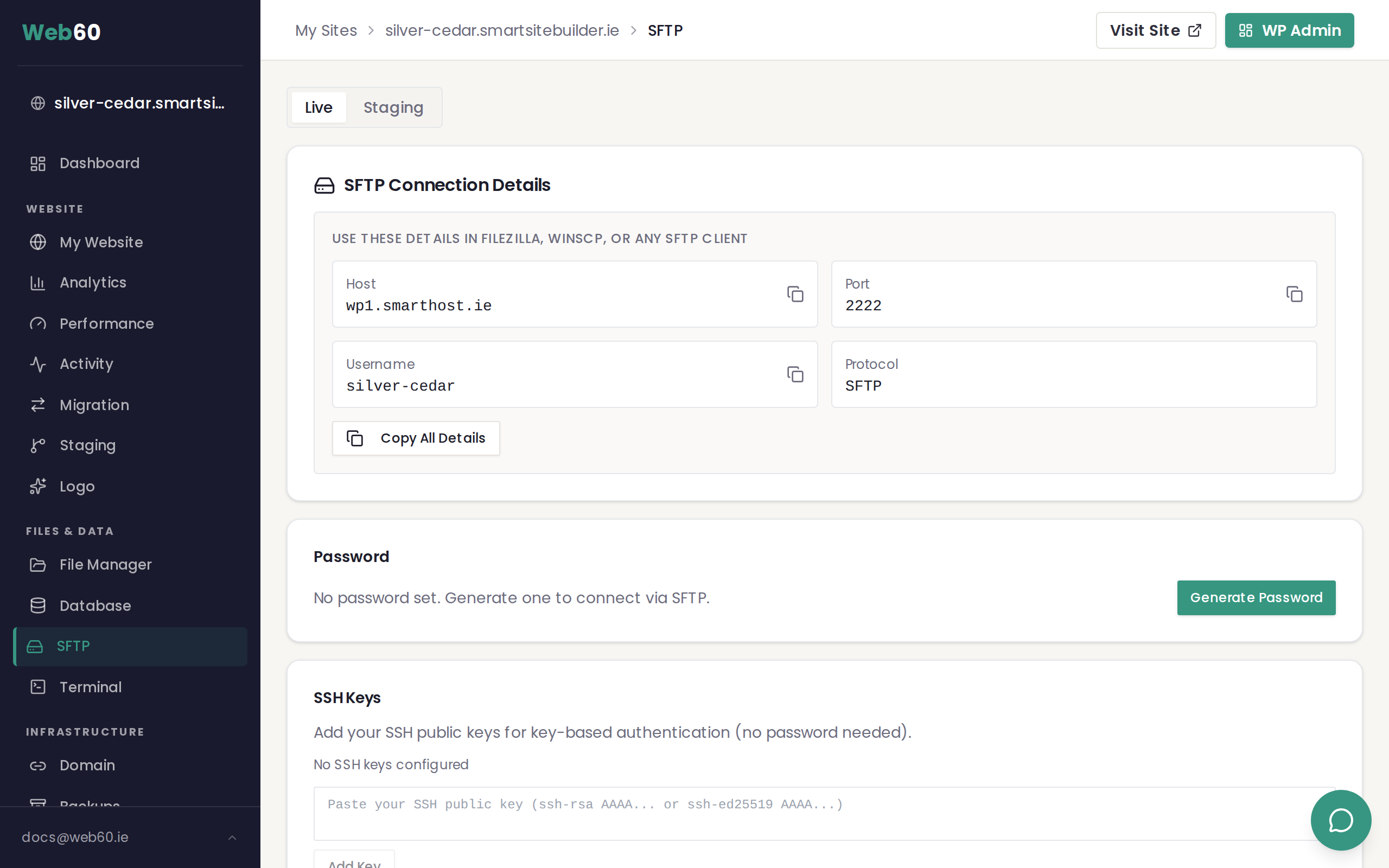
- Enable SFTP access from your Web60 dashboard — see our guide on how to enable SFTP access
- Install an SFTP client like FileZilla on your computer
- Connect to your site using the credentials shown in your dashboard — see our guide on connecting with FileZilla
Need help?
If you have any questions about SFTP or whether you need it, visit our support page and we will be happy to help.
Frequently asked questions
Do I need SFTP to manage my website?
Most likely not. For everyday tasks like adding images, editing pages, and installing free plugins, you can do everything through WordPress itself. SFTP is only needed for specific tasks like uploading premium themes, transferring large files, or bulk file operations.
Is SFTP the same as FTP?
They are similar but not the same. FTP (File Transfer Protocol) transfers files without encryption, which means your data could be intercepted. SFTP (Secure File Transfer Protocol) encrypts everything during transfer, making it much safer. Web60 uses SFTP exclusively for security.
Is it safe to use SFTP?
Yes. SFTP encrypts all data during transfer, including your password and the files themselves. As long as you keep your SFTP password secure and only share it with people you trust, it is a very safe way to access your website files.
Last updated: 31 March 2026