

If something has gone wrong with your website, whether it is an accidental change, a broken update, or anything else, you can restore it from a backup. This puts your website back to exactly how it was when that backup was taken.
How to restore from a backup
- Sign in to your Web60 dashboard.
- Click "Backups" in the left-hand sidebar.
- Find the backup you want in the Backup History table. Look at the date to choose the right one.
- Click the "Restore" button next to that backup.
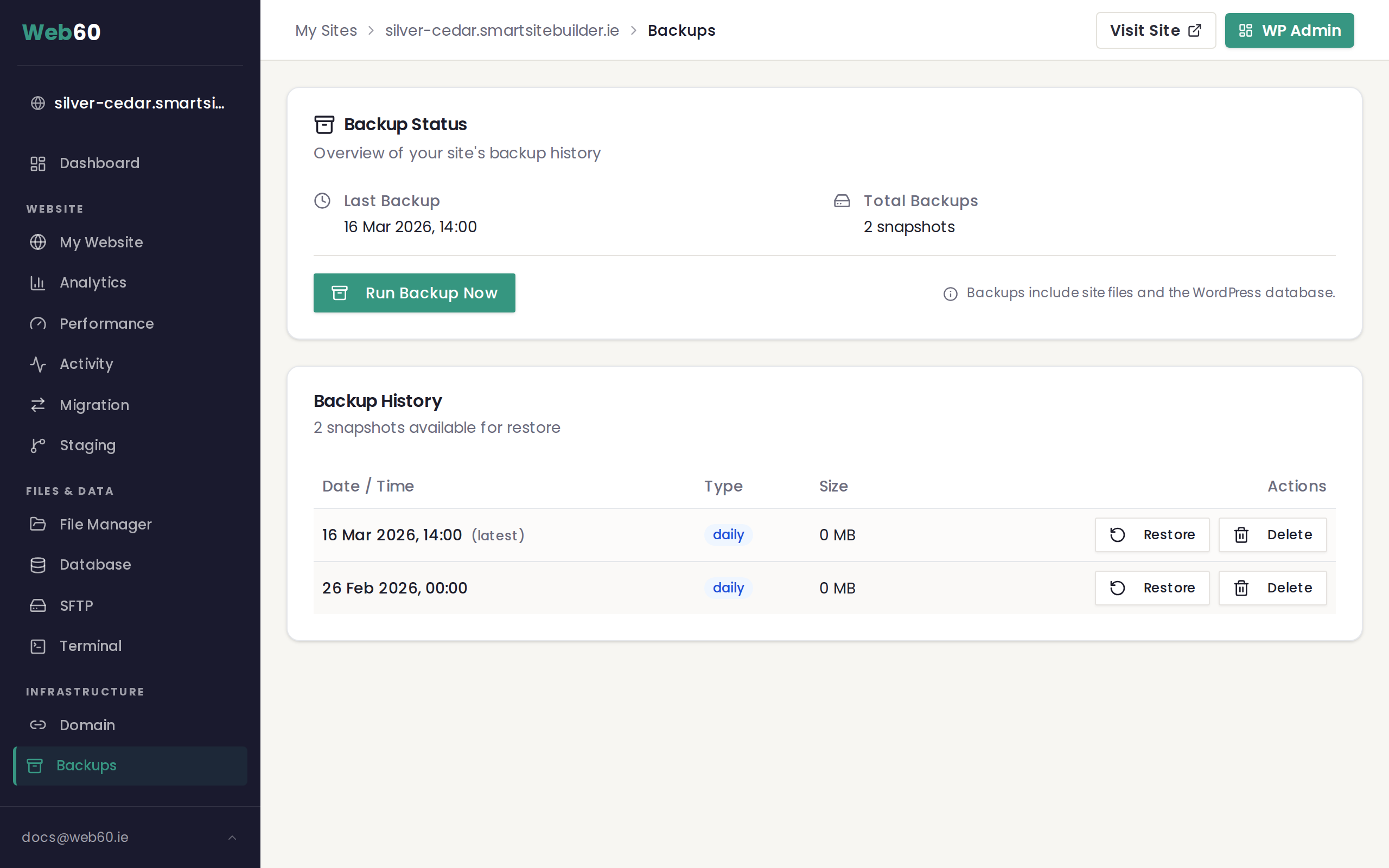
- Confirm the restore when prompted.
A blue progress banner will appear at the top of the page, showing that the restore is underway. This usually takes a few minutes.
What happens during the restore
When a restore is in progress:
- Your website goes into maintenance mode. Visitors will see a temporary "under maintenance" page instead of your site. This only lasts a few minutes.
- All your current content is replaced with the content from the backup you chose. This includes pages, images, and your website database.
- A pre-restore backup is automatically created. This is very important. It means Web60 takes a snapshot of your site as it is right now, before the restore begins.
Can I undo the restore?
Yes. Because Web60 automatically creates a backup of your current site before every restore, you always have a way back. If the restore does not give you the result you expected, simply find the pre-restore backup in your history and restore from that instead.
When should I restore?
Common reasons to restore your website include:
- You made changes you want to undo, such as deleting a page or changing your design
- A plugin update caused problems. Restoring takes your site back to before the update.
- Your site looks broken or is not working properly. A restore can fix it quickly.
Before you restore
If you are unsure which backup to choose, check the dates in the Backup History table. Think about when your site was last working as expected, and pick a backup from that date. If you are in any doubt, contact our support team before restoring.
Need help?
If you need assistance restoring your website, visit our support page and we will walk you through it.
Frequently asked questions
Will my website go offline during a restore?
Your website will be briefly unavailable during the restore, usually for just a few minutes. A maintenance page is shown to visitors during this time.
Can I undo a restore if I change my mind?
Yes. Before restoring, Web60 automatically creates a backup of your site as it is right now. So if the restore does not give you the result you wanted, you can restore again using that pre-restore backup.
How long does it take to restore my website?
Most restores finish within a few minutes. Your website will show a temporary maintenance page to visitors while the restore is in progress, and it will come back online automatically once it is done.
Last updated: 15 March 2026