
The .IE Digital Trust Starter Pack gives you your first year of Web60 and a .ie domain at no cost. If .IE has approved you and sent you a code, this guide shows you how to use it. It takes about 10 minutes and you do not need a card.
Prefer a printable copy? Download this guide as a PDF.
Before you start
Have these ready:
- Your Starter Pack code. .IE emails it to you when you are approved. It looks like DTSP-XXXX-XXXX.
- An email address you check often. Your login details are sent there.
- The .ie name you want, plus a second choice in case the first is taken.
- Your connection to Ireland. .ie domains are for people and businesses with a real connection to Ireland. Have your business or home address ready, and a CRO or RBN number if you have one.
- A sentence about your business. The AI builder uses it to write your site.
Each code works once and sets up one new Web60 account. Use it by 31 March 2027. If you already have a Web60 account, contact us before you start.
Part 1: Redeem your code
Step 1: Go to the Starter Pack page
Go to web60.ie/starter-pack and click Redeem my code. This opens the Web60 checkout.
Step 2: Enter your email address
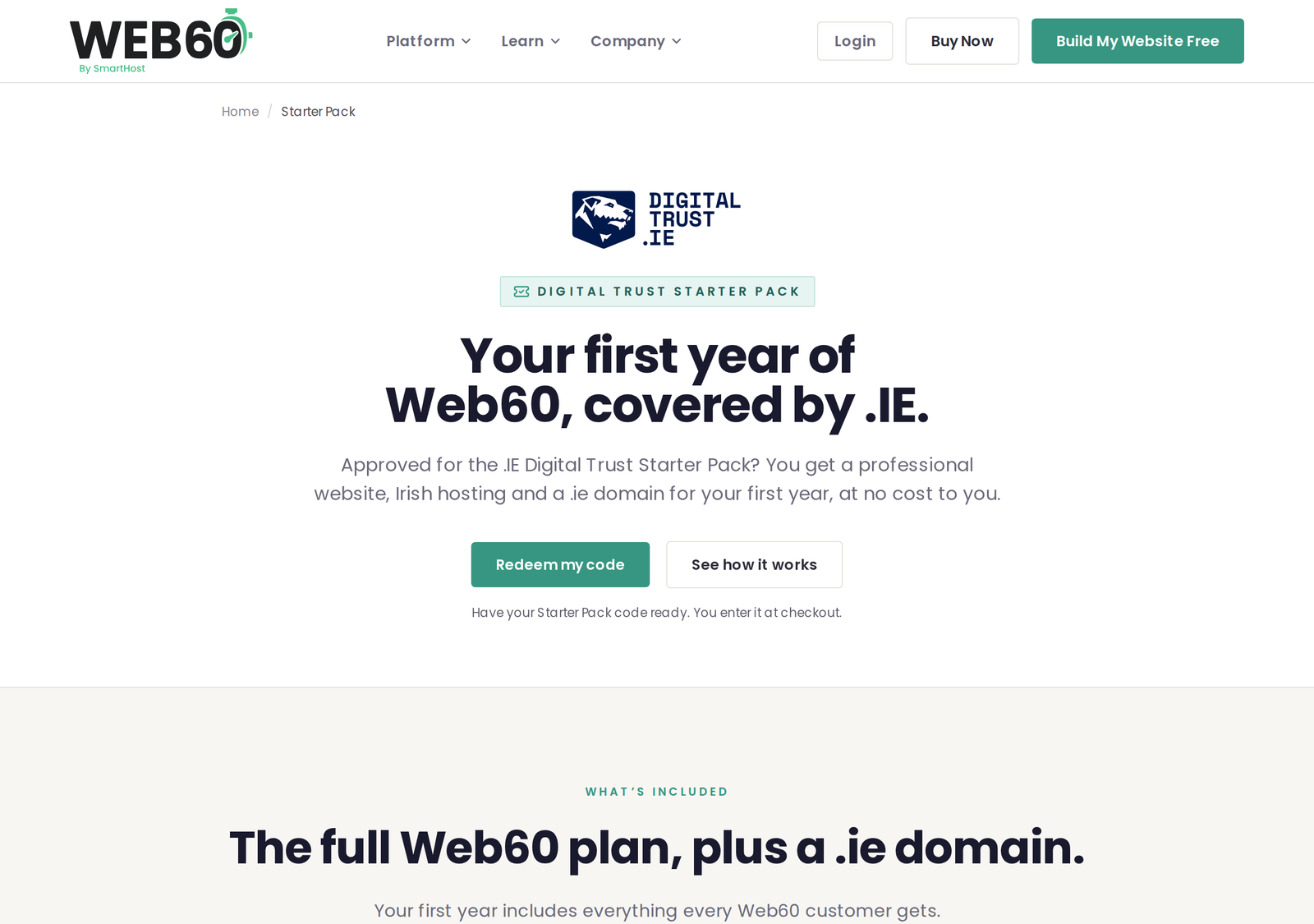
Type the email address you want to use for your Web60 account. Leave AI Website Builder selected so your site comes with the builder ready to use.
Step 3: Choose your .ie domain
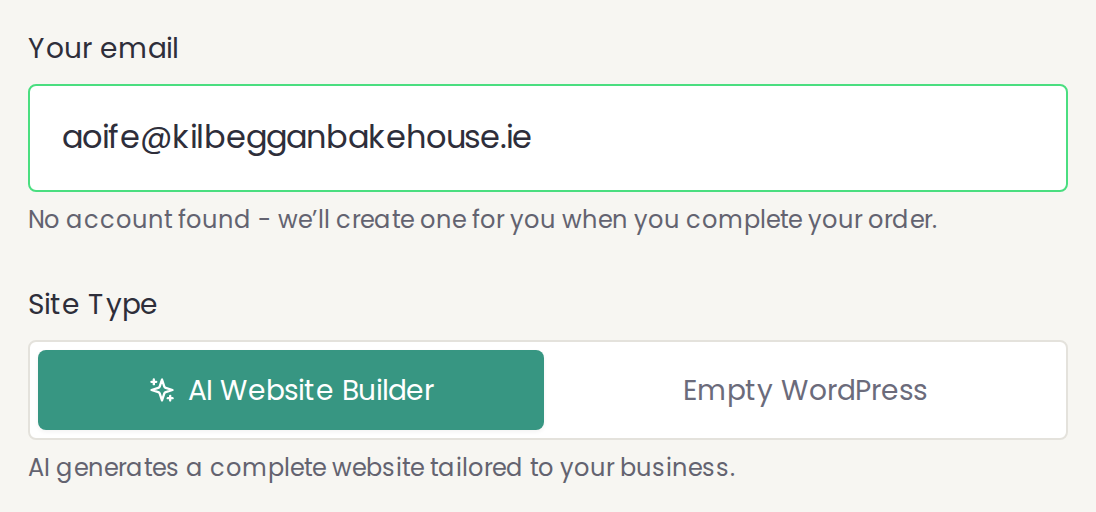
- Under Domain, keep Register a new domain selected.
- Type the full name you want, including .ie, for example yourbusiness.ie.
- Click Check.
If the name is available, it shows as Free first year. If it is taken, try your second choice.
Already own a .ie? Choose Use my own domain instead and enter it. After you sign up, ask our support team to transfer it to Web60. For Starter Pack customers the transfer and the first year are free.
Step 4: Add your name and your code
- Under Your details, enter your first and last name.
- Click Have a promo code?
- Type your code exactly as .IE sent it.
- Click Apply.
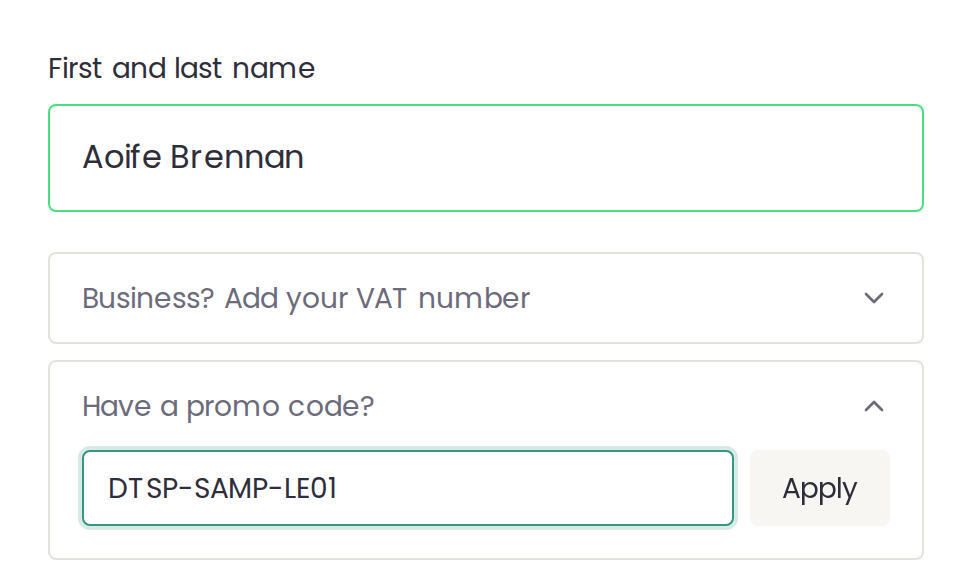
The code in these screenshots is a sample. Use the code .IE sent you.
Step 5: Check your total is €0.00
Once your code is applied, Your plan shows Total today €0.00, and your .ie domain is free for the first year. You will also see No payment needed.
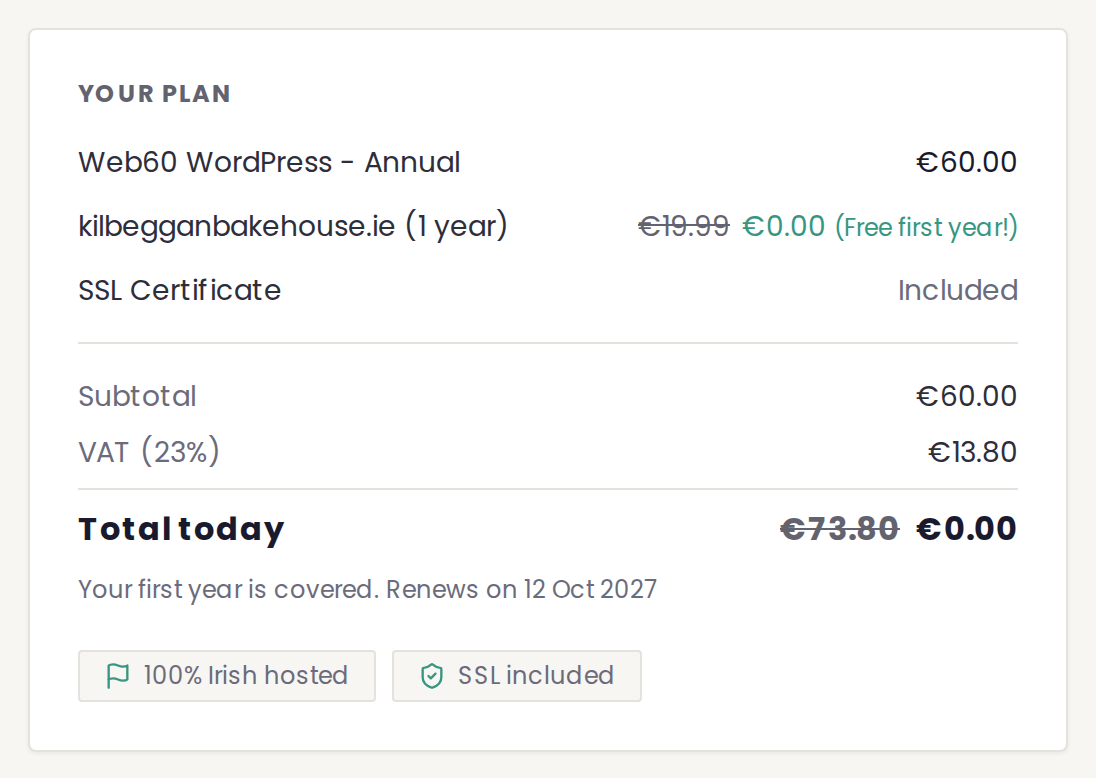
If you still see a price to pay, the code has not been applied. Check it and click Apply again. If it still does not work, contact us.
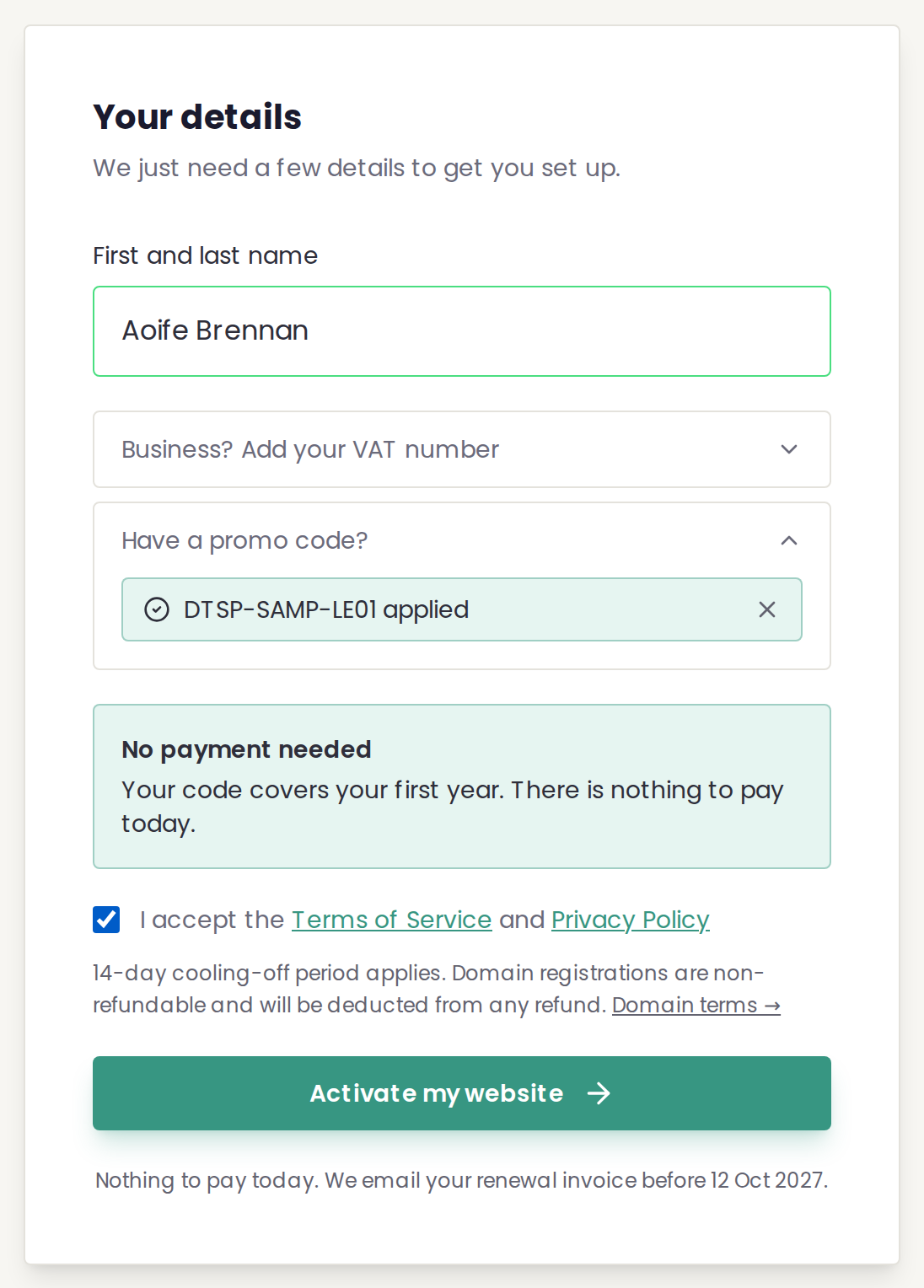
Step 6: Accept the terms and activate
Tick I accept the Terms of Service and Privacy Policy, then click Activate my website.
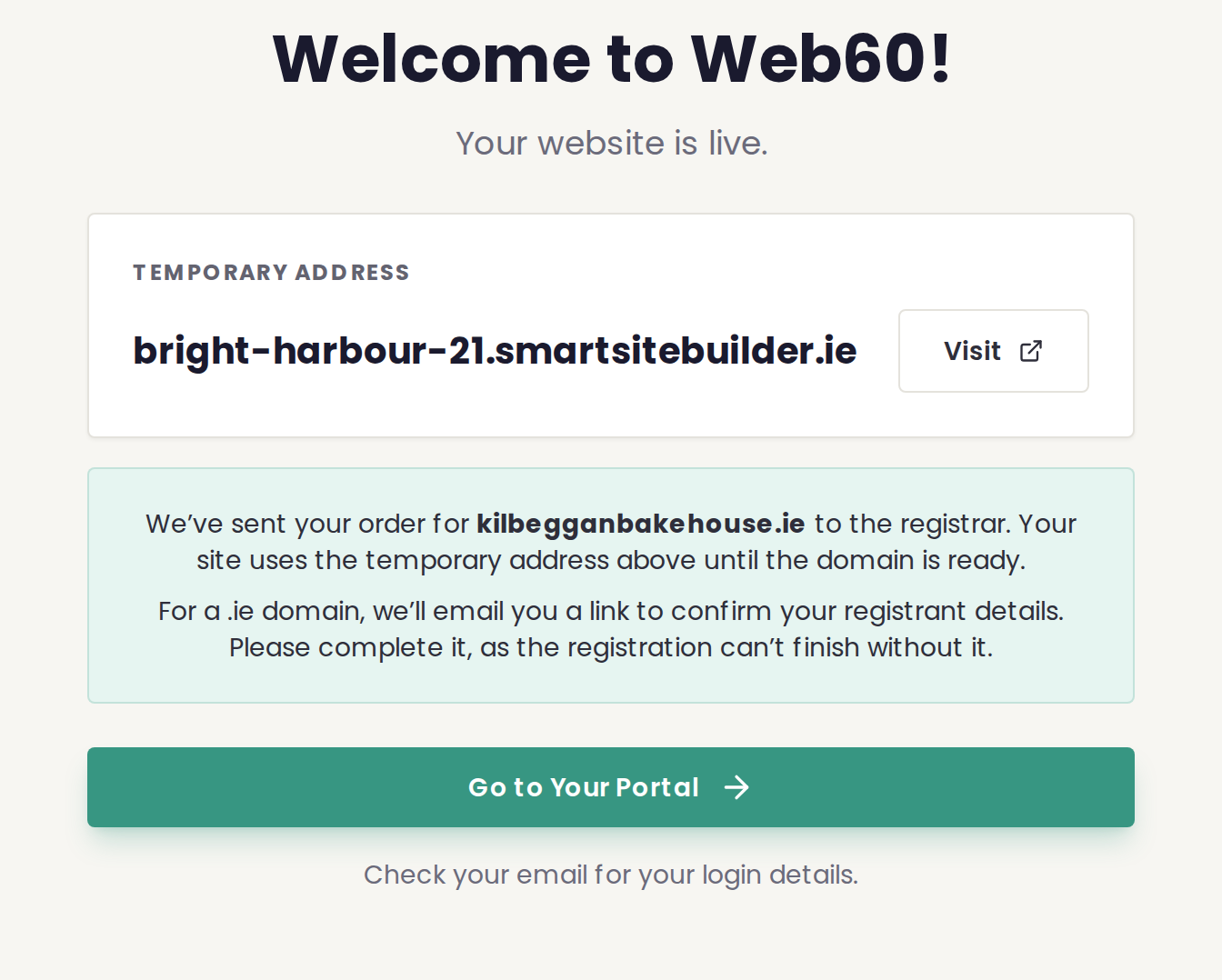
Step 7: Welcome to Web60
Your website is set up in about a minute. You will see its temporary address, which ends in .smartsitebuilder.ie. Your site uses this address until your .ie domain is ready.
Part 2: What happens next
- Check your email. We email you a link to set your password for your Web60 account at app.web60.ie. If it has not arrived within a few minutes, check your spam folder.
- Confirm your .ie details. We email you a link to confirm your registrant details for your .ie. Please complete it, as the registration cannot finish without it.
- Reply if the registry asks. The .ie registry may ask for a document that links you to the name, such as a bank statement or CRO certificate. We will tell you exactly what is needed.
- Your .ie goes live. Once approved, a new .ie can take up to 48 hours to work everywhere. You can build your site on the temporary address in the meantime.
Part 3: Build your website
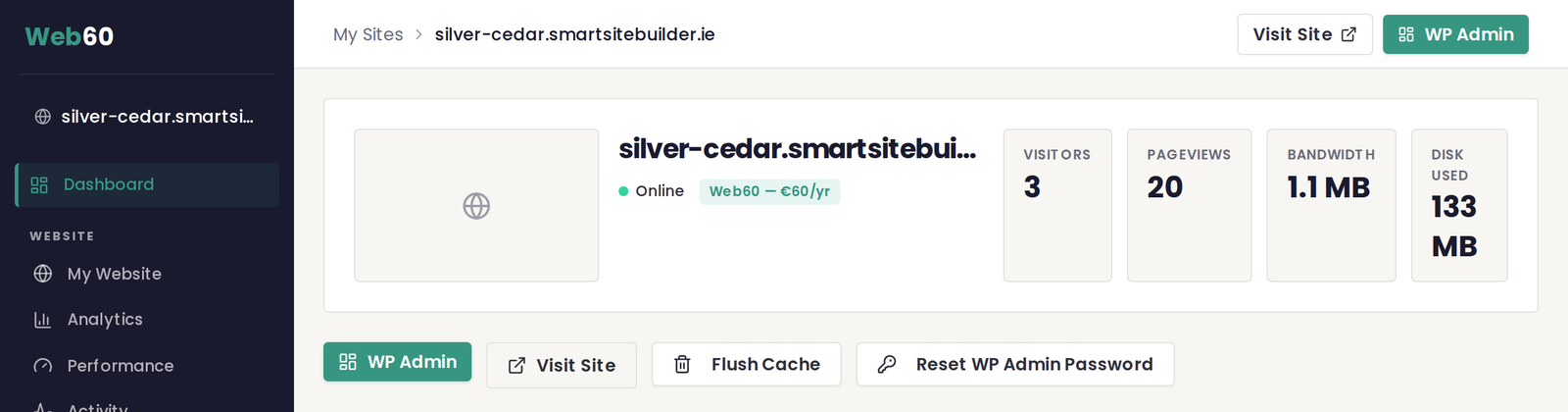
Step 1: Sign in and open WordPress
Sign in at app.web60.ie and click WP Admin. You are signed in to WordPress automatically, with no second password.
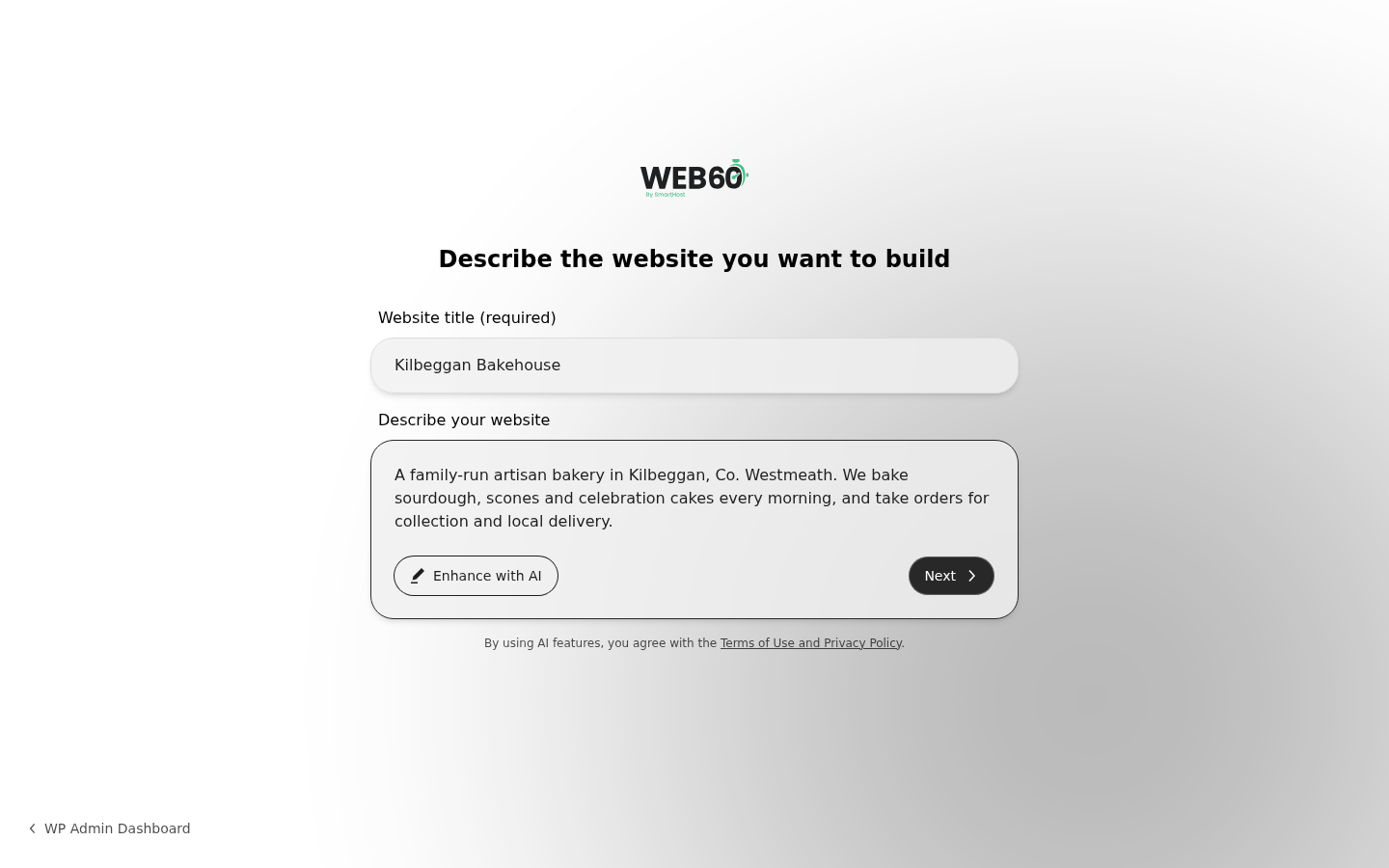
Step 2: Describe your business
The Web60 AI Site Builder opens by itself on a new site. Enter your business name and a sentence or two about what you do, where you are and who you serve. Click Next.
Step 3: Let the builder work
The builder writes your pages, chooses images and picks a design. This takes about a minute. Keep the page open.
Step 4: Your site is ready
You now have a complete website. On the left you can try other designs, or type a request in Ask anything, for example "change the phone number to 057 123 4567".
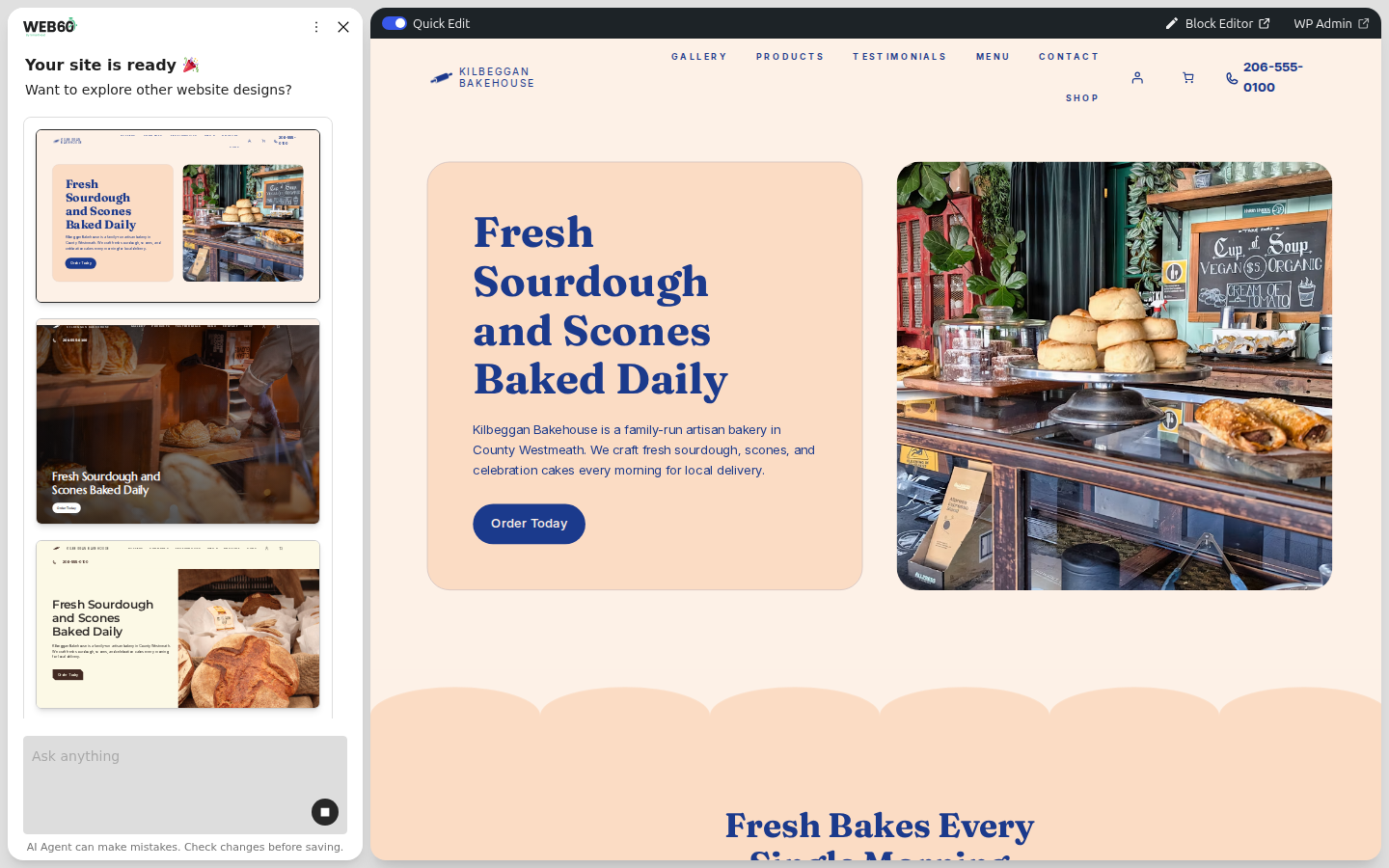
Check the details. The builder uses sample contact details, prices and opening hours. Replace them with your own before you share your site. If the builder offers to create accounts with other plugin providers, you can click No thanks.
For more on the builder, see Getting started with the AI Site Builder and Your first website.
What it costs from year two
We email you a renewal invoice before your first year ends. You can cancel at any time from your Web60 account.
| Item | From year two |
|---|---|
| Web60 plan | €60 a year |
| .ie domain | €19.99 a year |
Prices exclude VAT at 23%.
Need help?
- Live chat: click the chat bubble on web60.ie or in your Web60 account. Our Irish team is online Monday to Friday, 9am to 6pm.
- Support ticket: raise a ticket from your Web60 account. We reply within one business day.
- Email: hello@web60.ie
- Phone: 01 901 9700
See all options on our support page.
Frequently asked questions
What does the Starter Pack cost me?
Nothing for the first year. .IE covers your first year of the Web60 plan and your .ie domain. You do not need a card to sign up.
What will it cost from year two?
We email you a renewal invoice before your first year ends. From year two, the Web60 plan is €60 a year and your .ie domain is €19.99 a year, both ex VAT. You can cancel at any time from your Web60 account.
How do I get a Starter Pack code?
Codes come from .IE, not from Web60. Apply on digitaltrust.ie. .IE decides who is approved and sends each approved applicant a code.
When does my code expire?
Use your code by 31 March 2027. After that date it will not work at checkout.
Can I use a .ie domain I already own?
Yes. Choose 'Use my own domain' at checkout, then ask our support team to transfer it to Web60. For Starter Pack customers the transfer and the first year are free.
My code says it is invalid or already used. What do I do?
Check it letter by letter against the email from .IE. Each code works once, so if you started an order before, contact us and we will check it for you.
Last updated: 12 October 2026