

When you raise a support ticket in your Web60 dashboard, you will be asked to choose a category. Picking the right one helps our team route your request to the most suitable person and respond more quickly. Here is what each category covers.
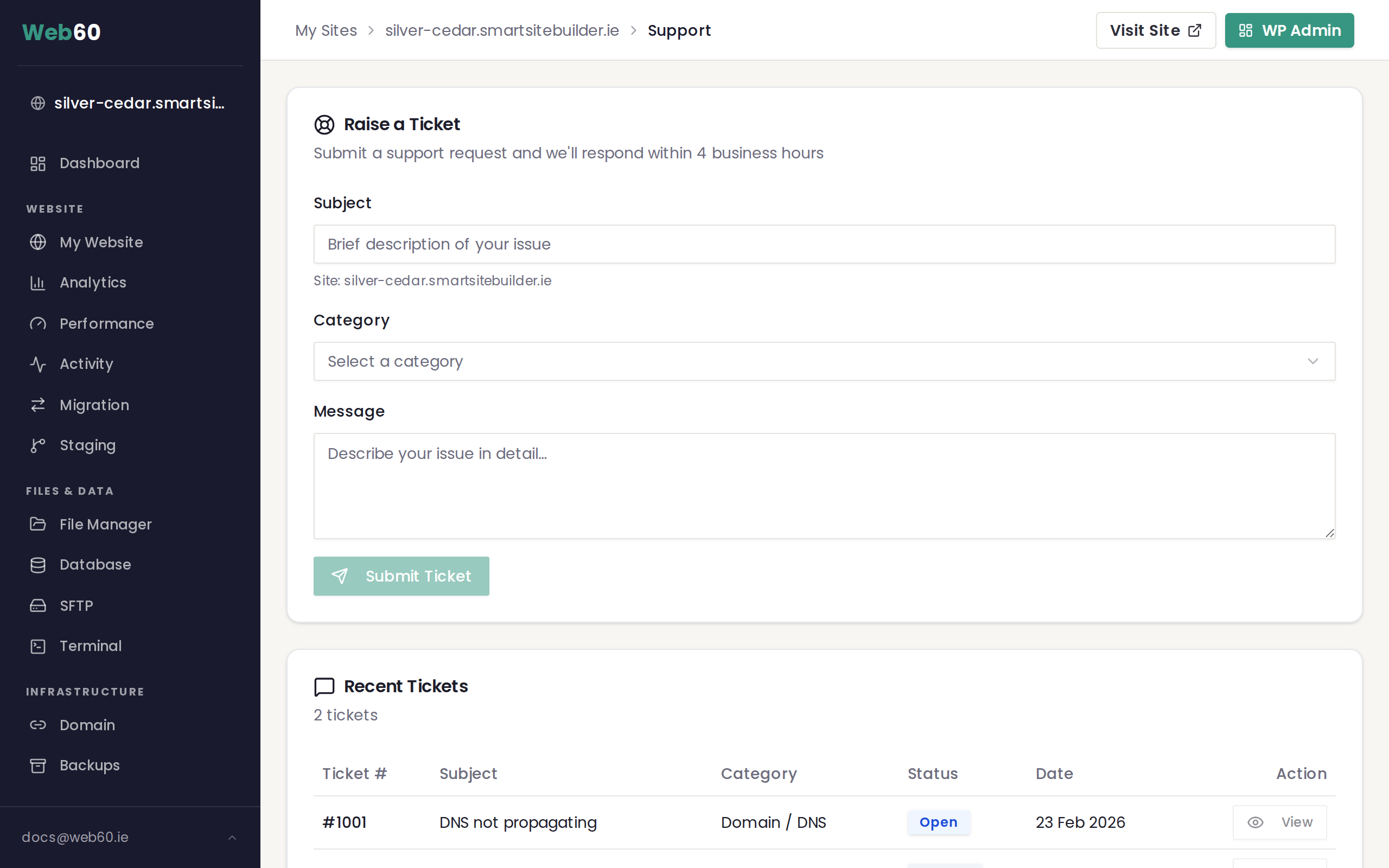
Billing
Choose Billing for anything related to payments, invoices, or your subscription. Examples include:
- Questions about an upcoming charge
- Requesting a copy of an invoice
- Upgrading or downgrading your plan
- Cancellation requests
- Payment method updates
Technical (Site Issue)
Choose Technical when something on your website is not working correctly and you are not sure why. Examples include:
- Your website is loading slowly or not at all
- Pages are showing errors
- Your site looks different from what you expected
- Email delivery problems connected to your site
- Issues after a recent update
Domain / DNS
Choose Domain / DNS when you have questions about your website address or are having trouble connecting a domain. Examples include:
- Your domain is not pointing to your Web60 site
- You need help updating your domain settings
- You recently transferred a domain and something is not right
- Questions about buying or renewing a domain name
For background on how domains work, see our article on understanding your domain.
WordPress Help
Choose WordPress Help when you need assistance with the content management side of your website. Examples include:
- Adding or editing pages and posts
- Installing or configuring plugins
- Changing your site design or theme
- Managing user accounts on your site
- Questions about media uploads
Account / Access
Choose Account / Access when you are having trouble logging in or managing your account. Examples include:
- You cannot log in to your Web60 dashboard
- You need to reset your password
- You want to update your email address or account details
- You need to add another user to your account
If you are locked out right now, our article on login troubleshooting may help.
Other
Choose Other for anything that does not fit neatly into the categories above. Our team will review your message and direct it to the right person.
Tips for a faster response
- Be specific in your subject line. Instead of writing "Help," try something like "Blog page returning a blank screen."
- Include the website name so we know which site you are referring to.
- Describe what you expected and what actually happened.
- Attach a screenshot if the issue is something you can see on screen.
Need help?
If you are still unsure which category to choose, visit our support page and pick whichever feels closest. We will take it from there.
Frequently asked questions
What if I pick the wrong category?
Do not worry. Our team reviews every ticket and will route it to the right person regardless of the category you choose. Picking the correct one simply helps us respond faster.
Can I change the category after I submit?
You cannot change the category yourself after submitting, but our team can reclassify it internally if needed. Just mention it in a follow-up message if you think you chose the wrong one.
Which category should I use if my issue covers more than one area?
Choose the category that best describes the main problem. For example, if your domain is not working and you think it is a billing issue because your plan expired, choose Billing. You can explain the full situation in your message.
Last updated: 16 March 2026