

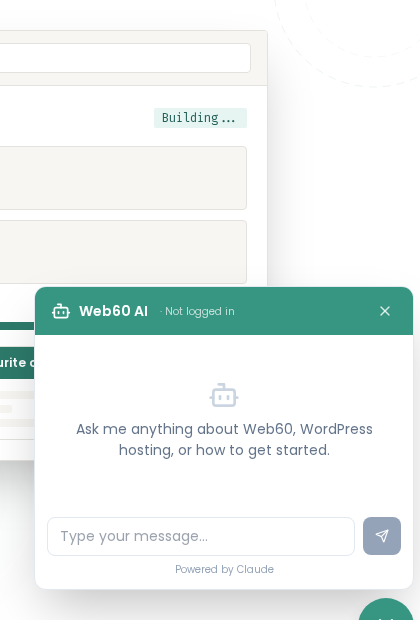
There is a small chat icon in the bottom-right corner of every Web60 page. Click it to open the Web60 AI chat, a virtual assistant that can answer questions and, if you are logged in, carry out tasks on your site directly.
How to open the chat
Look for the teal circle icon in the bottom-right corner of the page. Click it to open the chat panel.
What it can do before you log in
When you are on the Web60 website and not yet logged in, the AI chat can:
- Answer any question about Web60, including pricing, features, and how things work
- Explain WordPress hosting concepts in plain English
- Help you decide if Web60 is right for your business
- Point you to the right help article
It cannot access any account details until you are logged in.
What it can do once you are logged in
Once you are logged in to your Web60 portal at app.web60.ie, the AI chat becomes a full assistant with access to your account.
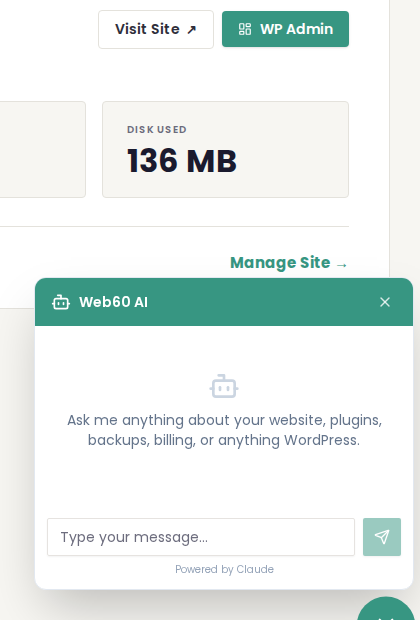
It can look up live information about your site:
- List your installed plugins and themes, including any that need updating
- Show your recent backups and when they were taken
- Check your PageSpeed score
- Show your visitor analytics for the past 7 or 30 days
- Show your disk usage, database size, and PHP version
- Check whether your staging site is set up
- Show your current billing plan and invoices
It can also carry out tasks on your behalf:
- Update a specific plugin or all plugins at once
- Update your WordPress core version
- Change your PHP version or PHP memory and upload settings
- Flush your website cache
- Create a manual backup
- Create, sync, or push a staging site
- Enable or disable debug mode or maintenance mode
- Reset your WordPress admin password
- Optimise your database
- Generate a new SFTP password
Before making any change, the AI will tell you exactly what it is going to do and ask you to confirm. You just say yes, or say no if you change your mind.
For significant actions, such as restoring from a backup or pushing a staging site live, the AI will ask you to type a specific phrase to confirm, so there is no risk of an accidental change.
Example conversations
Looking something up:
You: What plugins do I have installed?
AI: You have 5 plugins installed on warm-frost.smartsitebuilder.ie. Akismet is active and up to date. WooCommerce has an update available (8.1 → 8.4). Autoptimize, Hello Dolly, and Site Assistant are inactive. Would you like me to update WooCommerce?
Carrying out a task:
You: Update all my plugins
AI: You have 2 plugins with updates available: WooCommerce (8.1 → 8.4) and Yoast SEO (21.0 → 21.5). I'll take a backup first, then update both. Shall I go ahead?
You: Yes
AI: Taking backup... done. Updating plugins... all 2 updated successfully. Your site is loading correctly.
Starting a new conversation
To start a fresh conversation, click the + icon in the top-right of the chat panel. Your previous conversations are saved and can be found in the Support section of your portal.
Need a human instead?
If you would prefer to speak to a person, just ask the chat to raise a support ticket, and it will do so immediately, including the full context of your conversation so our team has everything they need. You can also raise a ticket directly from the Support section of your portal.
We respond to all tickets within 4 business hours, Monday to Friday, 9am to 6pm Irish time.
Frequently asked questions
Is the AI chat available 24/7?
Yes. The AI chat is always available, on every page of the Web60 website and inside your portal. It doesn't have business hours.
Can the AI chat make changes to my site?
Yes, once you are logged in to your portal. It can update plugins, change PHP settings, create backups, flush your cache, reset passwords, and much more. It will always ask you to confirm before making any change.
What if the AI chat can't solve my problem?
If the AI can't resolve your issue, you can ask it to raise a support ticket on your behalf, or raise one directly from the Support page in your dashboard. Our team will respond within 4 business hours.
Is my conversation private?
Yes. Conversations are stored in your account and only visible to you and the Web60 support team.
Does it remember previous conversations?
Yes, if you are logged in. You can view past conversations in the Support section of your portal.
Last updated: 16 March 2026