
The Geography report in your Web60 dashboard shows where your website visitors are located. For Irish businesses that serve a local or national audience, this is a valuable way to confirm that your site is reaching the right people.
Opening the Geography report
- Log in to your Web60 dashboard.
- Select the website you want to review.
- Click Analytics in the left-hand sidebar.
- Click the Geography tab in the analytics navigation.
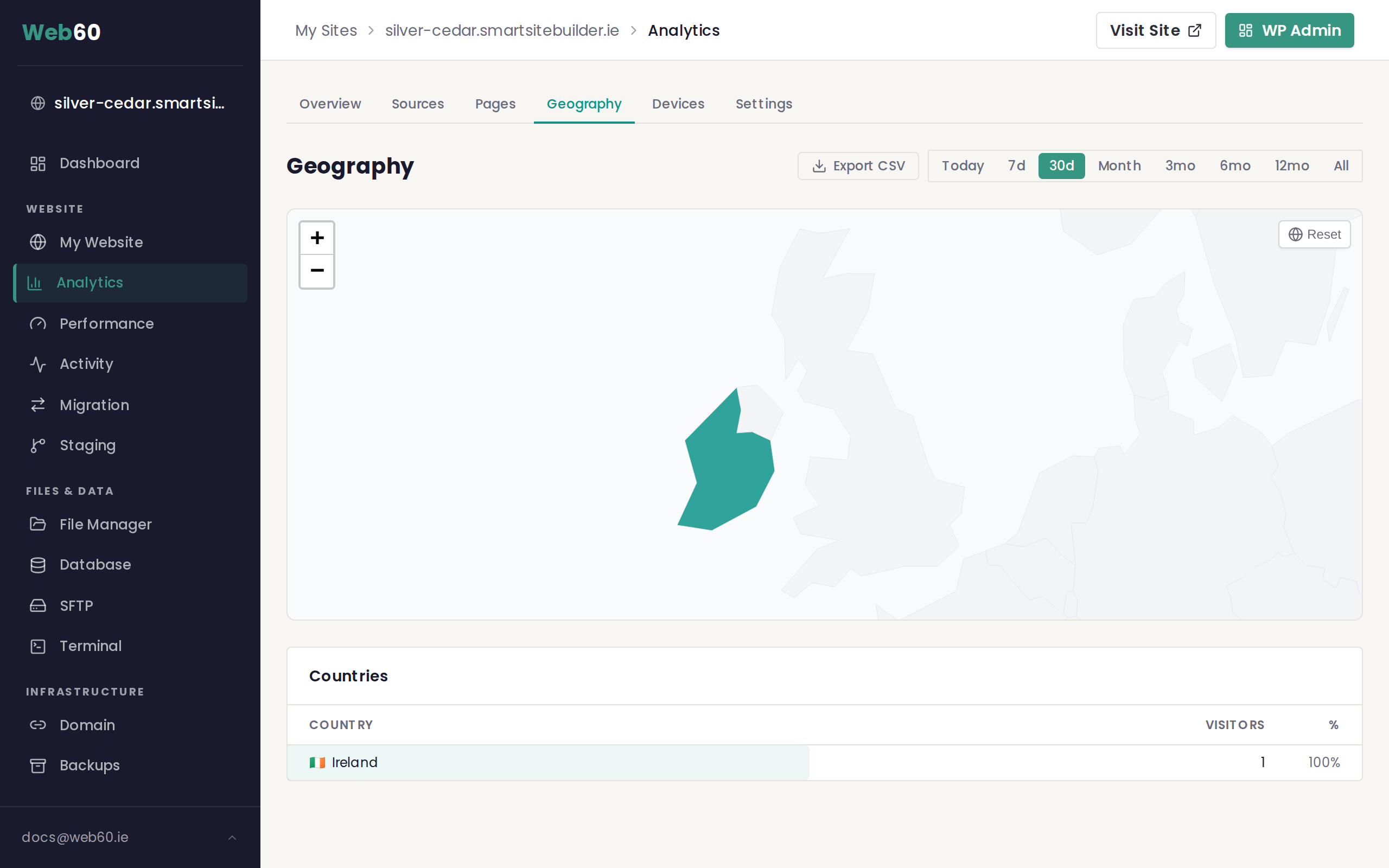
The map view
At the top of the report is an interactive map that shades countries based on how many visitors came from each one. Darker shading means more visitors. You can click on any country to filter the city data below.
Country breakdown
Below the map is a table listing every country your visitors came from during the selected period. Each row shows:
- Country with a flag icon for easy identification
- Visitors showing the total number of people from that country
- Percentage showing what share of your total traffic each country represents
Click on any country row to see a filtered list of cities within that country. Click the same row again, or press the clear button, to go back to the full view.
City breakdown
Below the countries table is a cities section. By default it shows all cities across every country. When you click a country in the table above, the cities list narrows down to show only cities within that country. Each row shows the city name and visitor count.
What this means for Irish businesses
If you run a business that serves customers in Ireland, you would expect the majority of your traffic to come from Ireland and the United Kingdom. Seeing Dublin, Cork, Galway, or Limerick in your cities list confirms that local people are finding your website.
If you also see meaningful traffic from other countries, that could be an opportunity. For example, a tourism business in Kerry might see visitors from the United States, Germany, or France during the summer planning season.
Unexpected geographic traffic
If you see significant traffic from countries you do not target, and those visitors have very short session times (close to zero seconds), that traffic is likely from automated web crawlers rather than real people. You can filter these out by adding countries to your analytics block list in the analytics settings.
Changing the date range
Use the period selector in the top right corner to compare geographic data across different time windows. This is useful for spotting seasonal patterns, such as an increase in international visitors during holiday booking periods.
Exporting your data
Click the Export button to download the country data as a spreadsheet file. This is useful if you want to include geographic insights in a report or share them with your team.
Need help?
If you have questions about your geographic data, visit our support page and we will be happy to explain.
Frequently asked questions
Why do I see traffic from countries I do not target?
It is normal to see small amounts of traffic from unexpected countries. Some of it may be automated web crawlers that index your site for search engines. If a country shows very short visit durations, it is likely not genuine visitor traffic.
Can I block traffic from specific countries?
Yes. In the Analytics Settings section of your Web60 dashboard, you can add countries to a block list so their visits are not recorded in your analytics. This does not prevent those visitors from accessing your site, but it keeps your reports clean.
How accurate is the city-level data?
City-level data is approximate. It is based on the visitor's internet connection rather than precise GPS coordinates. For most purposes it gives a useful general picture, but individual entries may not be exact.
Last updated: 16 March 2026