

The Website Health Check runs five quick tests on any website and tells you whether the basics are in good shape.
What this tool checks
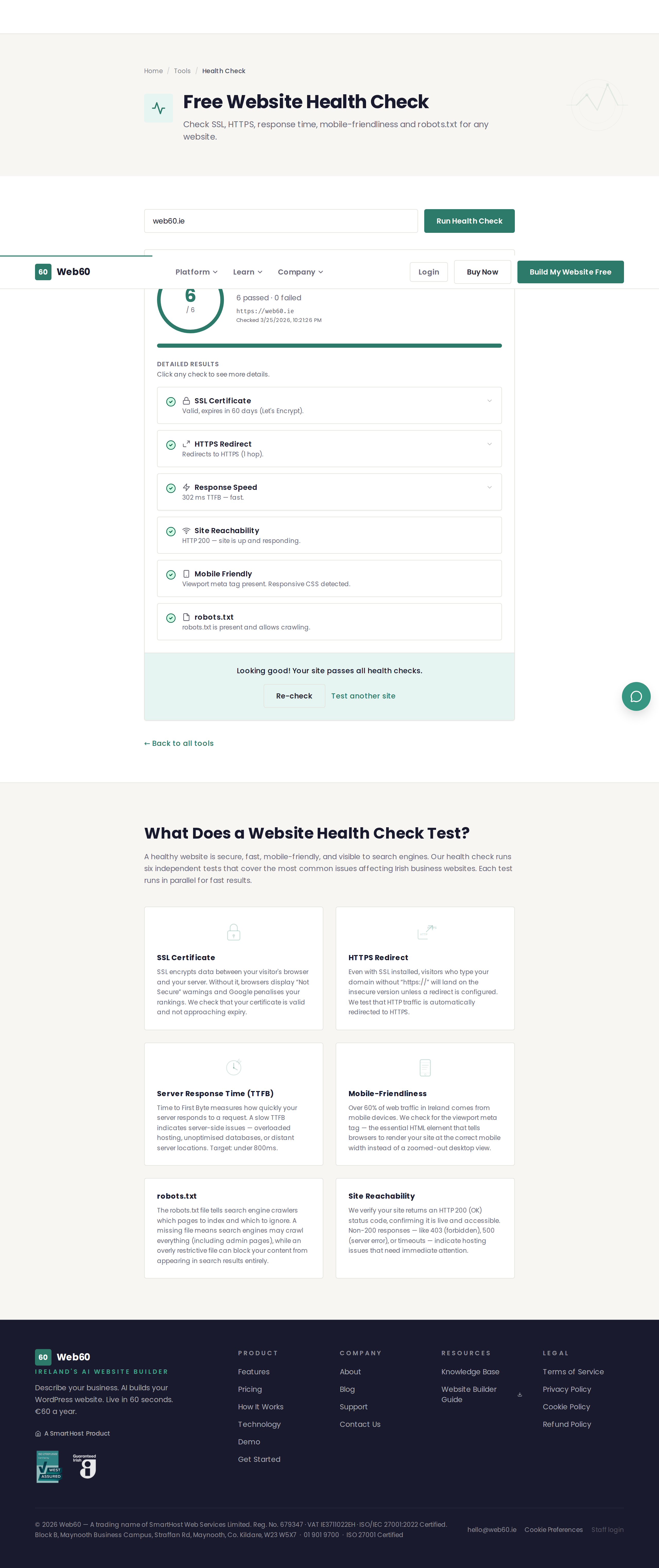
The health check runs five separate tests:
-
SSL certificate - Checks whether your website has a valid security certificate. This is what puts the padlock icon in the browser address bar and makes your site use
https://instead ofhttp://. -
HTTPS redirect - Checks whether visitors who type the
http://version of your address are automatically sent to the securehttps://version. -
Response time - Measures how quickly your server responds to a request. A fast response means your hosting server is healthy and not overloaded.
-
Mobile-friendliness - Checks whether your website has the correct settings to display properly on phones and tablets. This looks for the viewport tag that tells mobile browsers how to scale the page.
-
Robots.txt - Checks whether your website has a robots.txt file, which tells search engines how to crawl your site.
How to use it
- Go to web60.ie/tools/health-check.
- Enter your website address (for example,
yourbusiness.ie). - Click Run Health Check.
- Wait a few seconds for all five tests to complete.
- Review the results. Each test shows a pass or fail with a brief explanation.
Understanding the results
Each test is shown as a card with a green pass or red fail indicator, plus an explanation of what was found.
- All five passing means the basics of your website are in good order.
- One or two failures usually indicate straightforward issues that your hosting provider can help fix.
- Multiple failures may suggest larger issues with your hosting setup.
What each result means
| Test | Pass means | Fail means |
|---|---|---|
| SSL | Your site has a valid security certificate | Visitors will see a browser warning |
| HTTPS redirect | All traffic is encrypted | Some visitors may see the insecure version |
| Response time | Your server responds in under 2 seconds | Your server is slow or overloaded |
| Mobile-friendly | Your site works well on phones | Your site may be hard to use on mobile |
| Robots.txt | Search engines know how to crawl your site | Not critical, but worth adding |
What to do about failures
- SSL failure - Contact your hosting provider to enable SSL. Web60 includes free SSL on all sites automatically.
- HTTPS redirect failure - Ask your hosting provider to set up a redirect from
httptohttps. See our .htaccess generator if you manage this yourself. - Slow response time - This could be a hosting issue, or your site may have too many plugins. Consider upgrading your hosting plan or removing unused plugins.
- Mobile-friendliness failure - Your website theme may not be responsive. Consider using a modern theme or the Web60 Site Builder, which is mobile-friendly by default.
- Missing robots.txt - Use our robots.txt generator to create one in seconds.
Need help?
If your health check results show problems and you are not sure how to fix them, visit our support page.
Frequently asked questions
What does it mean if my SSL check fails?
It means your website does not have a valid security certificate, so visitors will see a warning in their browser. Contact your hosting provider to set up SSL, or move to Web60 where SSL is included automatically.
What is a robots.txt file?
It is a small text file on your website that tells search engines which pages they should and should not look at. If you do not have one, search engines will crawl all pages, which is fine for most small websites.
Does this tool make any changes to my website?
No. The health check only reads publicly available information. It never modifies anything on your website.
Last updated: 25 March 2026