
When you enable automatic updates, you can decide whether every plugin on your site gets updated or only the ones you choose. This gives you full control over which software stays current without manual intervention.
Where to find the plugin selection setting
- Log in to your Web60 dashboard and select the site you want to manage.
- Go to the My Website page.
- Scroll down to the Automatic Updates card.
- Make sure the Enable automatic updates toggle is turned on.
- Under Plugins to update, you will see two options.
The two update modes
Update all plugins automatically
When you select this option, every plugin installed on your site will be updated whenever a new version becomes available. This is the simplest approach and is a good choice for most sites. It ensures you are always running the latest versions with the newest security patches and bug fixes.
Choose specific plugins
When you select this option, a list of all your installed plugins appears. You can tick the checkbox next to each plugin you want to include in automatic updates. Only the plugins you select will be updated at the scheduled time. Everything else will be left at its current version until you update it manually.
When to use specific selection
Choosing specific plugins is useful in a few situations:
- You rely on a plugin that has known compatibility issues with frequent updates. Excluding it from automatic updates lets you test new versions manually before applying them.
- You have a custom or premium plugin that needs a licence key to update. These plugins may not update correctly through the automatic process, so it is better to handle them yourself.
- You want to stage updates gradually. You might auto-update your less critical plugins while keeping your most important ones on a manual schedule.
Including themes in automatic updates
Below the plugin selection options, you will find a checkbox labelled Also update themes automatically. When this is turned on, your installed themes will also be updated at the scheduled time alongside your selected plugins. This applies to all themes, not just the active one.
How to tell which plugins are set to auto-update
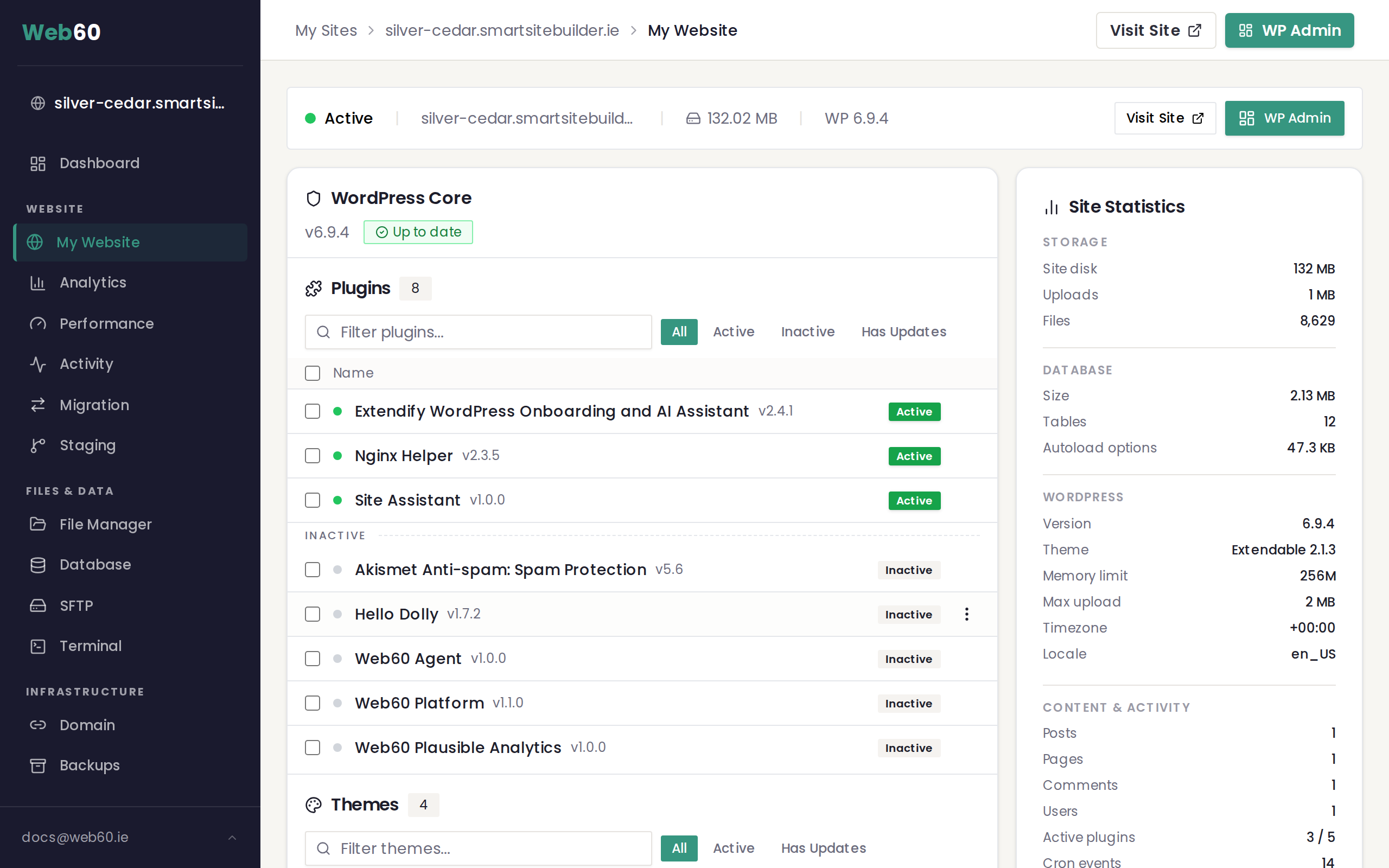
Plugins that are included in your automatic update schedule will show a shield badge in the Software Manager on the My Website page. This makes it easy to see at a glance which plugins are covered.
Our recommendation
For most sites, Update all plugins automatically is the best choice. Combined with the pre-update backup option (which we recommend keeping on), this ensures your site stays secure and up to date with minimal effort. If an update causes a problem, the automatic backup gives you a quick way to restore your site.
If you manage a complex site with many plugins or custom development, consider using the specific selection mode so you can control exactly what gets updated and when.
Frequently asked questions
Can I change my selection after saving?
Yes. You can switch between "Update all" and "Choose specific" at any time, and you can add or remove individual plugins from the list whenever you like. Just remember to click Save Settings after making changes.
What happens to plugins I exclude from automatic updates?
They will stay at their current version until you update them manually from the Software Manager. You will still see update notifications for these plugins so you know when new versions are available.
If I choose "Update all", does that include new plugins I install later?
Yes. Any plugin you install in the future will automatically be included in the next update run when you have the "Update all" option selected.
Need help?
If you need advice on which update mode is right for your site, visit our support page and our team will be happy to help.
Frequently asked questions
Can I change my selection after saving?
Yes. You can switch between Update all and Choose specific at any time, and you can add or remove individual plugins from the list whenever you like.
What happens to plugins I exclude from automatic updates?
They will stay at their current version until you update them manually from the Software Manager. You will still see update notifications for these plugins so you know when new versions are available.
If I choose Update all, does that include new plugins I install later?
Yes. Any plugin you install in the future will automatically be included in the next update run when you have the Update all option selected.
Last updated: 16 March 2026