
Automatic updates keep your plugins and themes current without you having to check for new versions manually. You can choose exactly when these updates run so they happen at a time that suits your business and your visitors.
Where to find the schedule setting
- Log in to your Web60 dashboard and select the site you want to manage.
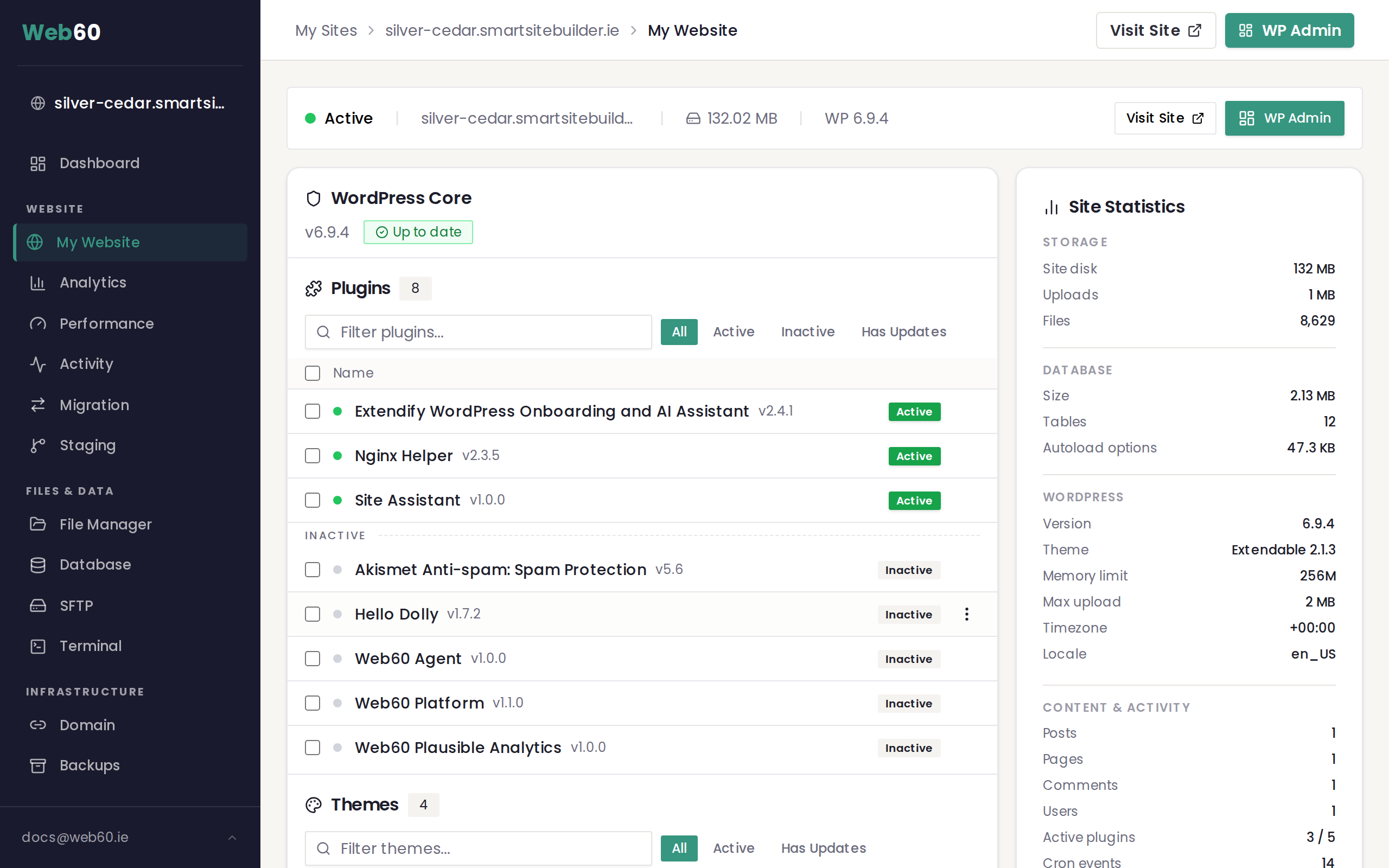
- Go to the My Website page.
- Scroll down to the Automatic Updates card.
- Find the Run updates at dropdown.
This dropdown lets you pick the hour of the day when automatic updates will run.
Understanding the time format
The schedule uses UTC (Coordinated Universal Time). Ireland follows UTC+0 in winter and UTC+1 in summer (Irish Standard Time). This means:
- In winter, the time you select matches Irish time exactly. Choosing 03:00 UTC means updates run at 3:00 AM in Ireland.
- In summer, UTC is one hour behind Irish time. Choosing 03:00 UTC means updates run at 4:00 AM in Ireland.
Here are a few examples:
| You select | Winter (Irish time) | Summer (Irish time) |
|---|---|---|
| 02:00 UTC | 2:00 AM | 3:00 AM |
| 03:00 UTC | 3:00 AM | 4:00 AM |
| 04:00 UTC | 4:00 AM | 5:00 AM |
Choosing a good time
Pick a time when your website has the fewest visitors. For most Irish businesses, this is between 2:00 AM and 5:00 AM. Running updates during quiet hours means:
- Visitors are less likely to notice a brief interruption if the site refreshes its cache after an update.
- If an update causes an unexpected issue, you have time to address it before your peak traffic hours.
The default setting is 03:00 UTC, which works well for the majority of sites.
What happens at the scheduled time
When the scheduled hour arrives, Web60 checks each of your selected plugins (and themes, if you have enabled that option) for available updates. For every item that has a new version, the system downloads and installs the update automatically.
If the pre-update backup option is turned on (recommended), a full backup of your site is created before any updates are applied. This means you can roll back quickly if something goes wrong.
After the update run finishes, you can see the result in the Last run section at the top of the Automatic Updates card. It will show one of these statuses:
- All updated if every plugin and theme was updated successfully.
- Partial if some updates succeeded but others did not.
- Failed if the update run could not complete.
- Rolled back if an update caused an error and was automatically reversed.
Enabling the pre-update backup
Below the plugin selection options, you will find a checkbox labelled Take a backup before each update run (recommended). We strongly recommend keeping this turned on. It ensures you always have a restore point in case an update introduces a compatibility issue.
Frequently asked questions
Can I run updates more than once a day?
The schedule runs once per day at the hour you choose. If you need to update something immediately, you can always update plugins and themes manually from the Software Manager on the My Website page.
What if my site is in a different time zone?
The schedule always uses UTC. Use the conversion table above to work out the equivalent local time. If your visitors are mostly in a different time zone, choose an hour that falls during their quiet period.
Will my site go offline during updates?
In most cases, no. Updates happen in the background and your site stays online throughout. Visitors may briefly see a maintenance message only during very large updates, but this is rare and typically lasts just a few seconds.
Need help?
If you have questions about scheduling updates or need advice on the best time for your site, visit our support page to get in touch.
Frequently asked questions
Can I run updates more than once a day?
The schedule runs once per day at the hour you choose. If you need to update something immediately, you can always update plugins and themes manually from the Software Manager.
What if my site is in a different time zone?
The schedule always uses UTC. Use the conversion table in the article to work out the equivalent local time. Choose an hour that falls during your visitors' quiet period.
Will my site go offline during updates?
In most cases, no. Updates happen in the background and your site stays online throughout. Visitors may briefly see a maintenance message only during very large updates, but this is rare.
Last updated: 16 March 2026