

Plugins are small add-ons that give your website extra features. Want a contact form? There's a plugin for that. Need a photo gallery, an online booking system, or a cookie notice? Plugins can do all of this and more.
Before you install anything
We strongly recommend creating a backup before installing a new plugin. This way, if anything doesn't work as expected, you can quickly restore your website to the way it was.
Method 1: Install from your Web60 dashboard
This is the easiest way to manage plugins, and we recommend it for most people.
- Sign in to your Web60 dashboard at app.web60.ie.
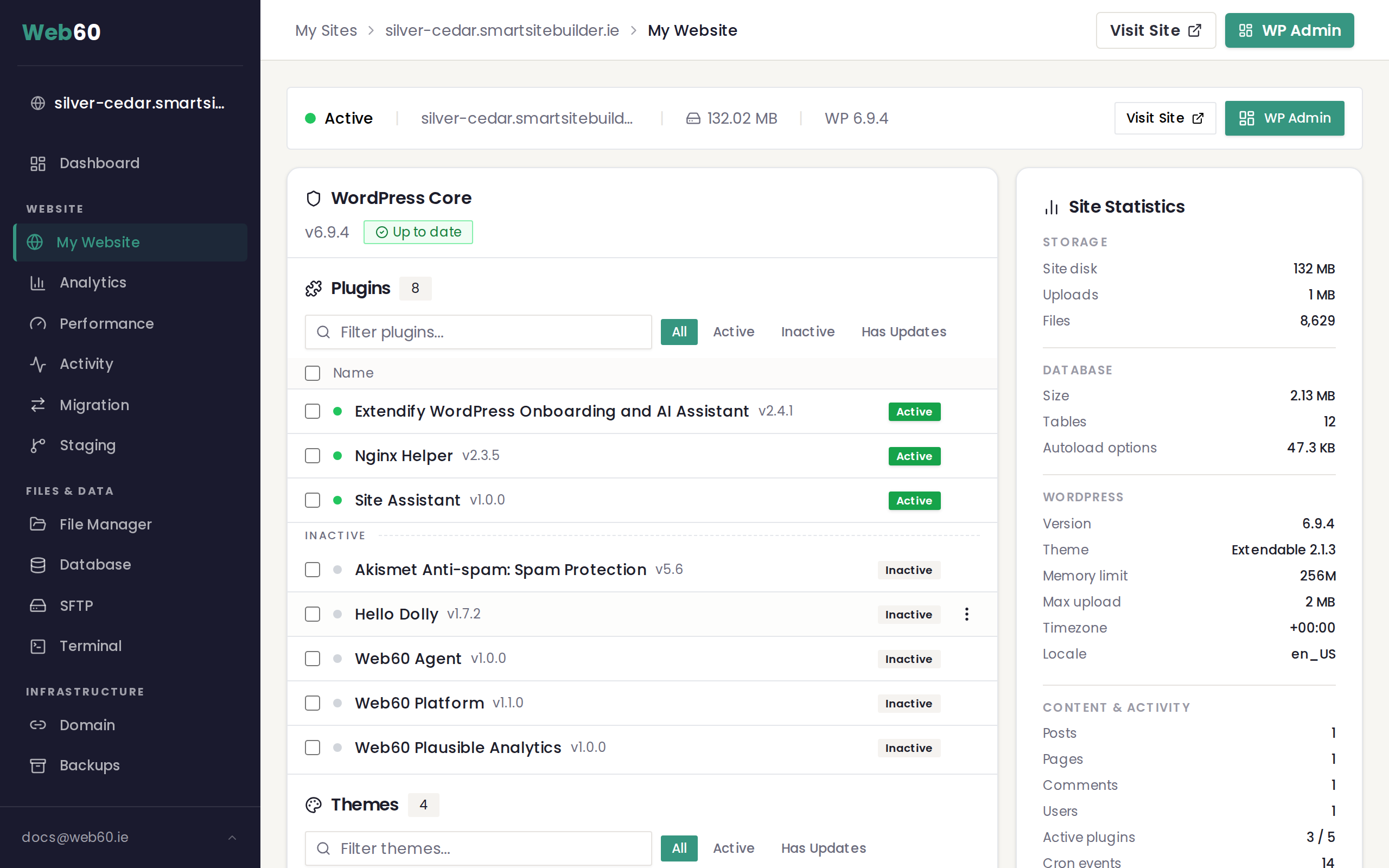
- Click "My Website" in the sidebar.
- Scroll down to the Software Manager section.
- You'll see a list of plugins. Use the search bar to find the plugin you're looking for.
- Click the "Install" button next to the plugin you want.
The plugin will be installed and activated on your website automatically. You'll see it appear in the list with options to update or uninstall it later.
Method 2: Install from your WordPress editor
You can also install plugins directly from within WordPress:
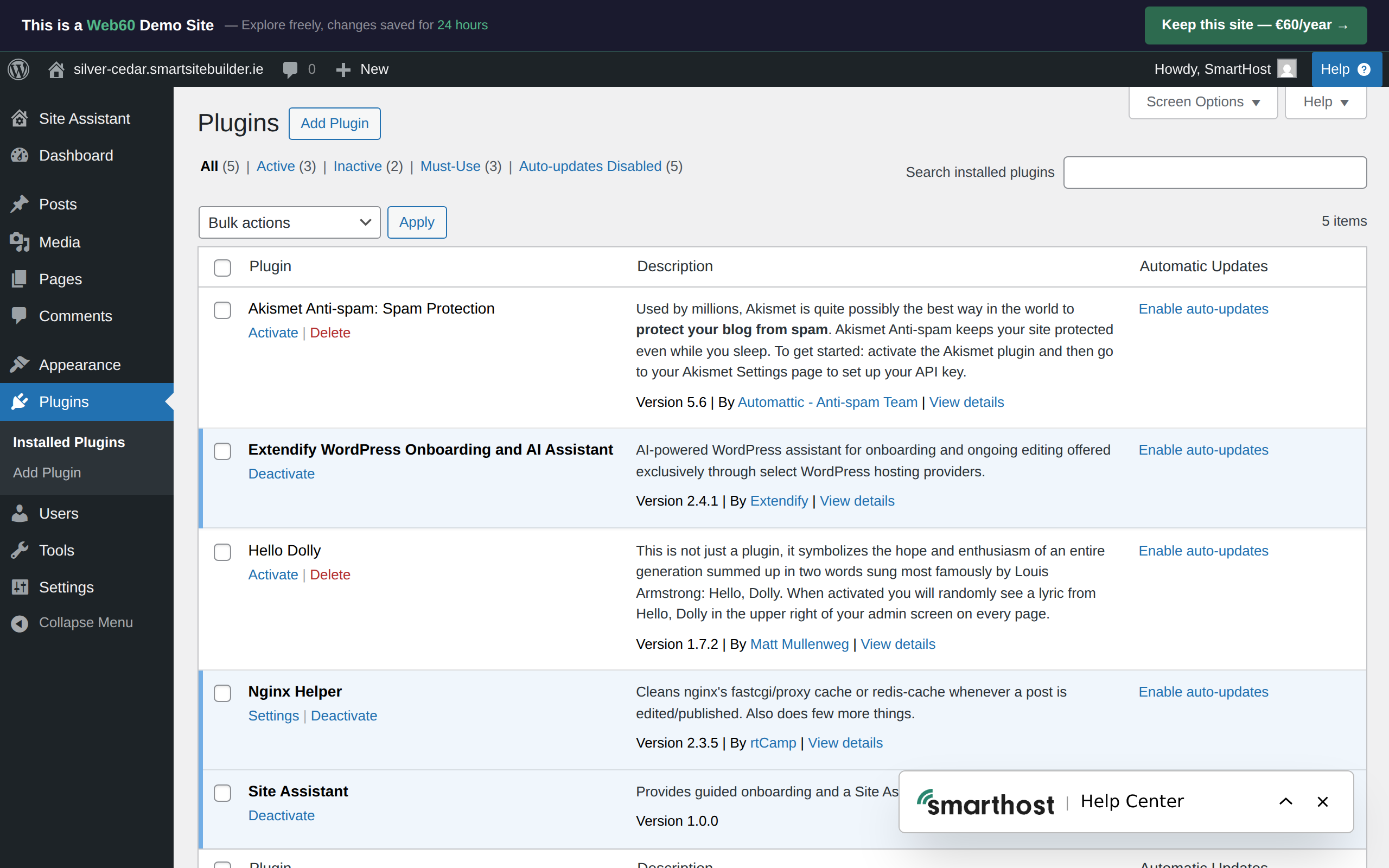
- Open your WordPress editor by clicking "WP Admin" in your Web60 dashboard.
- In the left-hand sidebar, click "Plugins".
- Click "Add New" at the top of the page.
- Search for the plugin you want by name or by what it does (for example, "contact form").
- Click "Install Now" next to the plugin you'd like.
- Once installed, click "Activate" to turn it on.
Popular plugins for small businesses
Here are some plugins that many of our customers find useful:
- WPForms Lite is a simple drag-and-drop contact form builder.
- Yoast SEO helps your website show up in Google search results.
- Compressor automatically shrinks your images so your site loads faster.
- Cookie Yes adds a cookie consent banner to meet legal requirements.
Managing your plugins
Once a plugin is installed, you can manage it from either your Web60 dashboard or your WordPress editor:
- From your dashboard: The Software Manager section shows all installed plugins with buttons to update or uninstall each one.
- From WordPress: Go to Plugins in the left-hand sidebar to activate, deactivate, or delete plugins.
A word of caution
- Only install plugins you trust. Stick to well-known plugins with good reviews and regular updates.
- Remove plugins you're not using. Unused plugins can be a security risk and may slow your site down.
- Keep plugins updated. Learn more in our guide to updating plugins.
Active vs inactive plugins
Active plugins are running and affecting your site right now. Inactive plugins are installed but switched off. They do not slow down your site or cause conflicts while inactive. Keeping inactive plugins installed (rather than deleting them) is perfectly fine and means you can reactivate them later without reinstalling. If you are sure you will never use a plugin again, you can delete it to keep things tidy.
Platform-managed plugins
Some plugins show a lock icon in the Software Manager. These are installed and maintained by Web60 as part of your hosting. They cannot be deleted because they provide essential functionality like caching, security, or backups. You can see which plugins are platform-managed in the platform-managed plugins guide.
Need help?
Not sure which plugin is right for your needs? Visit our support page and we'll recommend the best option for your business.
Frequently asked questions
Are plugins free?
Many plugins are completely free. Some offer a free version with optional paid upgrades. You'll see pricing information before you install anything.
Can a plugin break my website?
It's rare, but a poorly made plugin can sometimes cause issues. That's why we recommend creating a backup before installing any new plugin. If something goes wrong, you can restore your site quickly.
How many plugins can I install?
There's no strict limit, but we recommend keeping it under 20. Too many plugins can slow your website down. Only install what you actually need.
Last updated: 15 March 2026