

If you have forgotten your WordPress admin password or need to generate a new one for any reason, you can reset it directly from your Web60 dashboard. You do not need to access your email or go through the standard WordPress password recovery process.
Where to find the password reset tool
- Log in to your Web60 dashboard and select the site you want to manage.
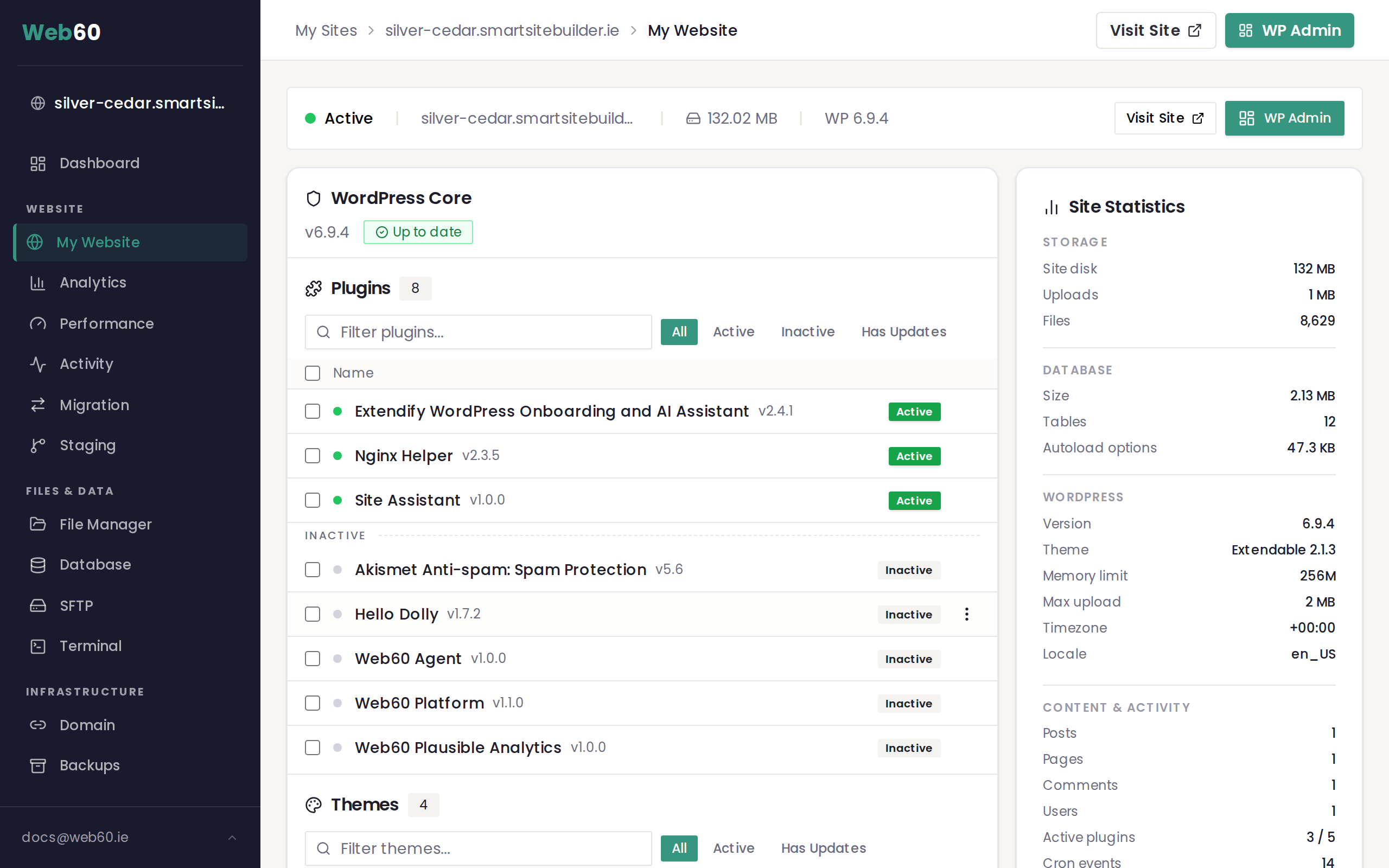
- Go to the My Website page.
- In the right-hand column, find the Site Tools card.
- Look for the Reset WP Password option.
How to reset the password
- Click the Reset button next to "Reset WP Password".
- A confirmation prompt will appear asking if you are sure. Click Confirm to proceed.
- A new random password will be generated and displayed on screen.
- Copy the password immediately. Once you dismiss the popup or navigate away, the password will no longer be visible.
The new password replaces the existing password for the main WordPress administrator account on your site. You can use it straight away to log in to your WordPress editing area.
When to use this feature
This tool is helpful in several situations:
- You have forgotten your WordPress admin password and cannot log in.
- You want to generate a strong, random password for better security.
- You have taken over management of a site and need to regain access.
- You suspect your existing password may have been compromised.
Important things to know
This is separate from your Web60 dashboard password
The password reset tool only changes your WordPress admin password. It does not affect the password you use to log in to your Web60 dashboard. These are two completely separate accounts with separate credentials.
Copy the password before closing
The generated password is shown only once. If you close the popup or navigate away without copying it, you will need to run the reset again to get a new password.
Only the main admin account is affected
The reset applies to the primary WordPress administrator account on your site. If your site has multiple WordPress users, their passwords are not changed. Only the main admin password is replaced.
Frequently asked questions
Can I choose my own password instead of using the generated one?
The reset tool generates a random password for security reasons. After logging in with the new password, you can change it to something you prefer from within your WordPress user profile settings.
Will resetting the password log me out of WordPress?
If you are currently logged in to WordPress in another browser tab, you may be logged out when the password changes. Simply log in again using the new password.
How often can I reset the password?
There is no limit. You can reset the password as many times as you need.
Need help?
If you are still having trouble accessing your WordPress site after resetting the password, visit our support page and our team will help you get back in.
Frequently asked questions
Can I choose my own password instead of using the generated one?
The reset tool generates a random password for security reasons. After logging in with the new password, you can change it to something you prefer from within your WordPress user profile settings.
Will resetting the password log me out of WordPress?
If you are currently logged in to WordPress in another browser tab, you may be logged out when the password changes. Simply log in again using the new password.
How often can I reset the password?
There is no limit. You can reset the password as many times as you need.
Last updated: 16 March 2026