

A WordPress theme controls the visual design and layout of your website. You can have several themes installed at once, but only one can be active at any time. Your Web60 dashboard lets you view, activate, update and delete themes without leaving the portal.
Finding the Themes tab
- Log in to your Web60 dashboard and select the site you want to manage.
- Go to the My Website page.
- Scroll down to the Software Manager card.
- Click the Themes tab (next to the Plugins tab).
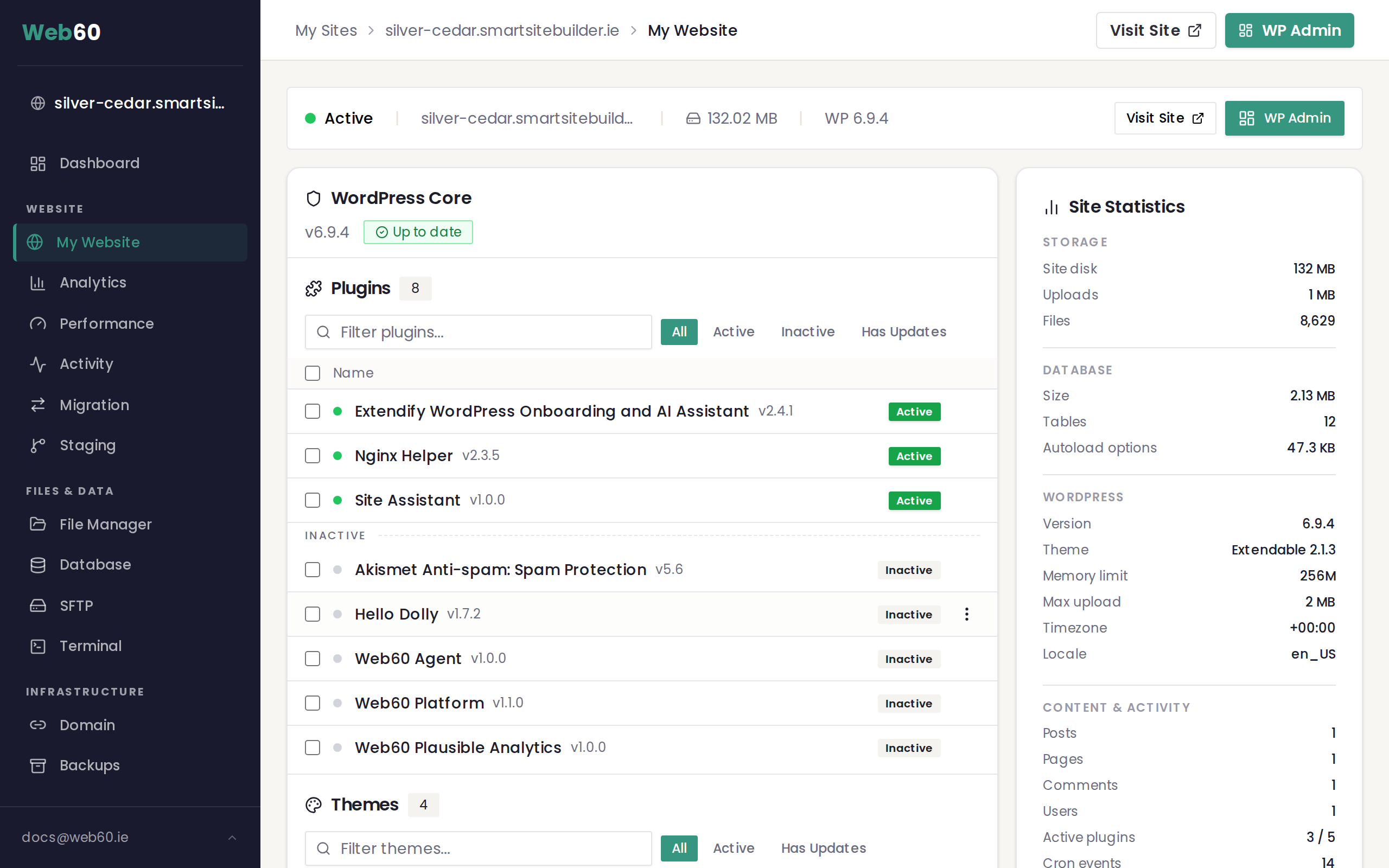
You will see a list of every theme installed on your site. Each entry shows the theme name, its version number, and a status badge. The currently active theme is highlighted with a green Active badge.
Understanding what themes do
Themes determine the look and feel of your website, including colours, fonts, page templates and layout structure. Changing your active theme will change the appearance of your entire site. Your content (pages, posts and media) is not affected when you switch themes, but some layout-specific settings may need to be reconfigured.
Activating a different theme
To switch to a different theme:
- Find the theme you want to activate in the list.
- Click the three-dot menu on the right side of that theme's row.
- Select Activate.
The theme will become active immediately and your site's design will change. The previously active theme will remain installed but move to an inactive state.
Important: If you built your site with the Web60 Site Builder, switching to a different theme may affect your site's layout and design. Make sure you are confident about the change before activating a new theme.
Updating themes
When a new version of a theme is available, you will see an amber update indicator next to the theme's version number showing the new version.
To update a single theme:
- Click the Update button that appears next to the theme, or open the three-dot menu and choose the update option.
To update all themes at once:
- Click the Update All button at the top of the Themes section. This appears whenever one or more themes have pending updates.
A backup of your site is taken automatically before any update runs. If the update causes a problem, you can restore from that backup.
Deleting a theme
You can remove themes you no longer need to keep your site tidy:
- Click the three-dot menu on the theme you want to remove.
- Select Delete.
- Confirm the deletion when prompted.
There are two situations where you cannot delete a theme:
- The theme is active. You must activate a different theme first before you can delete it.
- The theme is a parent of your active theme. Some themes work in pairs, where a child theme depends on a parent theme. If your active theme relies on another theme as its parent (shown as "child of" in the theme list), you cannot delete the parent theme until you switch away from the child.
Frequently asked questions
Will switching themes delete my content?
No. Your pages, posts, images and other content are stored separately from your theme. Switching themes only changes the design and layout. However, some theme-specific settings or widget areas may need to be set up again in the new theme.
Do I need to keep unused themes installed?
It is good practice to remove themes you are not using. Unused themes can still receive security updates, and keeping only what you need makes your site easier to manage. Just make sure you do not delete a parent theme that your active child theme depends on.
What happens if a theme update breaks my site?
Web60 takes an automatic backup before every update. If something goes wrong, you can restore your site to the state it was in before the update. Contact our support team if you need help with this.
Need help?
If you have any questions about managing your themes, our team is here to assist. Visit our support page to get in touch.
Frequently asked questions
Will switching themes delete my content?
No. Your pages, posts, images and other content are stored separately from your theme. Switching themes only changes the design and layout. However, some theme-specific settings or widget areas may need to be set up again.
Do I need to keep unused themes installed?
It is good practice to remove themes you are not using. Unused themes can still receive security updates, and keeping only what you need makes your site easier to manage.
What happens if a theme update breaks my site?
Web60 takes an automatic backup before every update. If something goes wrong, you can restore your site to the state it was in before the update.
Last updated: 16 March 2026