

Many actions you take in your Web60 dashboard, such as updating plugins, optimising performance or resetting your site, are carried out as background tasks. These tasks run on the server without blocking your dashboard, so you can continue working while they complete.
Where to see background jobs
- Log in to your Web60 dashboard and select the site you want to manage.
- Go to the Advanced Settings page.
- Scroll down to the Background Jobs card.
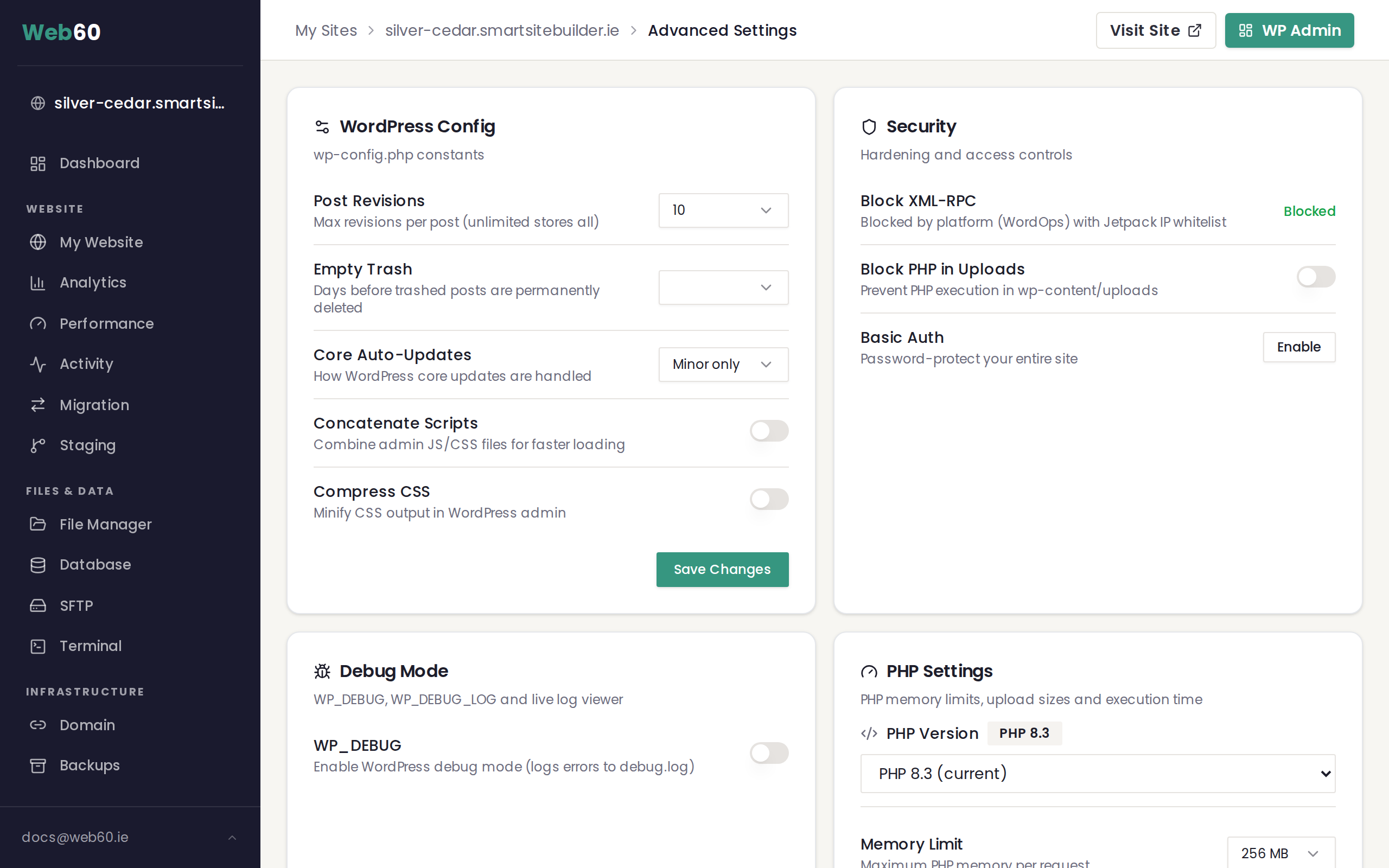
This card shows a list of recent tasks that have been queued or completed for your site.
How the job list works
The Background Jobs card displays the most recent tasks, with the newest at the top. Each entry shows:
- Task name describing what the job does (for example, "Update plugin" or "Optimise database").
- Status badge showing the current state of the task.
- Time showing when the task was completed or when it was created if it is still in progress.
The list refreshes automatically every 15 seconds, so you can watch a running task progress without needing to reload the page. If you have more jobs than fit on one screen, you can use the page controls at the bottom to browse through older entries.
Understanding status badges
Each background job displays one of the following statuses:
- Waiting means the task is queued and will start shortly. It is waiting for its turn to run.
- Active means the task is currently running. The badge pulses to indicate it is in progress.
- Completed means the task finished successfully.
- Failed means the task encountered an error and could not complete. A brief error message will appear below the task name explaining what went wrong.
What to do if a job fails
If you see a task with a Failed status:
- Read the error message shown below the task name. It often gives a clue about what went wrong.
- Try running the action again from the relevant section of your dashboard. Temporary issues (such as a brief connection problem) are often resolved on a second attempt.
- If the task continues to fail, make a note of the error message and contact our support team. Having the error text ready will help us diagnose the issue faster.
Which actions create background jobs?
Many operations in your Web60 dashboard are processed as background tasks, including:
- Updating individual plugins or themes.
- Running bulk updates for all plugins or themes at once.
- Automatic update runs triggered by your update schedule.
- Performance optimisation tasks.
- Site reset and staging operations.
Smaller actions like flushing your cache or changing a setting are usually instant and will not appear in the Background Jobs list.
Frequently asked questions
How long do background jobs take to complete?
Most tasks complete within a few seconds to a couple of minutes. Larger operations, such as updating many plugins at once or running a full site reset, may take a little longer. The active badge will pulse throughout, and the card refreshes every 15 seconds so you can track progress.
Can I start a new task while one is already running?
In most cases, yes. Tasks are queued and processed in order. However, some operations (like two updates to the same plugin) may need to wait until the first one finishes.
Do old jobs stay in the list forever?
No. Only recent jobs are shown in the Background Jobs card. Older entries are removed automatically over time to keep the list manageable.
Need help?
If a background task has failed and you are not sure what to do, visit our support page and our team will investigate.
Frequently asked questions
How long do background jobs take to complete?
Most tasks complete within a few seconds to a couple of minutes. Larger operations, such as updating many plugins at once or running a full site reset, may take a little longer.
Can I start a new task while one is already running?
In most cases, yes. Tasks are queued and processed in order. However, some operations may need to wait until the first one finishes.
Do old jobs stay in the list forever?
No. Only recent jobs are shown in the Background Jobs card. Older entries are removed automatically over time to keep the list manageable.
Last updated: 16 March 2026