
Caching is something your website does behind the scenes to load faster. It saves copies of your pages so they can be served to visitors quickly, without having to rebuild them every time. This is a good thing because it makes your website faster for everyone.
However, sometimes after you make changes, you might notice your website is still showing the old version. That's because it's serving the saved copy instead of the updated one. Clearing the cache tells your website to throw away the old copies and create fresh ones.
When to clear the cache
You should clear your cache when:
- You've made changes but they're not showing up on your live website.
- Your website looks outdated even though you've just updated it.
- Something doesn't look right after installing a plugin or changing your design.
How to clear the cache
- Sign in to your Web60 dashboard at app.web60.ie.
- Click "My Website" in the sidebar.
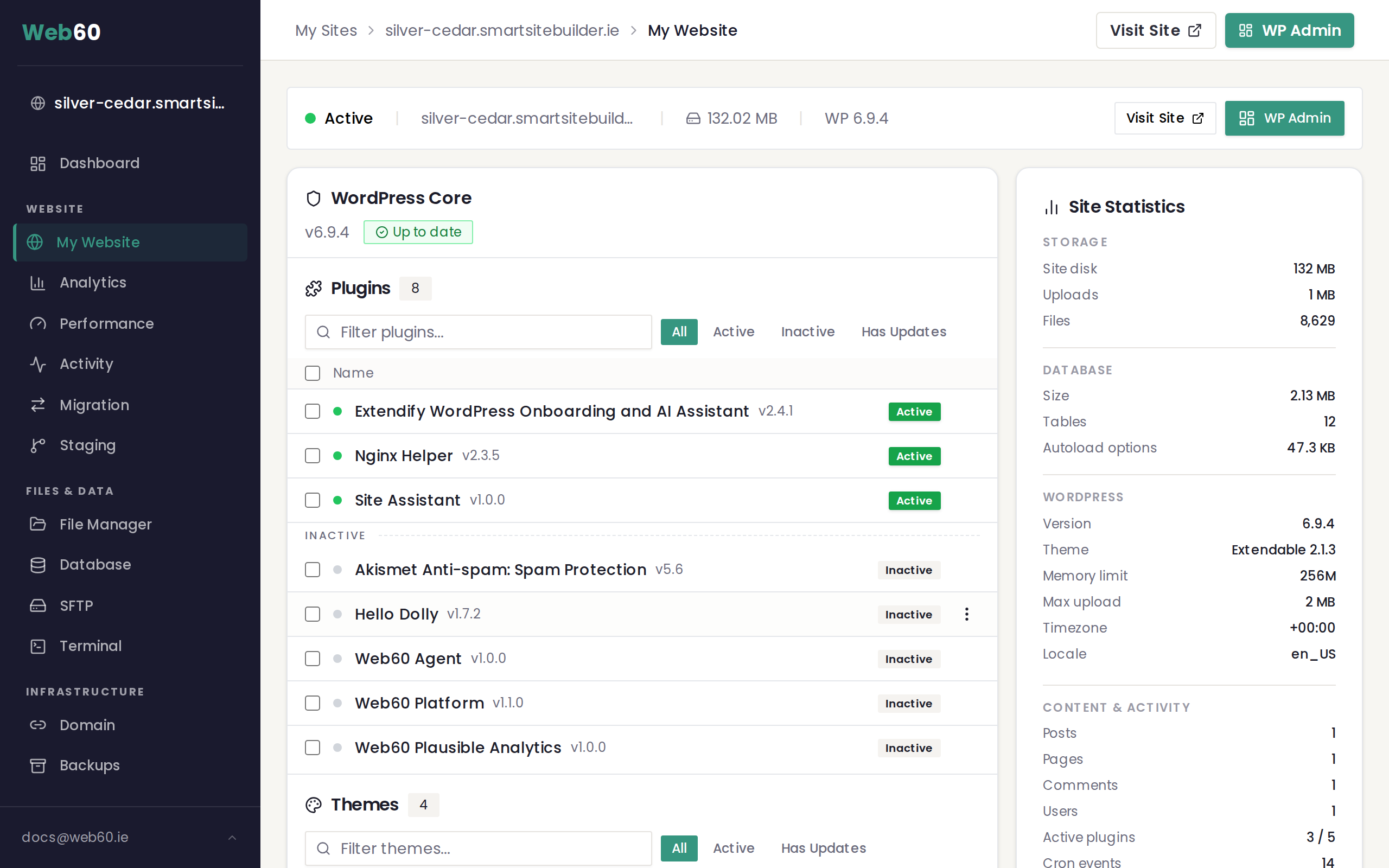
- Scroll down to the Cache section.
- You'll see three buttons. Choose the one that fits your situation.
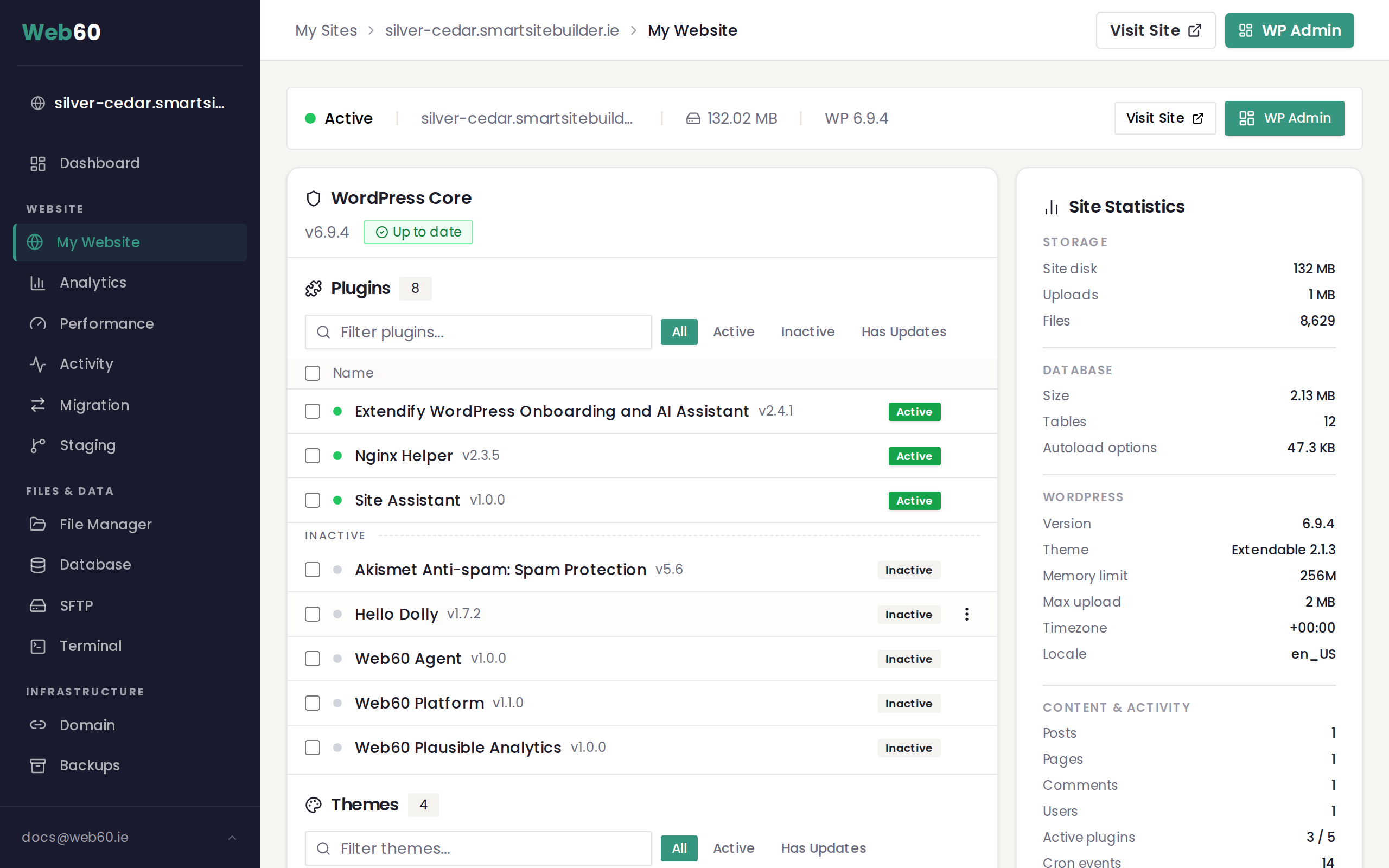
The three cache buttons explained
Flush all cache
This is the one you'll use most often. It clears all saved copies of your pages and forces your website to create fresh versions. Use this whenever you've made changes and they're not appearing on your live site.
Flush object cache
This clears saved data that your website uses behind the scenes. You normally won't need this, but it can help if your Web60 dashboard or your WordPress editor feels unusually slow or is showing outdated information.
Flush rewrite rules
This fixes problems with page addresses. If you've changed a page's web address (its URL) and the link isn't working, or if visitors are seeing "page not found" errors, clicking this button can sort it out.
Which button should I press?
If you're not sure, start with "Flush all cache." This solves the problem nine times out of ten. If that doesn't fix things, try the other two buttons as well.
Don't forget your browser cache
Your own web browser also saves copies of websites you visit. Even after clearing your website's cache, you might still see old content because your browser is showing its own saved version.
To see the latest version of your site:
- On a PC: Press Ctrl + Shift + R (or Ctrl + F5) to force your browser to reload the page.
- On a Mac: Press Command + Shift + R to force a reload.
- On your phone: Clear your browser history or open the page in a private/incognito window.
Need help?
If you've cleared the cache and things still aren't looking right, visit our support page and we'll investigate for you.
Frequently asked questions
How often should I clear my cache?
Only when you need to. If you've made changes to your website and they're not showing up, clear the cache. You don't need to do it on a regular schedule.
Will clearing the cache slow down my website?
Your site may load slightly slower for the first few visitors after clearing the cache, while fresh copies of your pages are created. After that, it will be just as fast as before.
I cleared the cache but my changes still aren't showing. What now?
Try clearing your own browser's cache as well. Your browser may be showing you a saved copy. If that doesn't work, visit our support page for help.
Last updated: 15 March 2026