

Maintenance mode lets you temporarily hide your website from visitors while you're making changes. Instead of seeing a half-finished page or a messy layout, your visitors will see a polite "site is being updated" message. Once you're happy with your changes, you turn maintenance mode off and your site is back to normal.
When to use maintenance mode
Maintenance mode is useful when you're:
- Making big design changes, such as rearranging pages, changing your colour scheme, or switching to a new layout.
- Adding a lot of new content, for example if you're uploading many new pages or products at once.
- Fixing a problem, for instance if something on your site doesn't look right and you want to hide it while you sort it out.
For small changes like editing a bit of text or swapping an image, you don't need maintenance mode. Those changes happen instantly and won't disrupt your visitors.
How to turn maintenance mode on
- Sign in to your Web60 dashboard at app.web60.ie.
- Click "My Website" in the sidebar.
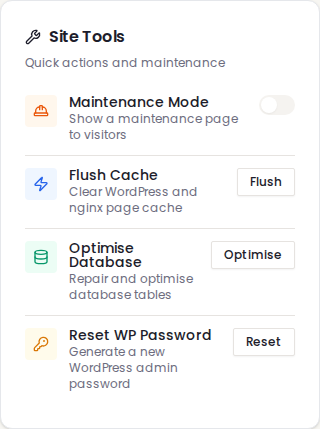
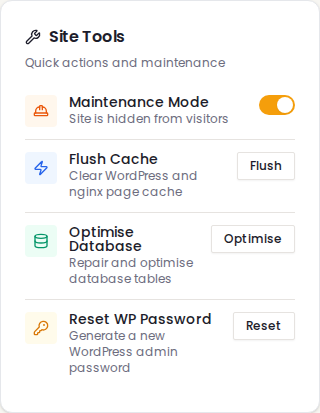
- Find the maintenance mode toggle on your website overview page.
- Switch it on.
That's it. Your visitors will now see a maintenance page instead of your website.
What your visitors see
When maintenance mode is turned on, anyone who visits your website will see a simple, professional page that says your site is being updated. They won't be able to see any of your pages, posts, or content.
You, however, can still access everything normally. When you open your WordPress editor through your Web60 dashboard, you'll see your full website and can continue making changes.
How to turn maintenance mode off
When you're finished making changes:
- Go back to "My Website" in your Web60 dashboard.
- Switch maintenance mode off.
Your website will be live again immediately, showing all the changes you've made.
Don't forget to turn it off
This is the most common mistake people make with maintenance mode: they forget to turn it off. While maintenance mode is on:
- Customers can't see your website. They only see the "updating" message.
- You could be losing business. People looking for your services won't find any information.
- Search engines may stop listing your site if it stays in maintenance mode for too long.
We recommend setting a reminder for yourself to turn it off once you're done.
Tips for using maintenance mode
- Keep it brief. Try to have your changes ready to go before turning it on, so your site isn't hidden for too long.
- Check your site after turning it off. Visit your website as a customer would to make sure everything looks right.
- Create a backup first. Before making big changes, create a backup so you can undo anything if needed.
Need help?
If you need a hand making changes to your website or want someone to check your site after an update, visit our support page and we'll be happy to help.
Frequently asked questions
Can I still edit my website while maintenance mode is on?
Yes. Maintenance mode only affects your visitors. You can still access your WordPress editor and make changes as normal through your Web60 dashboard.
Will maintenance mode affect my Google ranking?
If you leave it on for a short time (a few hours), it won't have any effect. If you leave it on for days or weeks, search engines may temporarily stop showing your site in results. Always turn it off as soon as you're finished.
Can visitors see any of my pages while maintenance mode is on?
No. When maintenance mode is turned on, visitors see only a simple message saying your site is being updated. None of your pages, posts, or content are visible to them until you turn it off.
Last updated: 15 March 2026