

Your website runs on software called PHP that powers WordPress behind the scenes. PHP has different versions, and newer ones are faster, more secure, and work with the latest plugins. You can also control how much memory your site uses and the maximum file size customers can upload.
All of these settings are in one place: Advanced Settings then PHP Settings.
How to get to PHP Settings
- Sign in at app.web60.ie
- Click your site name in the left sidebar
- Click Advanced Settings (under the Configuration heading in the sidebar)
- Scroll down to the PHP Settings card on the right-hand side
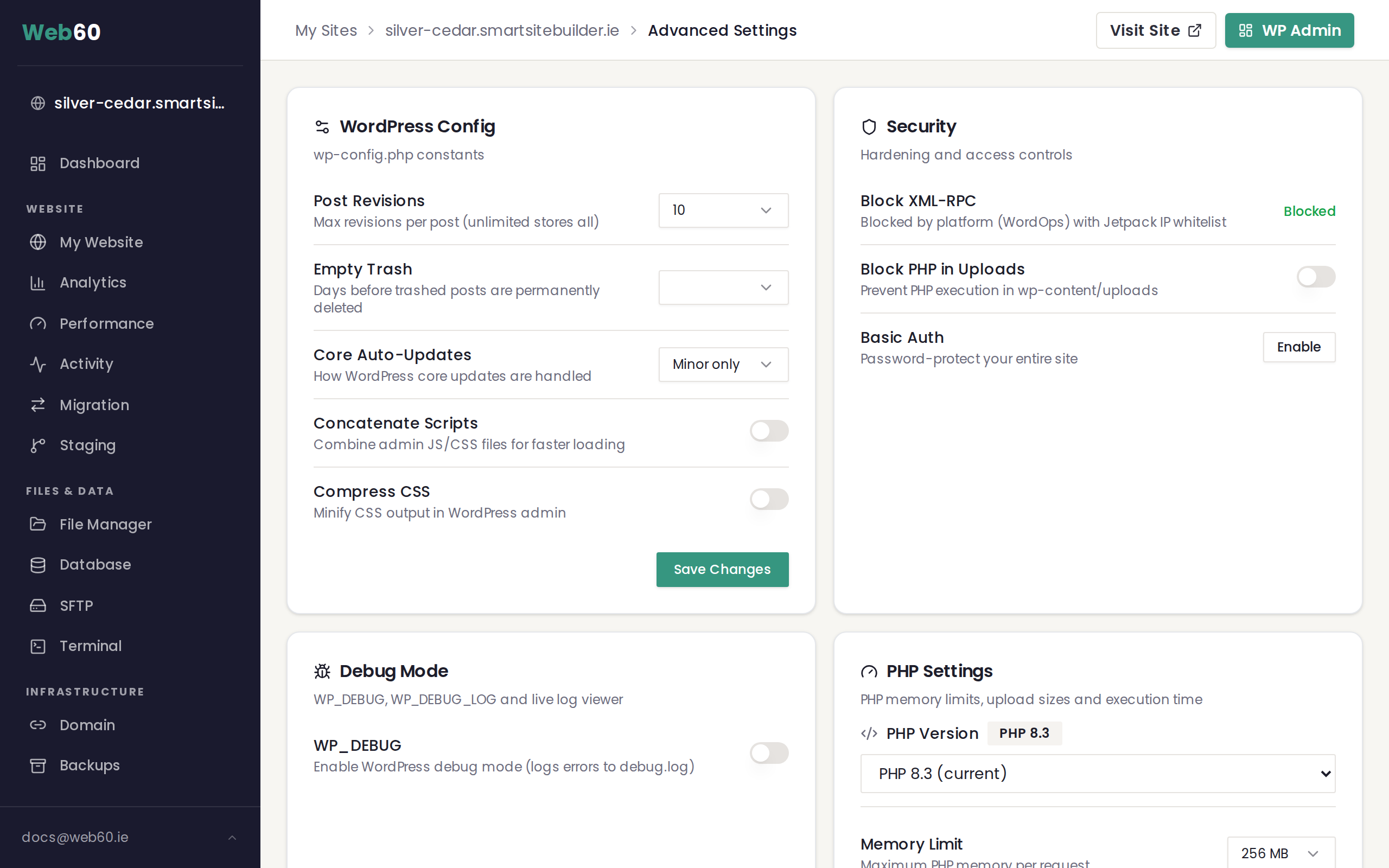
Changing the PHP version
Use the PHP Version dropdown to choose a version, then click Save Changes.
The change takes effect immediately. Your website may be briefly unavailable for a few seconds while the switch happens. Visitors will see it come back within moments.
Leave it alone if everything is working fine. Web60 sets the right version for your site when it's created. Only change it if a plugin says it needs a newer version, or if our support team recommends it.
If something stops working after changing the version, switch back to the previous version using the same dropdown and contact our support team.
Increasing the file upload limit
The most common reason to visit PHP Settings is to increase the upload limit. If WordPress shows a message like "The uploaded file exceeds the maximum upload size for this site", this is the setting to change.
Increase both of these together:
- Upload Max Filesize is the maximum size of a single file (default: 64 MB)
- Post Max Size should always be the same as or larger than Upload Max Filesize (default: 64 MB)
For example, to allow 128 MB uploads, set both to 128 MB and click Save Changes.
Common situations where you'd increase this:
- Uploading high-resolution photos or product images
- Uploading a video or audio file through the WordPress media library
- Installing a large plugin or theme via the WordPress dashboard
Memory limit and execution time
Two other settings you may occasionally need:
- Memory Limit controls how much memory PHP can use to handle a single visitor's request (default: 256 MB). Most sites never need to change this. A small number of complex page builders or WooCommerce stores may benefit from a higher limit.
- Max Execution Time controls how long a PHP script can run before it times out (default: 60 seconds). Increase this only if you're seeing timeout errors during large imports or plugin operations that take a long time to complete.
Things to know
- All changes apply immediately after clicking Save Changes. There is no waiting period.
- You can change any setting back to its previous value at any time.
- If your site starts behaving unexpectedly after a change, revert it and contact our support team.
What PHP version affects
PHP is the programming language that powers WordPress behind the scenes. Every time a visitor loads a page, submits a form, or triggers a plugin action, PHP code runs on the server to make it happen.
Newer PHP versions run this code faster and include security fixes. However, some older plugins may not work correctly with the newest PHP version, especially if they have not been updated in a long time. Only change your PHP version when there is a specific reason, such as a plugin requiring it or a recommendation from our support team.
How to check if a plugin needs a specific PHP version
If you are installing or updating a plugin and want to confirm it will work with your current PHP version:
- Visit the plugin's page on WordPress.org.
- Look at the right-hand sidebar for the Requires PHP line. This tells you the minimum PHP version the plugin needs.
- If your current PHP version is below that number, the plugin may not activate or may display errors.
You can check your current PHP version in the PHP Settings card in Advanced Settings on your Web60 dashboard. The version number is shown at the top of the card next to the dropdown.
If the plugin requires a newer PHP version than the one your site is running, you can update it using the dropdown in the same card. Always check that your other plugins are also compatible with the new version before making the switch.
Need help?
If you're unsure which setting to change, or if something isn't working after a change, visit our support page and we'll sort it out for you.
Frequently asked questions
Will changing the PHP version break my website?
In most cases, no. But some older plugins may not work with newer versions. We recommend only changing it if a plugin specifically asks for it or if our support team advises it.
How do I know which PHP version to use?
If you're not sure, leave it as-is. Web60 sets the right version for your site when it's created. Only change it if you've been told to by our support team or if a plugin tells you a newer version is required.
Can I switch back to the previous PHP version?
Yes. You can switch back at any time using the same dropdown in Advanced Settings.
How do I increase the file upload limit?
Go to Advanced Settings, scroll to the PHP Settings card, and increase the Upload Max Filesize value. Set Post Max Size to the same value or higher. Changes apply immediately.
WordPress says my file exceeds the maximum upload size. What do I do?
This means the file you're trying to upload is larger than your current Upload Max Filesize limit. Go to Advanced Settings, then PHP Settings, and increase the Upload Max Filesize to 128 MB or 256 MB, then try uploading again.
Last updated: 16 March 2026