

WordPress Cron is the built-in task scheduler that handles time-sensitive jobs on your website. It is responsible for sending scheduled emails, publishing posts at a set time, running automatic updates, triggering backups, and other background tasks.
Your Web60 dashboard lets you choose between two modes for running these tasks. You will find this under Advanced Settings > WordPress Cron on your site's management page.
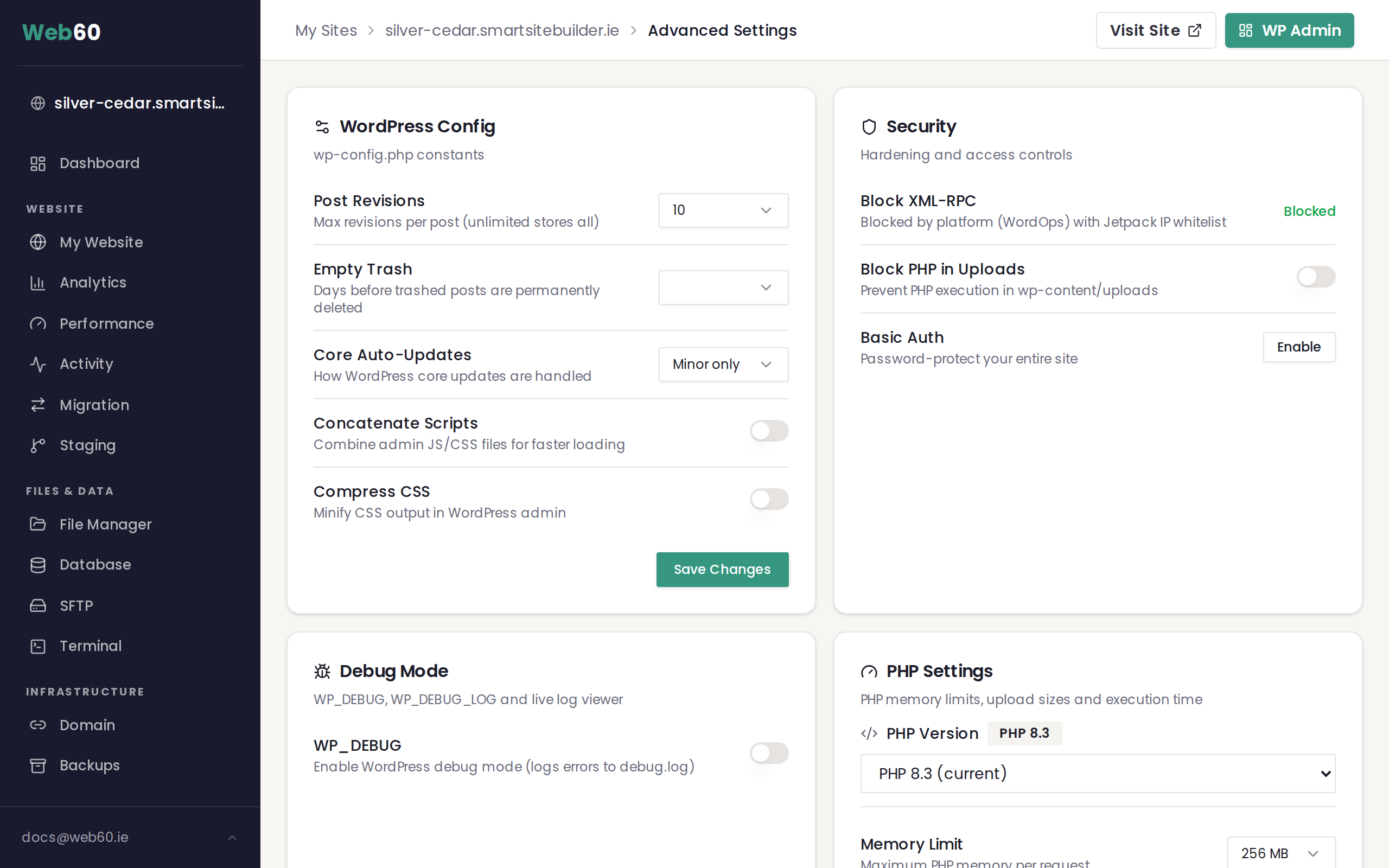
The two cron modes
WordPress mode (built-in)
This is the default. In WordPress mode, scheduled tasks are checked and executed whenever someone visits your site. Each page load triggers a quick check to see if any tasks are due.
How it works: When a visitor loads a page, WordPress looks at its task schedule. If any tasks are overdue, it runs them in the background during that page load.
The limitation: If your site does not receive regular traffic, tasks can fall behind. A site that only gets a few visitors per day might miss scheduled posts, delay email notifications, or skip important background maintenance. This is especially common on new sites, staging sites, or sites with seasonal traffic patterns.
Server mode (recommended for most sites)
In server mode, a real scheduled task runs on the server every 5 minutes, regardless of whether anyone visits your site. This ensures that all background jobs execute on time, even during quiet periods.
How it works: The server checks your WordPress task schedule every 5 minutes and runs anything that is due. This happens independently of visitor traffic.
The benefit: Scheduled posts publish exactly when they should. Email notifications go out on time. Updates and backups run reliably. Your site's background operations are no longer dependent on traffic.
How to switch modes
- Open your Web60 dashboard and select the site you want to manage.
- Go to Advanced Settings.
- Find the WordPress Cron card.
- You will see two buttons: WordPress and Server.
- Click the mode you want to use.
- Save your changes.
When you select Server mode, your dashboard will display the cron entry that has been set up, confirming that the scheduled task is active.
The inconsistency warning
If your Web60 dashboard detects that the cron mode set in your dashboard does not match what is actually configured on the server, you will see an inconsistency warning. This can happen if the setting was changed outside of your dashboard. If you see this warning, simply select the mode you want and save again to bring everything back in sync.
Server cron on staging sites
Server cron is not available on staging sites. Staging environments use WordPress mode only. This prevents staging tasks from interfering with your live site's operations. If you need to test scheduled tasks on staging, you will need to trigger them by visiting the staging site.
Which mode should you choose?
For most live websites, Server mode is the better choice. It provides reliable, predictable task execution without depending on visitor traffic.
Consider staying on WordPress mode if:
- Your site receives consistent, high traffic throughout the day (tasks will run frequently enough).
- You are running a staging or test site where precise scheduling is not important.
For all other cases, switching to Server mode ensures your site's background tasks run smoothly and on schedule.
Frequently asked questions
Will switching to server cron cause any downtime?
No. Switching between modes is instant and does not interrupt your site. Visitors will not notice any change.
What happens to scheduled tasks when I switch modes?
Nothing is lost. Any tasks that are due will be picked up by whichever mode is active. If tasks were delayed under WordPress mode, they will be caught up within 5 minutes of switching to server mode.
How do I know if my cron tasks are running on time?
If tasks are falling behind, your Web60 dashboard may display a warning about overdue tasks. For help resolving this, see Fixing the cron overdue warning.
Need help?
If you are seeing cron warnings or have questions about which mode is right for your site, contact our support team.
Frequently asked questions
Will switching to server cron cause any downtime?
No. Switching between modes is instant and does not interrupt your site. Visitors will not notice any change.
What happens to scheduled tasks when I switch modes?
Nothing is lost. Any tasks that are due will be picked up by whichever mode is active. If tasks were delayed under WordPress mode, they will be caught up within 5 minutes of switching to server mode.
How do I know if my cron tasks are running on time?
If tasks are falling behind, your Web60 dashboard may display a warning about overdue tasks.
Last updated: 16 March 2026