

Every WordPress website uses a database to store its content, settings and other information. Over time, this database can accumulate unused space as records are created, updated and deleted. Optimising your database reclaims that unused space and helps keep your site running efficiently.
Where to find the optimise tool
- Log in to your Web60 dashboard and select the site you want to manage.
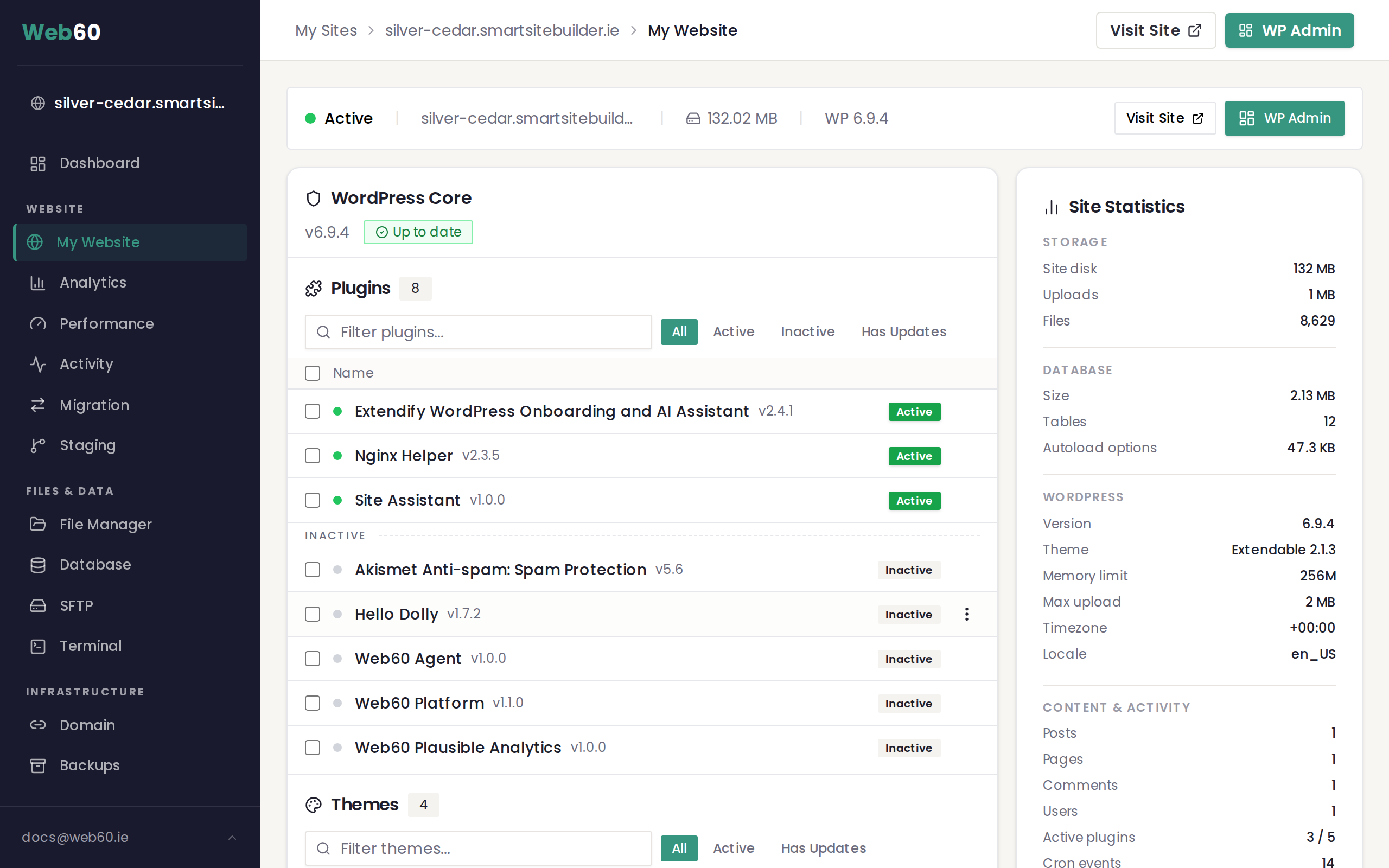
- Go to the My Website page.
- In the right-hand column, find the Site Tools card.
- Look for the Optimise Database option.
What the optimise tool does
When you click Optimise, the tool runs a cleanup process on your database tables. It reclaims space that was left behind after records were deleted or modified. Think of it like defragmenting a hard drive: the data itself is not changed, but it is reorganised so the database can work more efficiently.
Your content is safe. The optimise process does not delete any of your pages, posts, comments, media references or settings. It only tidies up the internal structure of the database.
How to run it
- Click the Optimise button in the Site Tools card.
- The process runs in the background. You will see a confirmation message once it finishes.
- You can continue using your dashboard while it runs.
When to use it
You might want to optimise your database in these situations:
- After deleting a large number of posts, pages or comments. Bulk deletions leave behind unused space in the database.
- After cleaning up post revisions. If you have reduced your revision limit (see What are post revisions and how to manage them), the old revision data still occupies space until the database is optimised.
- If your site statistics show a large database size. Check the Site Statistics card on your My Website page to see your current database size.
- As part of regular maintenance. Running an optimisation once a month is a good habit for most sites.
How often should I optimise?
For most websites, once a month is plenty. Sites with heavy editing activity (such as online shops or news sites with frequent content changes) may benefit from running it every two weeks. There is no harm in running it more often, but there is rarely a need to do it daily.
Frequently asked questions
Will optimising my database cause any downtime?
No. The process runs in the background and your website stays online throughout. Your visitors will not notice anything.
Can the optimise process delete my content by accident?
No. The tool only reclaims unused internal space. It does not remove any of your actual content, settings or user data.
How can I tell if my database needs optimising?
Check the Site Statistics card on your My Website page. If your database size seems larger than expected relative to the amount of content on your site, an optimisation may help. You can also look at the autoload data figure in the statistics. For more detail, see Understanding your website statistics.
Need help?
If you have questions about database maintenance or your site feels slower than expected, visit our support page and we will be happy to help.
Frequently asked questions
Will optimising my database cause any downtime?
No. The process runs in the background and your website stays online throughout. Your visitors will not notice anything.
Can the optimise process delete my content by accident?
No. The tool only reclaims unused internal space. It does not remove any of your actual content, settings or user data.
How can I tell if my database needs optimising?
Check the Site Statistics card on your My Website page. If your database size seems larger than expected relative to the amount of content on your site, an optimisation may help.
Last updated: 16 March 2026