

The AI chose stock images when it built your site. Replacing them with your own photos is the most impactful thing you can do to make your site look authentic.
How to replace an existing image
- Open the page in WordPress (go to Pages, click the page name)
- Click the image you want to replace
- Click Replace in the toolbar that appears above it
- Click Upload to choose a photo from your device, or Media Library to pick one you've already uploaded
- Click Select, then click Update to save
How to add a new image to a page
- Open the page in the WordPress editor
- Click the + icon where you want the image to appear
- Choose Image from the list of blocks
- Click Upload to choose a photo from your device
Image tips
- Hero images (the big banner at the top): use landscape photos at least 1200px wide
- Service/product images: aim for square or landscape, at least 800px wide
- Keep files under 2MB for fast loading because most phone photos are larger than needed, so resize before uploading if possible
- Add alt text when you upload, which is a short description of the photo (e.g. "Front of Murphy's Bakery on Main Street"). This helps search engines and screen readers
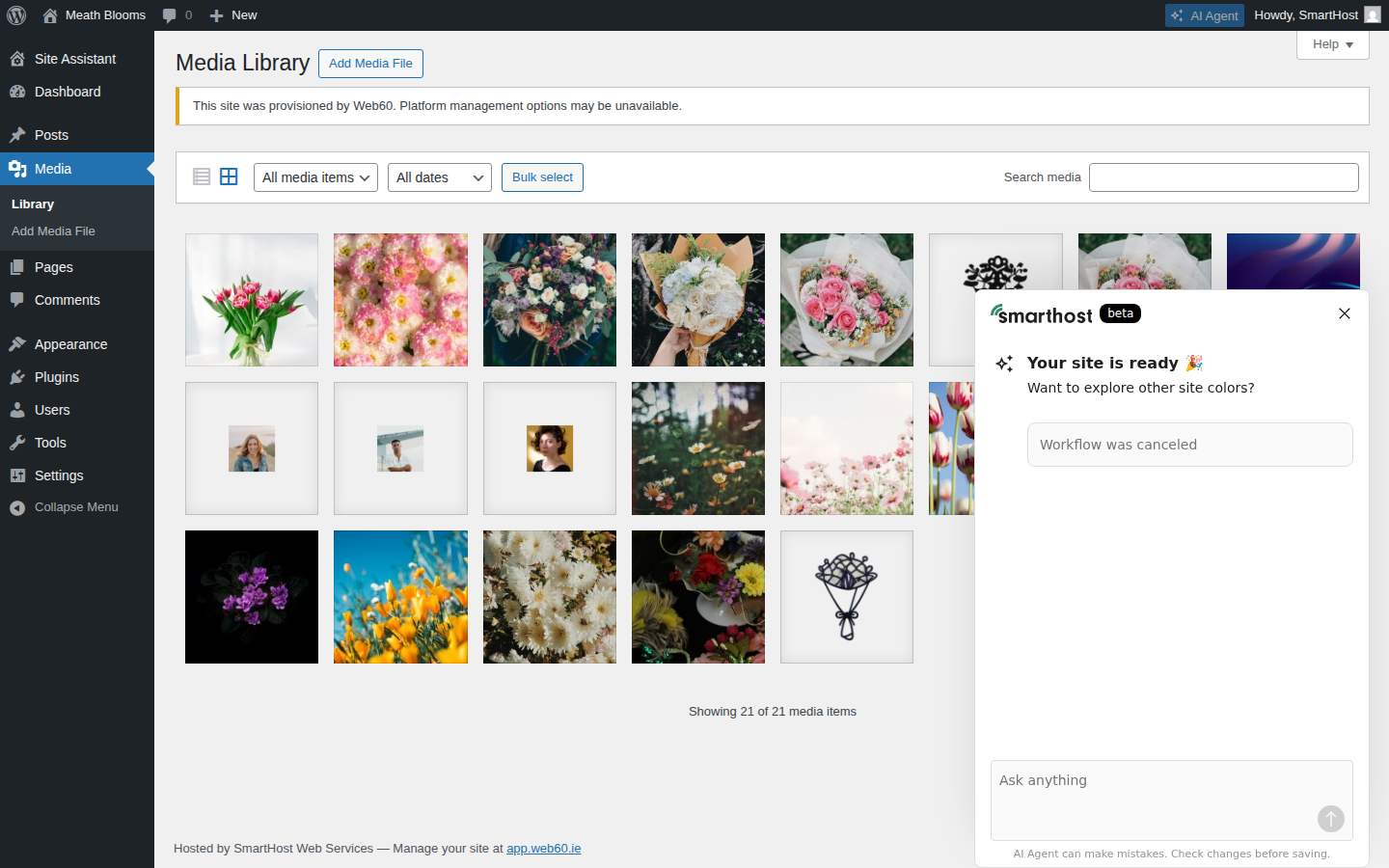
Your media library
Every photo you upload is saved in your media library (Media in the WordPress left menu). You can reuse any photo on multiple pages without uploading it again.
Frequently asked questions
What file types can I upload?
JPG, PNG, GIF, and WebP. JPG is best for photos.
Is there a size limit?
Individual files up to several MB are fine. Keep them under 2MB for best performance.
Can I use the same photo on more than one page?
Yes. Find it in your media library and insert it anywhere.
Last updated: 19 March 2026