

The Web60 AI Site Builder created your initial pages when you built your site. You can add more pages, edit existing ones, or remove any you don't need.
How to edit an existing page
- Open WordPress from your Web60 portal
- Click Pages in the left menu
- Click the page title you want to edit
- Make your changes. Click any text to edit it.
- Click Update (top right) to save
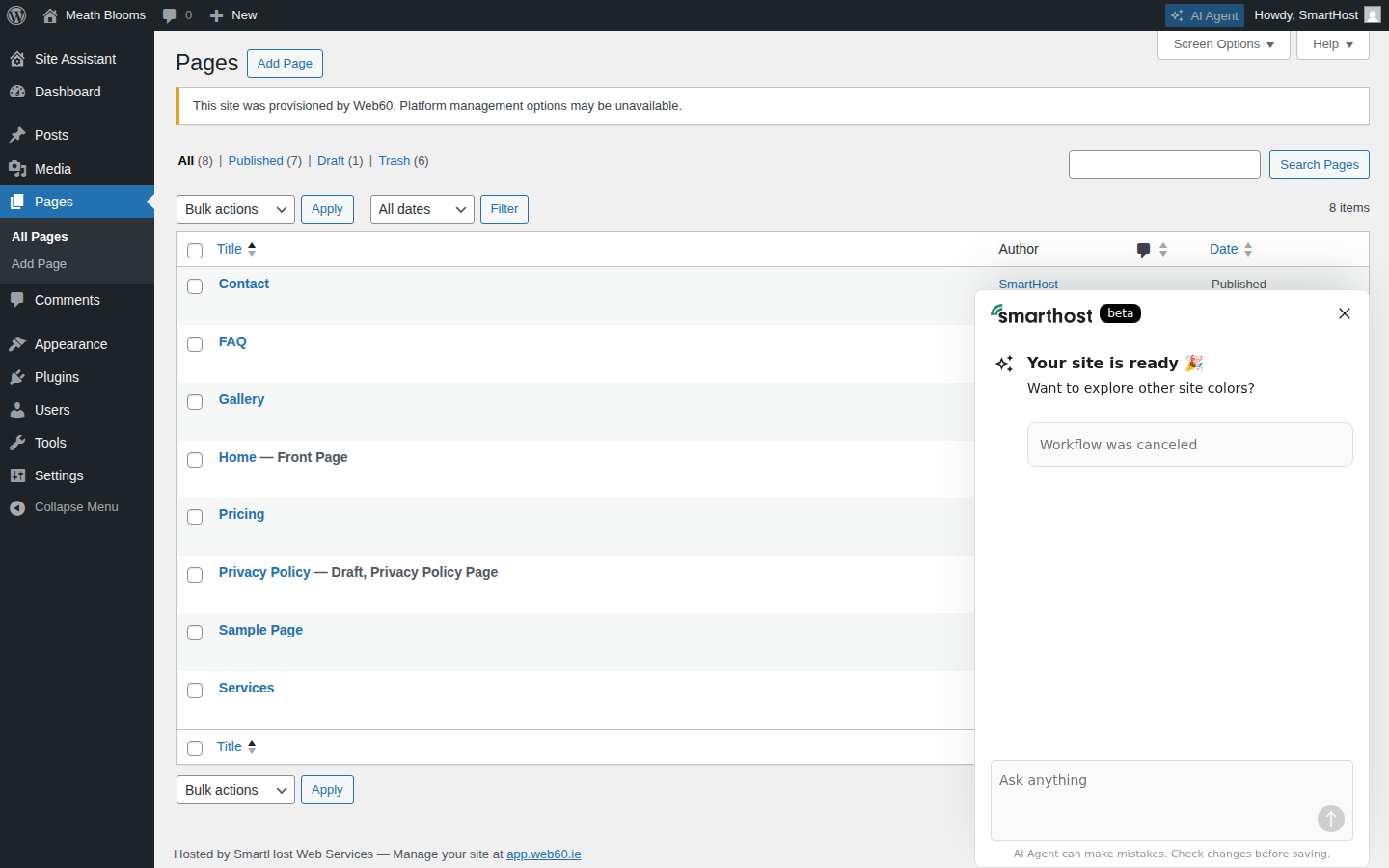
How to create a new page
- Go to Pages → Add New in WordPress
- Type your page title at the top
- Add your content using the blocks editor. Click + to add text, images, headings, buttons, and more.
- Click Publish when ready
Adding the new page to your menu
New pages don't appear in your navigation automatically. To add one:
- Go to Appearance → Menus in WordPress
- Find your new page in the left column and tick it
- Click Add to Menu
- Click Save Menu
How to delete a page
- Go to Pages in WordPress
- Hover over the page name
- Click Trash
Remember to also remove it from your navigation menu (Appearance, then Menus).
Common pages for Irish businesses
- Home. Always keep this.
- About. Who you are and what you do.
- Services. What you offer.
- Contact. Phone, email, location, contact form.
- Gallery. Photos of your work.
- FAQ. Questions you get asked regularly.
Frequently asked questions
How many pages can I have?
No limit.
How do I change the order pages appear in my menu?
Go to Appearance, then Menus, and drag the menu items into the order you want.
Will deleting a page affect anything else?
The page is moved to Trash and can be restored within 30 days. Remove it from your menu as well or you'll have a broken link.
Last updated: 19 March 2026