

Your logo is usually the first thing visitors notice. Adding it to your Web60 website takes under a minute and it will appear across every page automatically.
Before you start
Have your logo file ready on your computer. If you are not sure which format to use, see the best file formats section below.
Step 1: Open the Site Editor
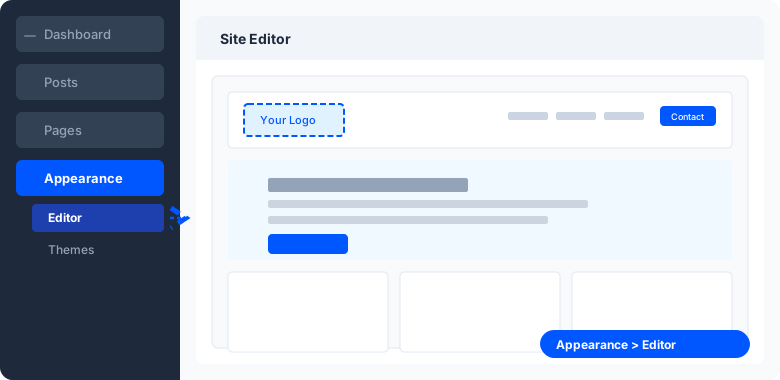
Log in to your WordPress dashboard. In the left-hand menu, hover over Appearance and click Editor.
This opens the Site Editor, where you can change your header, footer, and page templates.
Step 2: Find the logo block
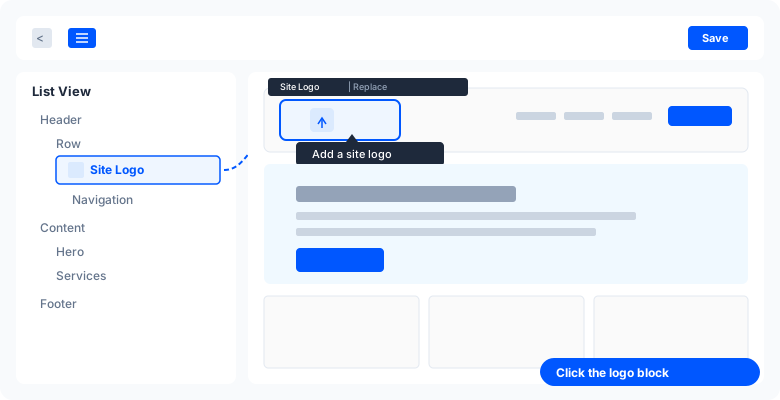
Your header is at the top of the page. Look for the logo placeholder in the top-left corner of the header area. It may show a small image icon or say "Add a site logo" when you hover over it.
Click the logo block to select it. You will see a blue outline around it and a small toolbar above.
Tip: If you cannot find the logo block, click the List View button in the top toolbar (it looks like three stacked horizontal lines). This shows a tree view of every block on the page. Look for Site Logo under the Header section and click it.
Step 3: Upload your logo
Once you have selected the logo block, you will see an upload prompt. You have two options:
- Drag and drop your logo file directly onto the upload area
- Click Select files (or Upload) to browse your computer and choose the file
If you have already uploaded your logo before, click the Media Library tab to find it there.
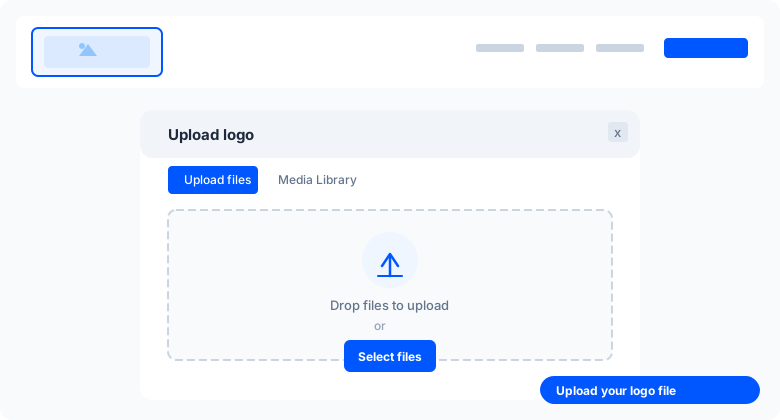
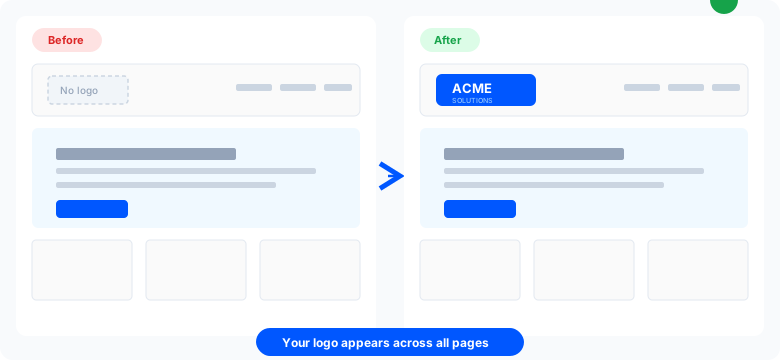
After uploading, your logo appears in the header immediately. You can drag the corner handles to resize it if needed.
Step 4: Save your changes
Click the Save button in the top-right corner of the Site Editor. Your logo is now live on every page of your website.
Choosing the right file format
The format of your logo file affects how it looks on your site. Here is a quick guide:

| Format | Transparency | Best for |
|---|---|---|
| PNG | Yes | Most logos. Transparent background blends with any header colour. |
| SVG | Yes | Vector logos. Stays sharp at any size with a tiny file. |
| JPG | No | Photos only. Logos will have a visible white box behind them. |
Recommendation: Use a PNG with a transparent background if you have one. Ask your designer for a version "on transparency" if you only have a JPG.
Logo tips
- Size: Aim for 200 to 600 pixels wide. WordPress will scale it down to fit, but starting with a clear image gives the best result.
- Keep it simple: Detailed logos with very fine text may not be readable at the size used in the header. Test how it looks on your phone too.
- File size: Keep the file under 500 KB. A large logo image slows down your page load. Use TinyPNG to compress it if needed.
- Retina displays: If you want your logo to be crisp on high-resolution screens, upload it at double the display size (e.g. if it displays at 150px wide, upload it at 300px wide).
Replacing your logo later
Already have a logo and want to swap it?
- Open the Site Editor (Appearance > Editor)
- Click your existing logo in the header
- Click Replace in the toolbar above it
- Upload the new file or pick one from your Media Library
- Click Save
The new logo replaces the old one instantly across your entire site.
Don't have a logo yet?
Web60 includes an AI Logo Generator that can create a professional logo for your business in seconds. You describe your business, choose a style, and the AI produces four unique options. You can even apply your favourite directly to your site header with one click.
See Getting Started with the AI Logo Generator to learn more.
Frequently asked questions
What file format should my logo be?
PNG with a transparent background is the best choice. SVG also works well. JPG is fine but will have a solid background colour behind your logo.
What size should my logo be?
Aim for a logo that is between 200px and 600px wide. The Site Editor will resize it automatically, but starting with a crisp image gives the best result.
Will my logo appear on every page?
Yes. The Site Editor uses a global header, so your logo automatically appears on every page of your website.
Can I change my logo later?
Yes. Go back to the Site Editor, click your logo, click Replace, and upload a new file. The change takes effect immediately across your entire site.
I can't find the logo block. What should I do?
Click the List View button (three stacked lines) in the top toolbar. This shows a tree of all blocks on the page. Look for 'Site Logo' under the Header section.
Last updated: 26 March 2026