

After the AI builds your site, your homepage has several sections. Here's what each one does.
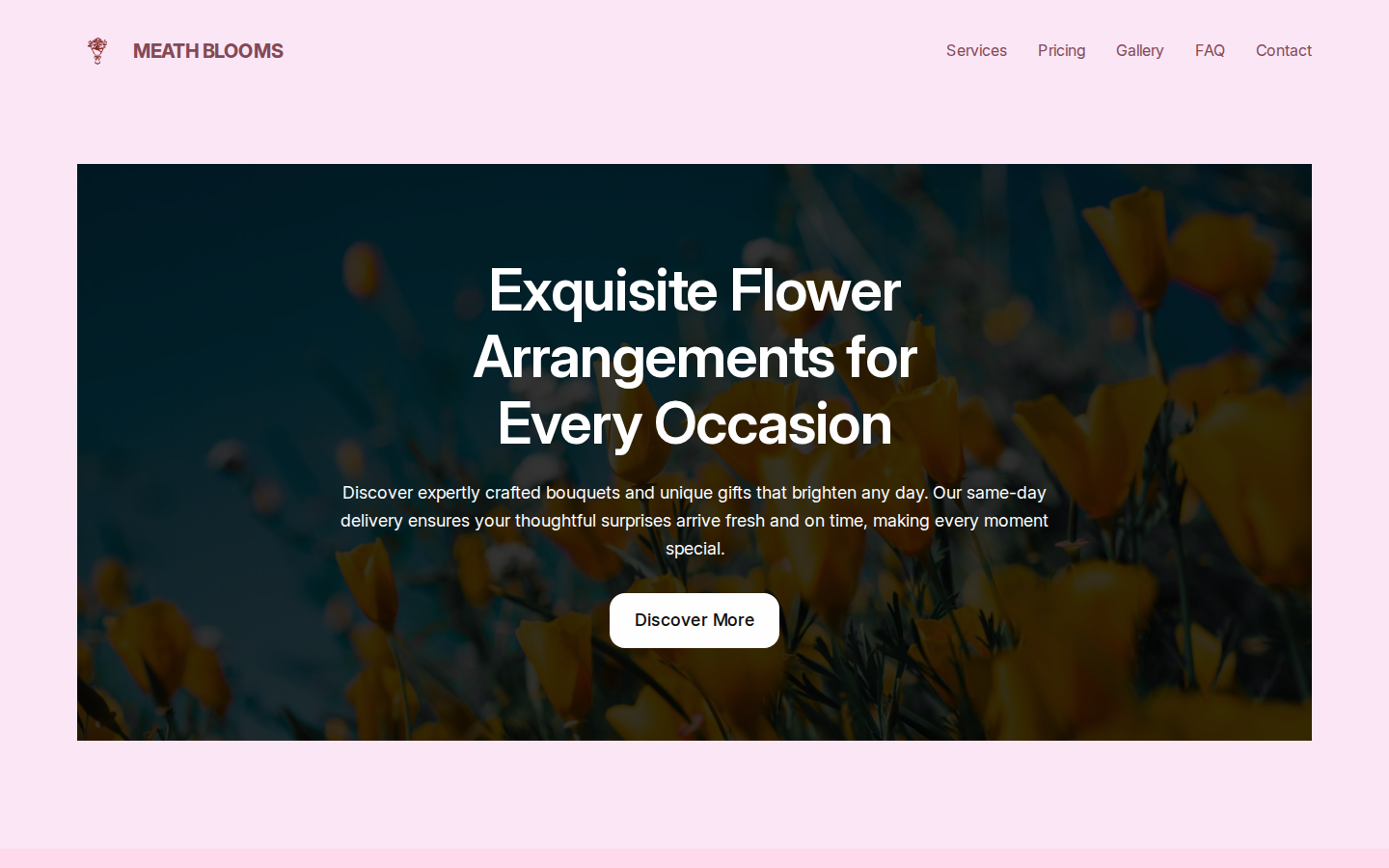
The header
At the top of every page:
- Your business name or logo (left side)
- Navigation links to all your pages (right side)
The navigation updates automatically when you add or remove pages.
The hero section
The large banner at the very top of your homepage. It contains:
- A full-width background image
- A headline generated from your business description
- A supporting subheading
- A call-to-action button (e.g. "Discover More")
All of these can be edited. Just click and type. See editing your hero section.
Content sections
Between the hero and footer, your homepage has multiple content sections with alternating colour bands highlighting different aspects of your business. These may include services overviews, featured products, or testimonial areas.
Some sections may appear as solid colour blocks. These are waiting for your own photos. See why some sections appear blank.
The contact form
If you chose "Yes" to contact in Step 2, a contact form is embedded on your homepage with fields for name, email, inquiry, and message. See editing your contact form.
The footer
Appears on every page. Contains your site attribution and any footer navigation you set up.
Frequently asked questions
Can I rearrange sections on the homepage?
Yes. In the block editor, click a section and use the up/down arrows to move it, or the three dots menu to delete it.
Why are some sections blank?
Blank or solid-colour sections are image placeholders. See our guide on blank sections for how to fix them.
Last updated: 19 March 2026