
When you've finished editing a page on your website, you need to publish your changes to make them visible to your visitors. This guide explains how publishing works and what to do if your changes don't appear straight away.
How to publish a new page
When you create a brand-new page and you're ready for it to go live:
- Check your content. Make sure everything looks the way you want it to.
- Click the blue "Publish" button in the top-right corner of the editor.
- You may be asked to confirm, so click "Publish" again.
Your new page is now live on your website. Anyone visiting your site can see it.
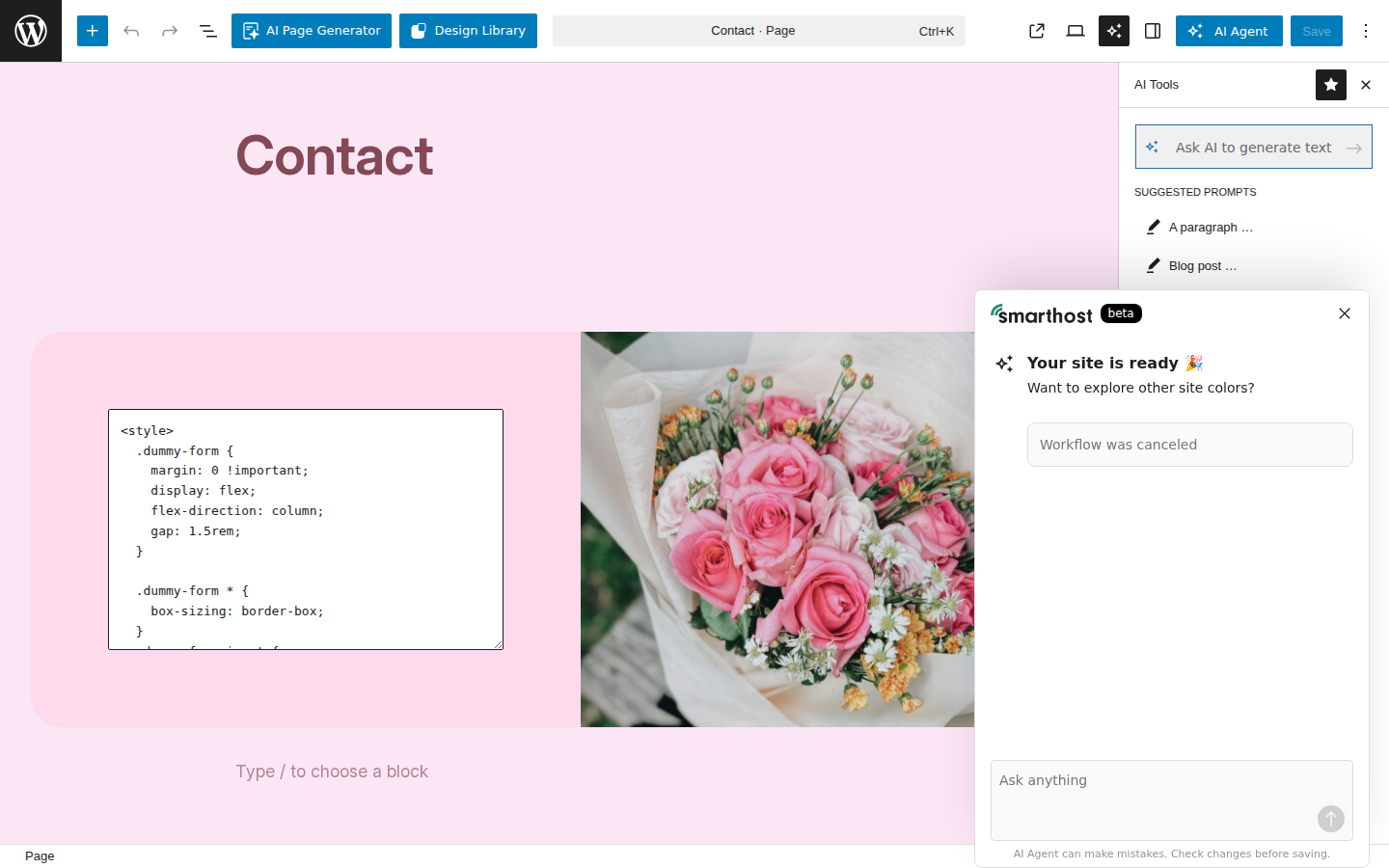
How to update an existing page
If you're editing a page that's already published:
- Make your changes to the page content.
- Click the blue "Update" button in the top-right corner.
Your changes are saved and live immediately. There's no delay. As soon as you click Update, the new version of your page is what visitors will see.
Saving drafts
If you're not ready to publish yet, you don't have to. WordPress automatically saves your work as you go, so you won't lose your changes if you close your browser by accident.
You can also:
- Save as a draft. If the page hasn't been published yet, your work is saved as a draft that only you can see.
- Come back later. Go to Pages in your WordPress editor to find your draft pages and continue working on them.
What if your changes don't appear?
Sometimes you might click Publish or Update but still see the old version when you visit your website. This is almost always caused by caching, where your browser or your website is showing a saved copy of the old page instead of the new one.
Here's how to fix it:
Clear your browser cache
- On a computer: Press Ctrl + Shift + R (Windows) or Cmd + Shift + R (Mac) to do a hard refresh.
- On a phone: Open your website in a private or incognito browsing window.
Clear your site's cache
Your Web60 site has its own cache that helps pages load faster. To clear it:
- Sign in to your Web60 dashboard.
- Go to My Website.
- Scroll down to the Cache section.
- Click the Flush button to clear the cache.
After clearing the cache, refresh your website and you should see your latest changes.
Publishing tips
- Don't worry about making mistakes. You can always edit a published page and click Update again. Nothing is permanent.
- Check your page on your phone. After publishing, visit your website on your phone to make sure everything looks good on smaller screens too.
- Ask someone else to check. A fresh pair of eyes can spot things you might have missed.
Next steps
- How to add and edit pages to create more content for your website.
- How to clear your website's cache for more detail on caching and how to fix display issues.
Need help?
If you've published your changes and something doesn't look right, visit our support page and we'll help you fix it.
Frequently asked questions
Can I undo a published change?
WordPress keeps a revision history of your pages. You can revert to a previous version from the page editor.
Why can't I see my changes after publishing?
Your browser may be showing a cached version. Try clearing your browser cache or opening the page in a private/incognito window. You can also clear your site's cache from your Web60 dashboard.
Can other people see my draft pages before I publish them?
No. Draft pages are only visible to you when you are logged in to your WordPress editor. Visitors to your website cannot see any page until you click Publish.
Last updated: 15 March 2026