

Step 1 is where you tell the AI about your business. There are three fields to fill in.
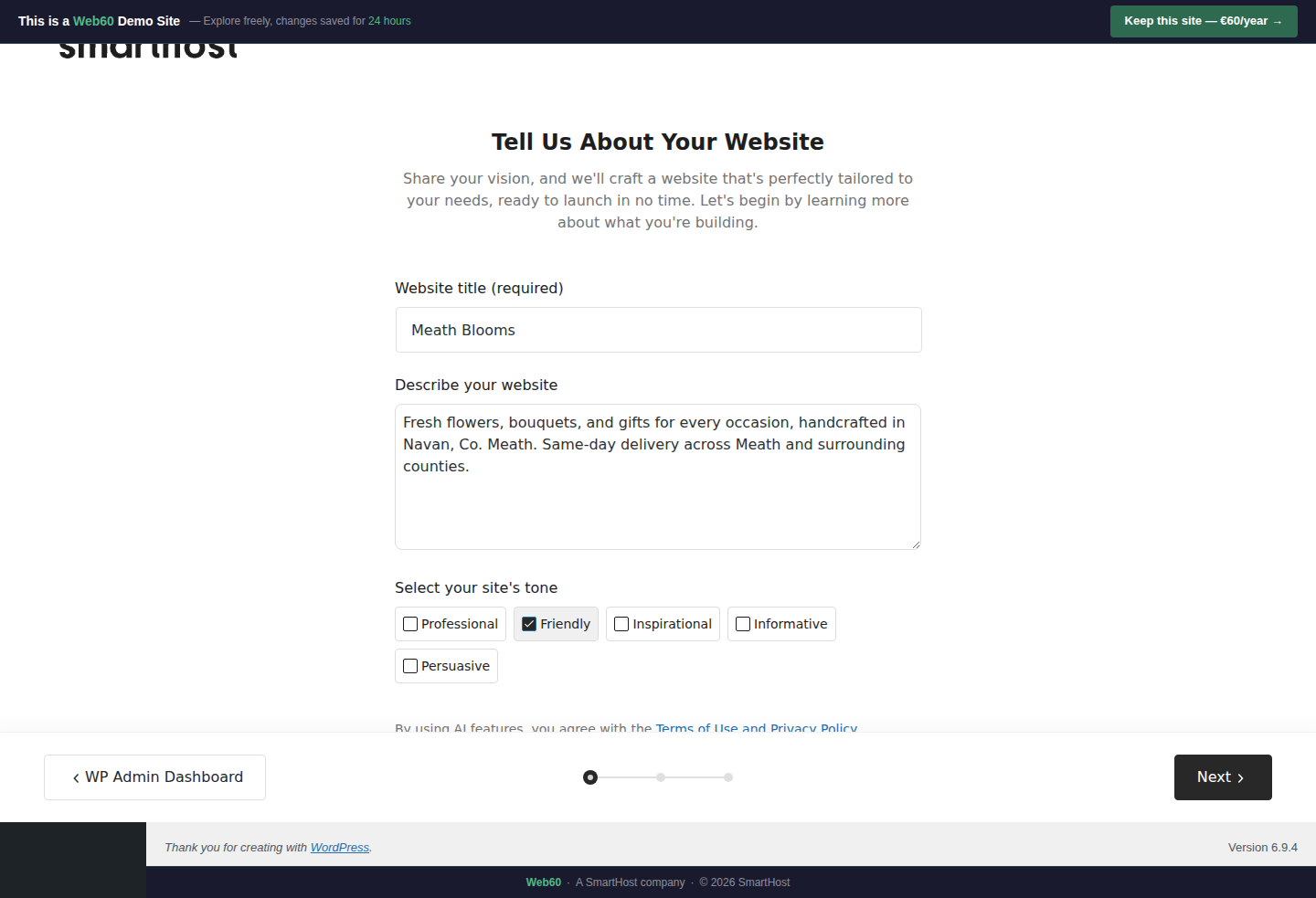
Website Title
Your business name, exactly as you want it on your site. This becomes your header text, your browser tab title, and appears throughout your pages.
- Use proper capitalisation
- Use your trading name, not your registered company name
Describe Your Website
One or two sentences about your business. The AI uses this to write every page, choose images, and pick your colour scheme, so the more specific you are, the better.
Include:
- What you do
- Where you are based
- What makes you different
Good example: "Fresh flowers, bouquets, and gifts for every occasion, handcrafted in Navan, Co. Meath. Same-day delivery across Meath and surrounding counties."
Too vague: "We sell flowers."
Select Your Site's Tone
Choose how you want your website to sound:
| Tone | Best for |
|---|---|
| Professional | Solicitors, accountants, financial advisers, B2B services |
| Friendly | Retail, florists, food, local services, tradespeople |
| Inspirational | Wellness, coaching, fitness, creative services |
| Informative | Healthcare, education, technical businesses |
| Persuasive | Agencies, sales, recruitment, marketing |
Not sure? Choose Friendly. It works well for most businesses. You can ask the AI assistant to adjust the tone later.
What happens next
After clicking Next, a "Customizing Your Experience" spinner appears for about 6 seconds while the AI processes your input. Then Step 2 loads.
Frequently asked questions
Can I change my business description later?
You can't change the wizard inputs after generation, but you can edit all the content the AI created, or ask the AI assistant to rewrite sections.
What if I'm not sure about the tone?
Choose Friendly. It works well for most businesses, and you can ask the AI assistant to adjust the tone later.
Last updated: 19 March 2026