

After you purchase your Web60 plan, you will be taken straight to the Get Started wizard. This is a simple three-step process that helps you set up your account and get your website ready.
At the top of the page, you will see three progress indicators showing which step you are on. Each one lights up as you move through the wizard.
Step 1: Set your password
This is the only step you must complete before moving on.
- Enter a password in the first box. It must be at least 8 characters long and include at least one number.
- Type the same password again in the confirmation box.
- Click Set Password.
Once your password is saved, you can use it along with your email address to sign in at any time.
Step 2: Your domain
A domain is your website's address, the name people type into their browser to find you (for example, yourbusiness.ie).
You will see three options:
- Use your own domain. Choose this if you already own a domain name. This takes you to the domain settings page where you can connect your domain.
- Register a new domain. This option is coming soon. For now, you can register a domain through any domain provider and connect it afterwards.
- Skip for now. If you are not ready to set up a domain, click this to move on. Your site will use a temporary web address in the meantime. You can connect a domain later from your Web60 dashboard.
Step 3: Complete your profile
This step is optional but helps us personalise your experience. You can fill in any or all of the following:
- Company name. The name of your business.
- Address. Your business address.
- City / Town. Where your business is based.
- County. Choose your county from the dropdown list of Irish counties.
- Eircode. Your postal code.
When you are finished, click Finish Setup. If you would rather come back to this later, click Skip.
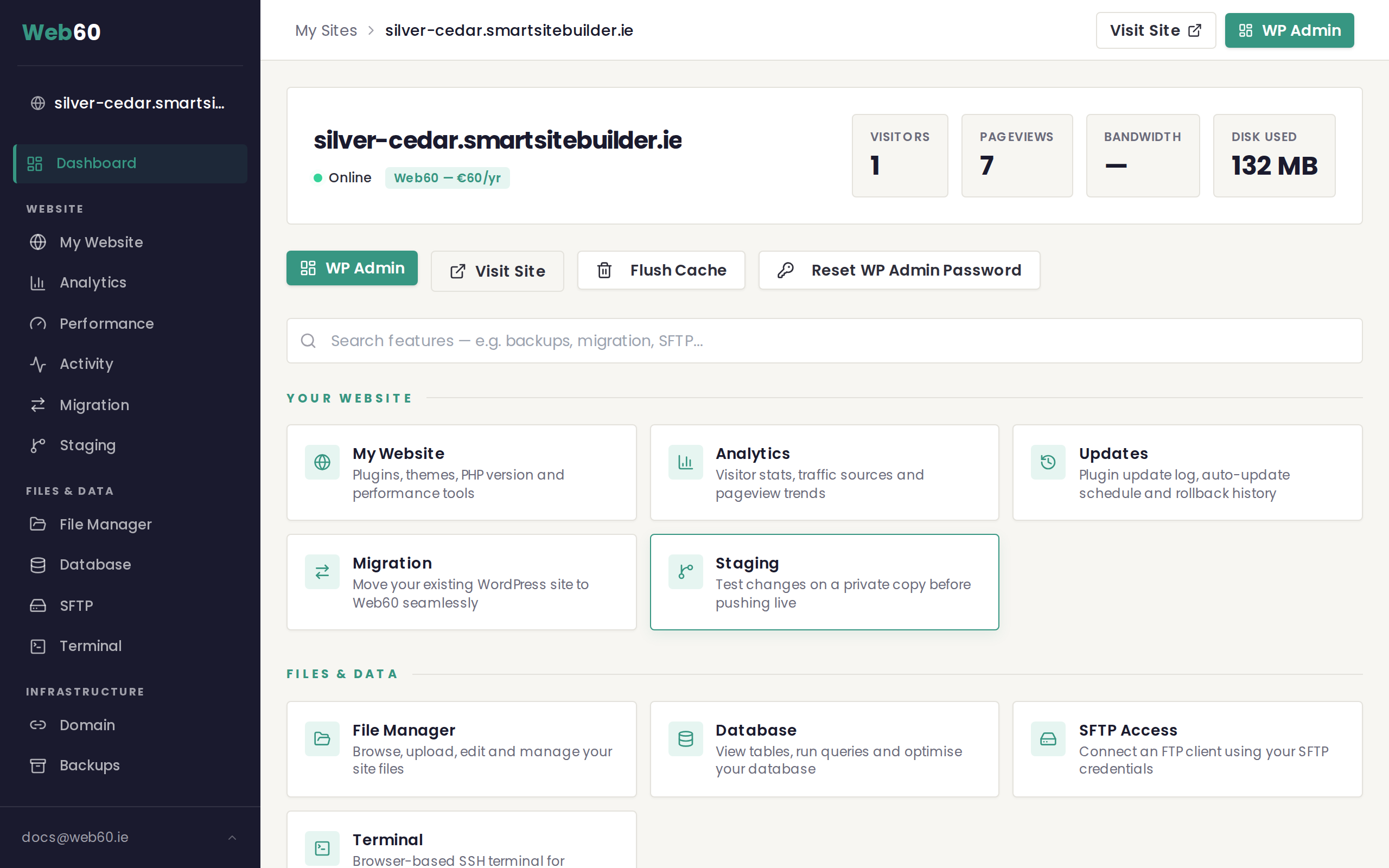
What happens next
Once you have completed (or skipped) all three steps, you will be taken to your Web60 dashboard. From there, you can start building your website, manage your domain, and explore all the features included with your plan.
Need help?
If you get stuck at any point during the setup wizard, visit our support page and we will be happy to help.
Frequently asked questions
Can I skip steps in the Get Started wizard?
You must set your password in step 1. For step 2 (domain) and step 3 (profile), you can skip and come back later.
What if I don't have a domain yet?
No problem. Choose 'Skip for now' in step 2. Your site will use a temporary web address until you're ready to connect a domain.
Can I go back and change my answers in the wizard later?
Yes. Everything you enter during the wizard can be updated from your Web60 dashboard after setup is complete. You are not locked into any of your choices.
Last updated: 15 March 2026