

After you sign in, you will see your Web60 dashboard. This is your home base for managing everything about your website.
The top section
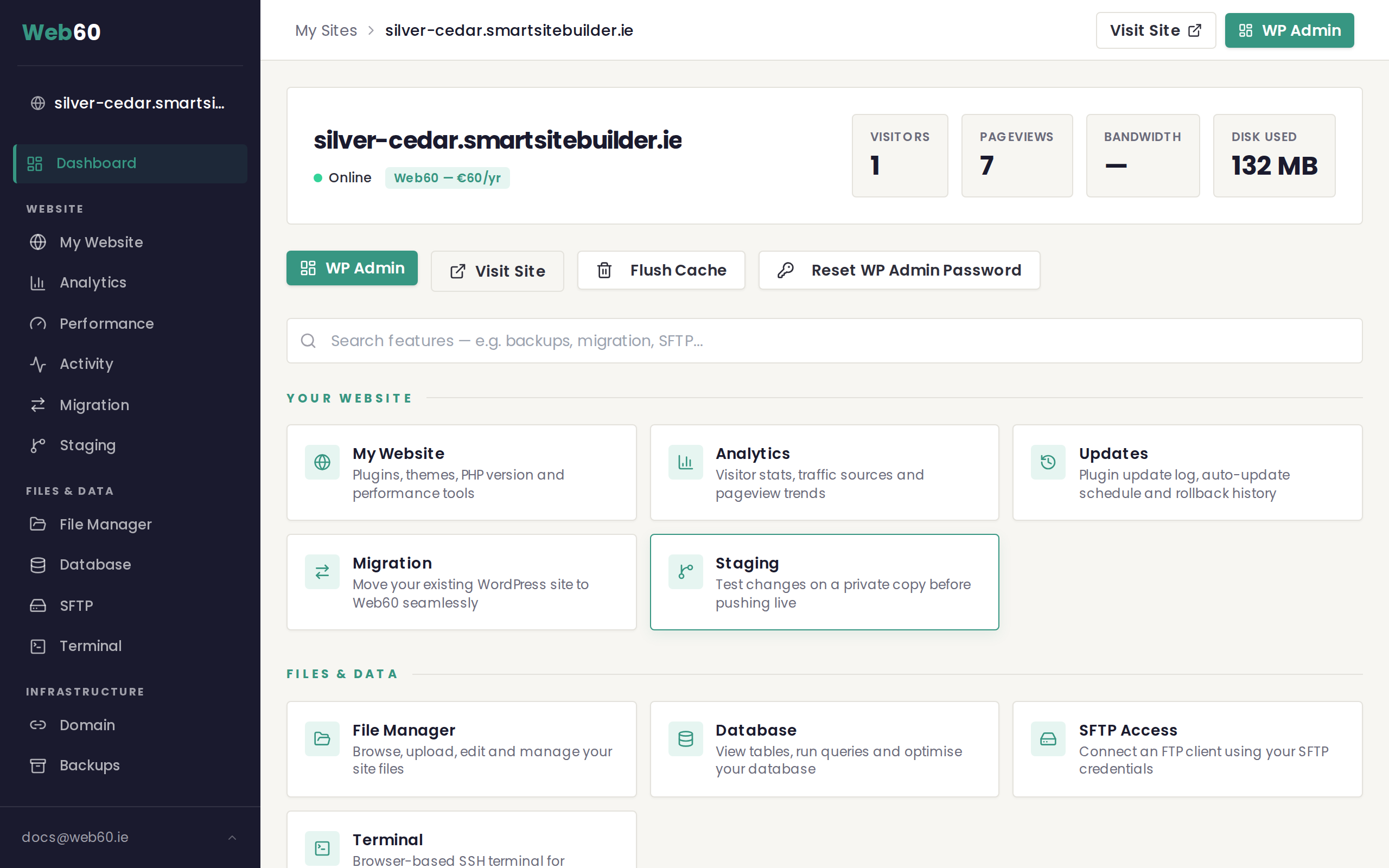
At the very top of the page, you will see:
- Your site domain name, which is the web address of your website.
- A status indicator where a green dot means your site is live and working, and a red dot means your site is currently offline.
- Your plan badge shows your current plan (Web60, €60/yr).
Your site stats
Below the top section, you will find four cards showing key information about your website:
- Visitors shows the number of people who have visited your site.
- Pageviews shows the total number of pages viewed across all visitors.
- Bandwidth shows how much data your site has transferred (think of this as how busy your site has been).
- Disk Used shows how much storage space your website files and images are taking up.
Charts
Two charts sit below the stat cards. These give you a visual picture of how your site has been performing over the last 30 days:
- Bandwidth chart shows your data usage day by day.
- Visitor chart shows how many people visited your site each day.
These are helpful for spotting trends. For example, if you run a promotion, you might see a spike in visitors on those days.
The sidebar menu
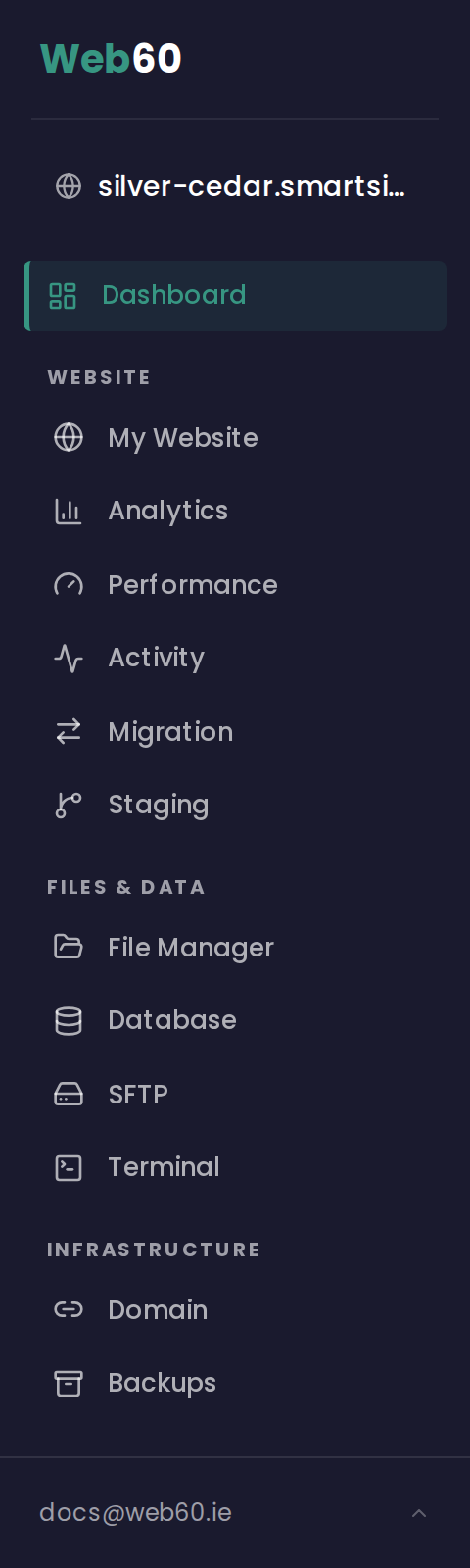
On the left side of the screen, you will see the sidebar navigation. This is how you access every feature of your Web60 dashboard:
- My Website lets you open your WordPress editor to make changes to your site.
- Domain lets you connect or manage your domain name.
- Backups lets you view and manage automatic backups of your site.
- Analytics lets you see detailed visitor and traffic information.
- Staging lets you test changes on a private copy of your site before making them live.
- Migration lets you move an existing website to Web60.
- Files lets you browse the files that make up your website.
- SFTP lets you access your site files using a file transfer tool.
- Terminal is a text-based tool for advanced users (you will not need this for day-to-day tasks).
- Updates lets you keep your site software up to date.
- Database lets you manage your site's stored data.
- Support lets you get help from the Web60 team.
- Account lets you update your personal details and password.
- Billing lets you view invoices and manage your subscription.
You do not need to use every item in this menu. Most people spend their time in My Website, Domain, Backups, and Account.
Need help?
If you are unsure where to find something in your dashboard, visit our support page and we will point you in the right direction.
Frequently asked questions
How do I get to my dashboard?
Sign in at app.web60.ie and you'll see your dashboard straight away. If you have more than one site, click the one you want to manage.
What do the charts on my dashboard show?
The bandwidth chart shows how much data your site has used over the last 30 days. The visitor chart shows how many people have visited your site.
Do I need to use every option in the sidebar menu?
No. Most people only use a few sections regularly. My Website, Domain, Backups, and Account are the ones you will visit most often. The rest are there if you need them.
Last updated: 15 March 2026