

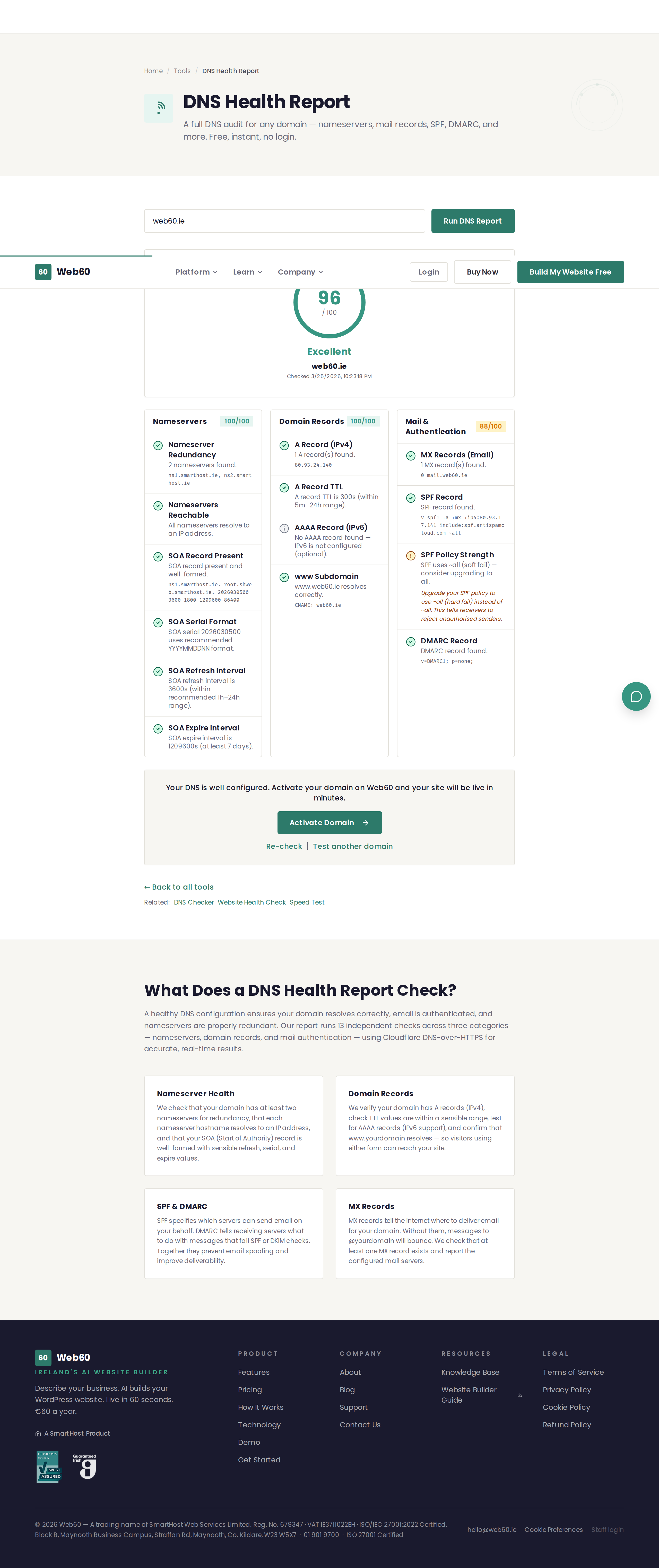
The DNS Health Report runs a comprehensive audit of your domain's DNS configuration and scores it across 14 checks. It covers nameserver redundancy, SOA records, A records, IPv6 support, MX records, SPF, and DMARC.
What this tool checks
The report evaluates your domain across three categories:
Nameservers (6 checks)
- Nameserver redundancy - Whether your domain has at least two nameservers. Having only one is a single point of failure.
- Nameservers reachable - Whether each nameserver hostname resolves to an IP address.
- SOA record present - Whether your domain has a valid Start of Authority record, which is essential for DNS to function correctly.
- SOA serial format - Whether the SOA serial number uses the recommended date-based format (YYYYMMDDNN).
- SOA refresh interval - Whether the refresh interval is within the recommended range of 1 to 24 hours.
- SOA expire interval - Whether the expire value is at least 7 days, which prevents zone expiry if the primary nameserver is temporarily offline.
Domain records (4 checks)
- A record (IPv4) - Whether your domain has at least one A record pointing to a server. Without this, visitors cannot reach your website.
- A record TTL - Whether the time-to-live value is within a sensible range (5 minutes to 24 hours).
- AAAA record (IPv6) - Whether your domain supports IPv6. This is optional but increasingly important.
- www subdomain - Whether
www.yourdomainresolves, so visitors using the www prefix can reach your site.
Mail and authentication (4 checks)
- MX records - Whether your domain has mail server records. Without these, your domain cannot receive email.
- SPF record - Whether you have an SPF record that specifies which servers can send email on your behalf.
- SPF policy strength - Whether your SPF policy uses the strongest setting (-all) to reject unauthorised senders.
- DMARC record - Whether you have a DMARC record to complete your email authentication setup.
How to use it
- Go to web60.ie/tools/dns-health.
- Enter your domain name (for example,
yourbusiness.ie). - Click Run DNS Report.
- Wait a few seconds for all checks to complete.
- Review your overall score and the individual results in each category.
Understanding your results
The overall score
Your domain receives a score from 0 to 100 based on how many checks pass:
| Score | Rating | What it means |
|---|---|---|
| 90-100 | Excellent | Your DNS configuration is well set up. |
| 70-89 | Good | A few things could be improved but nothing critical. |
| 50-69 | Needs attention | Several issues that should be addressed. |
| 0-49 | Issues found | Significant DNS problems that need fixing. |
Check results
Each check shows one of four results:
- Pass (green) - This check meets best practices. No action needed.
- Warning (amber) - This could be improved but is not critical.
- Fail (red) - This needs to be fixed. The report will show a remediation tip.
- Info (grey) - For your information only. No action required.
Critical issues
If any critical checks fail (such as a missing A record or missing SOA record), the report highlights these at the top in a red callout box. These should be resolved as soon as possible because they can prevent your website or email from working.
Common issues and what to do
No A record (DR-1 fail)
Your domain does not point to a server. Contact your domain registrar and add an A record with your hosting provider's IP address. If you are a Web60 customer, check our domain connection guide.
No MX records (ML-1 warning)
Your domain cannot receive email. If you use email with this domain, contact your email provider for the correct MX record values and add them at your domain registrar.
Missing SPF record (ML-2 warning)
Without SPF, emails sent from your domain are more likely to be flagged as spam. Add a TXT record starting with v=spf1 that lists your authorised email servers.
Missing DMARC record (ML-4 warning)
DMARC works alongside SPF to protect your domain from email spoofing. Add a TXT record at _dmarc.yourdomain with v=DMARC1 and a policy setting.
SPF uses soft fail (ML-3 warning)
Your SPF record uses ~all (soft fail) instead of -all (hard fail). Upgrading to -all provides stronger protection against email spoofing.
Only one nameserver (NS-1 fail)
Having a single nameserver is a reliability risk. If that server goes down, your entire domain stops resolving. Contact your DNS provider to add a second nameserver.
How Web60 handles DNS
Web60 configures all DNS records correctly as part of the site setup process. This includes proper nameserver configuration, A records, MX records for email, and guidance on setting up SPF and DMARC.
Need help?
If your DNS health report shows issues and you are not sure how to fix them, visit our support page. If you are a Web60 customer, our team can help you resolve DNS problems directly.
Frequently asked questions
What is the difference between the DNS Checker and the DNS Health Report?
The DNS Checker looks up your current DNS records. The DNS Health Report goes further - it analyses those records against best practices and scores your configuration across 14 checks covering nameservers, domain records, and email authentication.
What is a good DNS health score?
A score of 90 or above is excellent. Most well-configured domains score between 80 and 100. Scores below 70 usually indicate missing email authentication records or nameserver issues.
Do I need to fix everything the report flags?
Not necessarily. Items marked as pass or info are fine. Warnings are recommendations worth addressing when convenient. Only items marked as fail or critical need immediate attention.
What are SPF and DMARC?
SPF and DMARC are email authentication records that prevent others from sending fake emails using your domain name. They are set up as TXT records in your DNS and are important for email deliverability.
Last updated: 25 March 2026