

If your Web60 dashboard is showing a warning about high autoloaded data, it means your website is loading a large amount of settings data on every single page view. This can slow down your website and is worth addressing.
Where you will see this warning
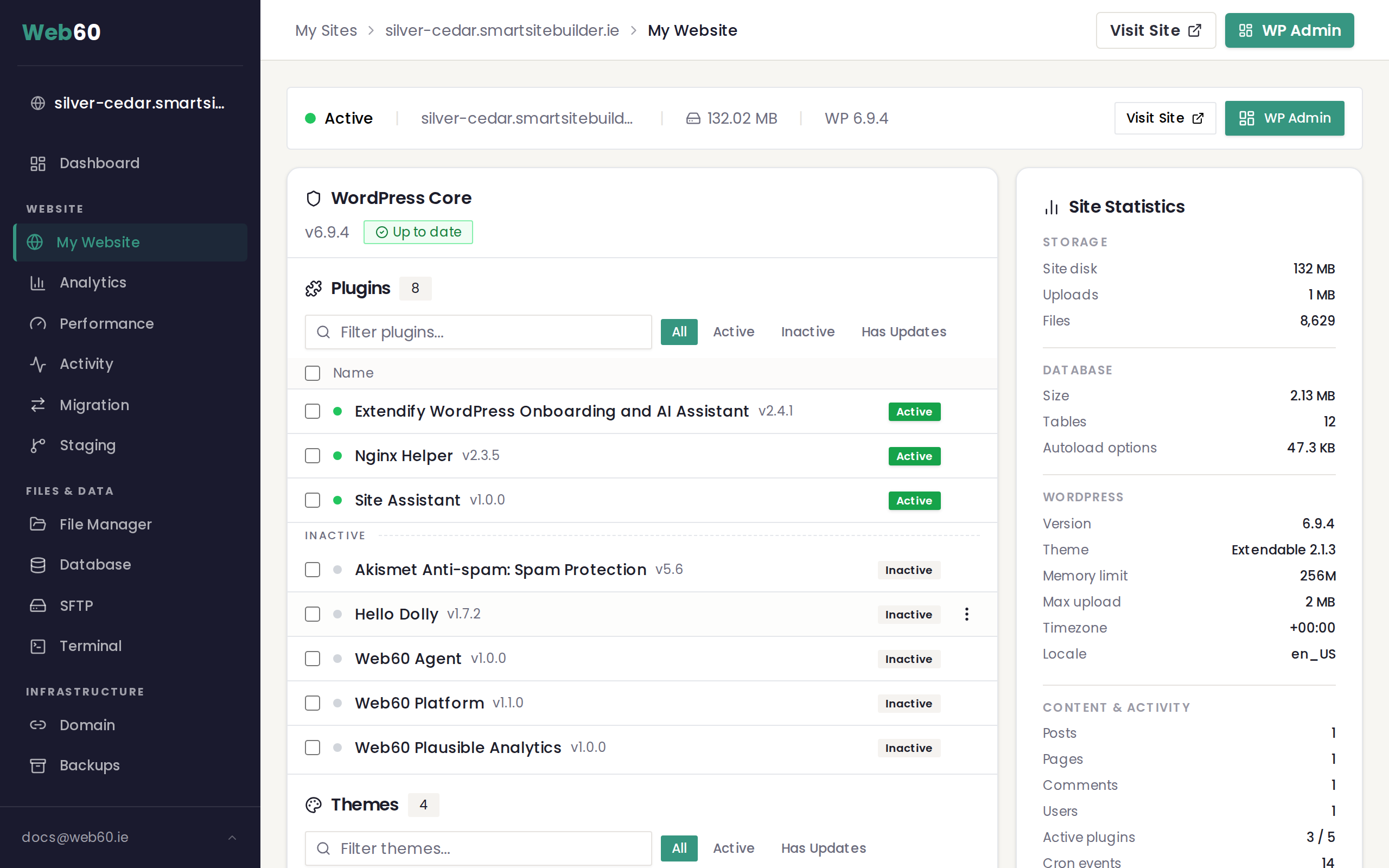
The autoloaded data warning appears in your Web60 dashboard under My Website in the Site Stats section. It triggers when your autoloaded data exceeds 500 KB.
What is autoloaded data?
Every time someone visits a page on your website, a set of essential settings is loaded from your database. This includes your website name, your active theme, plugin configurations, and many other options.
Normally this data is small and loads quickly. But over time, plugins can add their own data to this set, making it larger and larger. When it gets too big, every page on your website takes longer to load because all of this data must be read before the page can be displayed.
What causes it to grow?
The most common causes of high autoloaded data are:
- Plugins storing large amounts of data. Some plugins save logs, usage statistics, or internal caches that grow over time.
- Unused plugins leaving data behind. Even after you deactivate and delete a plugin, it may leave its stored data in your database.
- Themes with built-in analytics or tracking. Some themes save visitor data directly in the database.
How to reduce it
Step 1: Remove plugins you are not using
Every plugin you remove reduces the amount of data stored in your database. Go through your installed plugins and remove any you no longer need.
- Sign in to your Web60 dashboard at app.web60.ie/login.
- Click Open WordPress from the My Website section.
- Go to Plugins in the sidebar.
- Deactivate and delete any plugins you are not using.
Step 2: Run a database optimisation
Your Web60 dashboard includes a tool to clean up and optimise your database.
- Go to My Website in your Web60 dashboard.
- Find the Optimise Database option.
- Run the optimisation.
This removes leftover data from deleted plugins and cleans up temporary entries.
Step 3: Identify the source
If the warning persists, think about which plugins you installed most recently. Try deactivating them one at a time and checking whether the autoloaded data drops. This can help you identify which plugin is responsible.
When to contact support
If you have removed unused plugins and run a database optimisation but your autoloaded data is still above 500 KB, our support team can investigate further. We can look at exactly which entries are taking up the most space and help you resolve the issue.
Need help?
If you need assistance reducing your autoloaded data, visit our support page and we will help you get it sorted.
Frequently asked questions
What is autoloaded data?
Autoloaded data is a collection of settings and information that your website loads into memory every time a page is viewed. It includes things like your site name, active theme, and plugin settings. When too much data is autoloaded, it slows down every page on your website.
What causes high autoload data?
The most common cause is plugins storing large amounts of data in the autoload table. Some plugins save logs, statistics, or cached data that grows over time. Removing unused plugins and running a database optimisation can help bring the number down.
Is 500 KB of autoloaded data a problem?
Values under 500 KB are generally fine. When autoloaded data exceeds 500 KB, your Web60 dashboard shows a warning because it can start to affect page load times. The higher the number, the more noticeable the slowdown.
Last updated: 16 March 2026